25
The choices and their settings are as follows:
Feature U.S. Nautical Metric
Depth/Range Feet Fathoms Meters
(Ft.) (Fa) (M)
Water Temp. F F C
(ºF) (ºF) (ºC)
Boat Speed Mi./Hr. Knots Knots
(MPH) (KT) (KT)
Distance Log Miles Naut. Mi Naut.Mi
(Mi) (NMi) (NMi)
Nav. Track Plot Miles Naut. Mi Naut.Mi
(Mi) (NMi) (NMi)
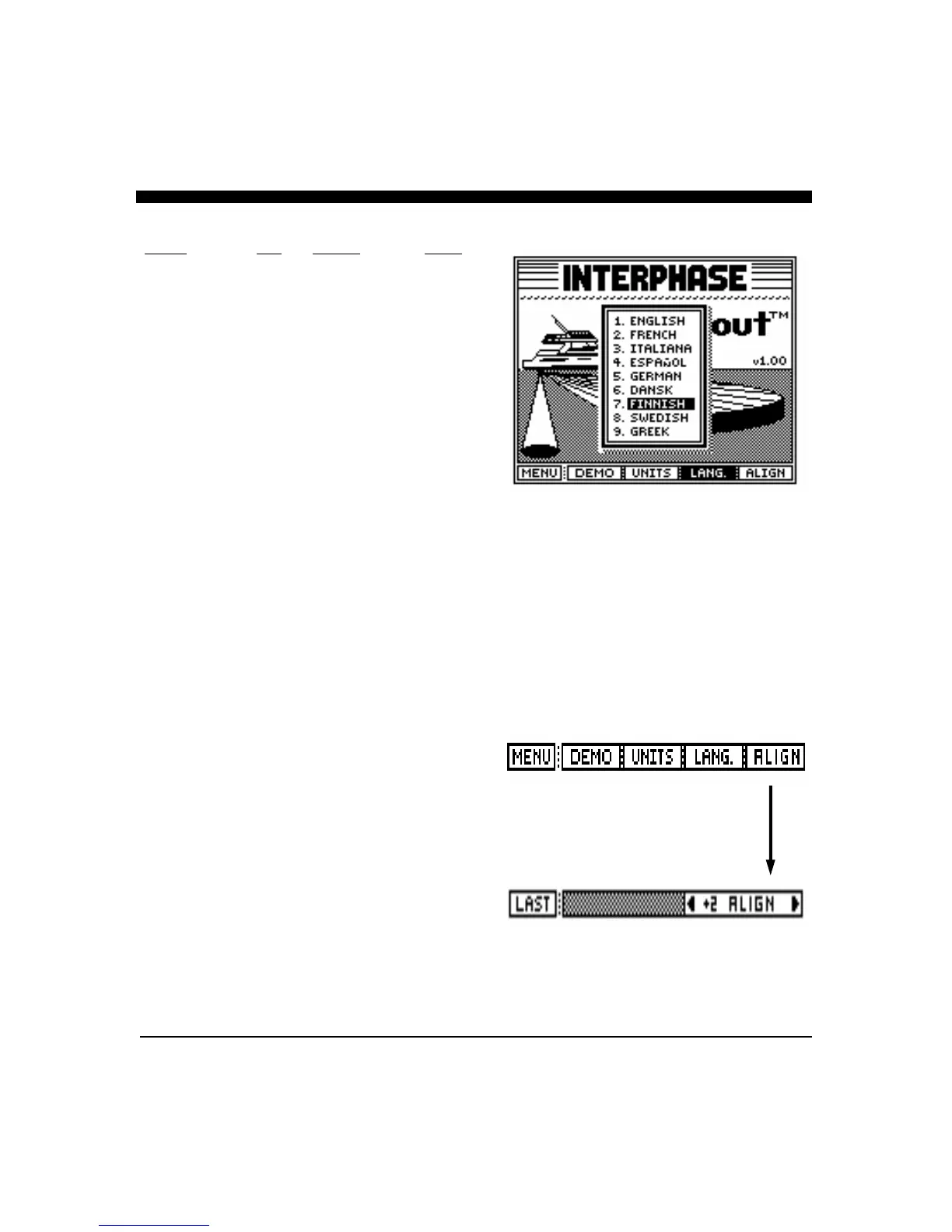
Select Menu Language
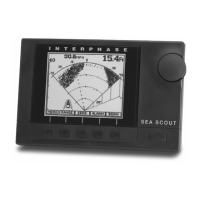
The Sea Scout allows the selection of 9 operating
languages; English, French, Italian, Spanish, German,
Danish, Finnish, Swedish and Greek may be chosen. To
select the operating language, press the button labeled
“LANG”. A display window as shown at right will pop up
on the screen showing the available languages and the one
currently selected. Use the large front panel knob labeled
“BEAM” to change (highlight) the language selection.
Once selected, press any key to save your selection and
exit.
Transducer Alignment
The Sea Scout includes a feature that will allow you to
compensate for some transducer installation problems
where the transducer is not pointing straight forward but
instead points off to the right or left of the boat. By
pressing the softkey labeled “ALIGN” an alignment sub-
menu appears that shows arrows to the right and left. This
adjustment will force the unit to move the center point of
its horizontal scan up to 15 degrees to the left or the right.
The number in the softkey indicates the number of degrees
of offset from center with negative numbers indicating the
number of degrees offset to the left and positive numbers
refer to offset to the right. A zero number in the softkey
indicates that the Sea Scout is not using any offset. If you
feel you need to adjust the transducer alignment left or
right, point the boat toward a piling or other small object
and then adjust the alignment until the object appears in
the center of the screen. Use either the softkeys or the
“BEAM” knob to adjust.


 To Next Page