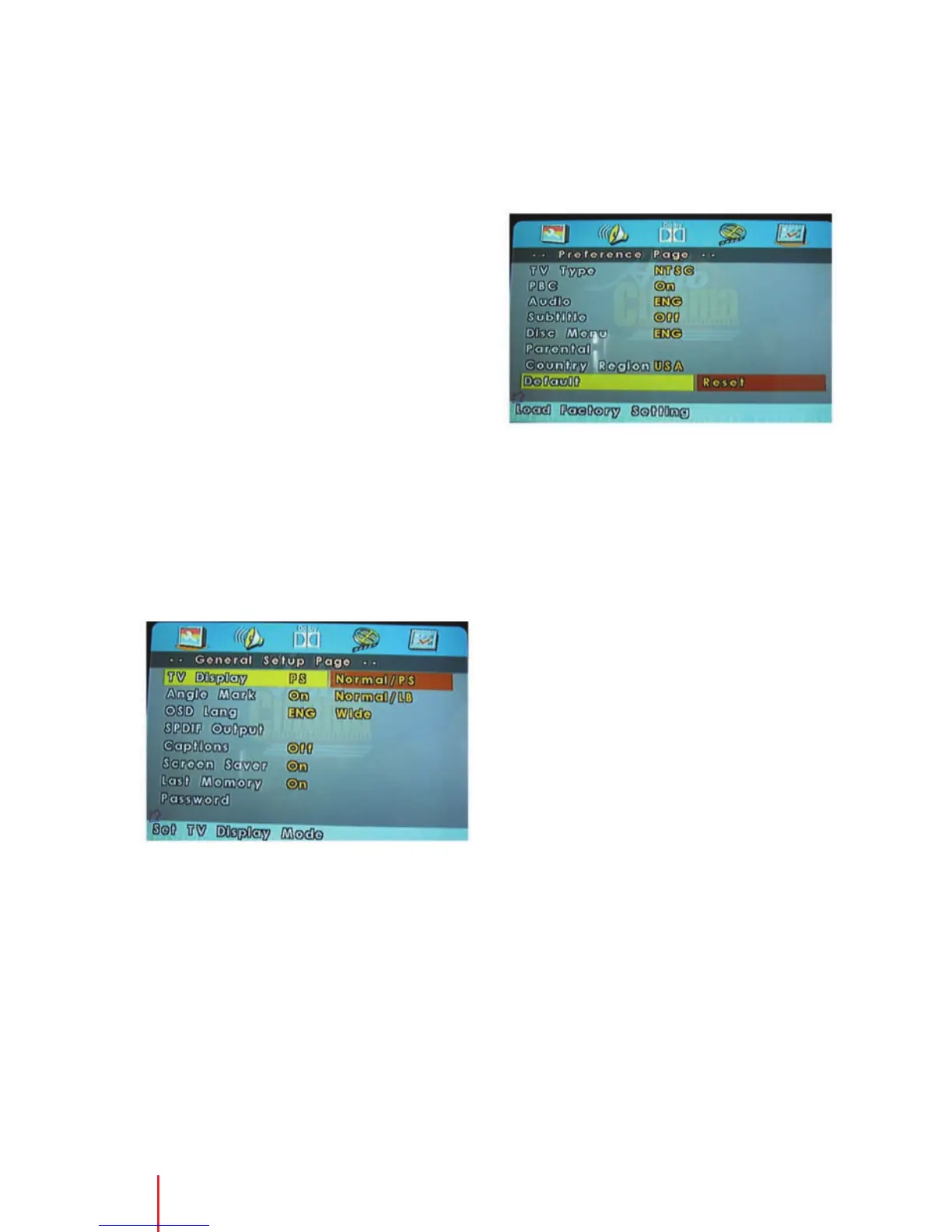
This section describes how to set and adjust
settings using the on-screen setup pages
included in the OSD Menu. You can use the
OSD menu screen to adjust all the settings on
your screen. Follow the steps outlined below
to select the function you desire, and refer to
the pages indicated for more information.
Using the Setup Menu
Using the setup display, you can do the initial
setup, adjust the picture quality, and set the
various output. You can also set a language for
the on-screen display, the setup display, and
limit playback by children.
1. Press the SETUP button on the remote
control to bring up the following Setup
Menu on screen.
2. Press the
or buttons to select the
desired page on screen, choose
functions or change settings.
To Cancel using the Setup Display
Press the SETUP button on the remote
control.
General Setup Page
Setting the Language for
On-Screen Display
Press the SETUP button on the remote control,
use the
buttons to navigate to the
General Setup Page, and then use the
buttons to select OSD Lang sub-menu.
OSD (On Screen Display)
Language Menu
The OSD Lang sub-menu allows the user to
select the language for the on-screen display.
Press the
button and then use the
buttons on the remote control to select the
desired language. The user can select English,
French, or Spanish for the OSD language.
Setting the Display
Press the SETUP button on the remote control,
use the
buttons to navigate to the
General Setup Page, and then use the
button to select TV Display sub-menu. The
setup allows you to adjust the screen aspect
ratio. Press the
button, and then use the
buttons
to select the appropriate setting.
The options are as follows:
Normal/PS (Pan and Scan)
This displays the wide picture on the screen
with a portion of the left and right sides
removed.
How to use the DVD OSD Menu
18 How to use the DVD OSD Menu



 To Next Page