Connecting a USB Device to your G10 Unit
You can connect a USB (v1.1) mass storage
class device such as a USB memory stick, digital
audio player (USB mass storage class device)
etc. to the USB port of the G10 unit.
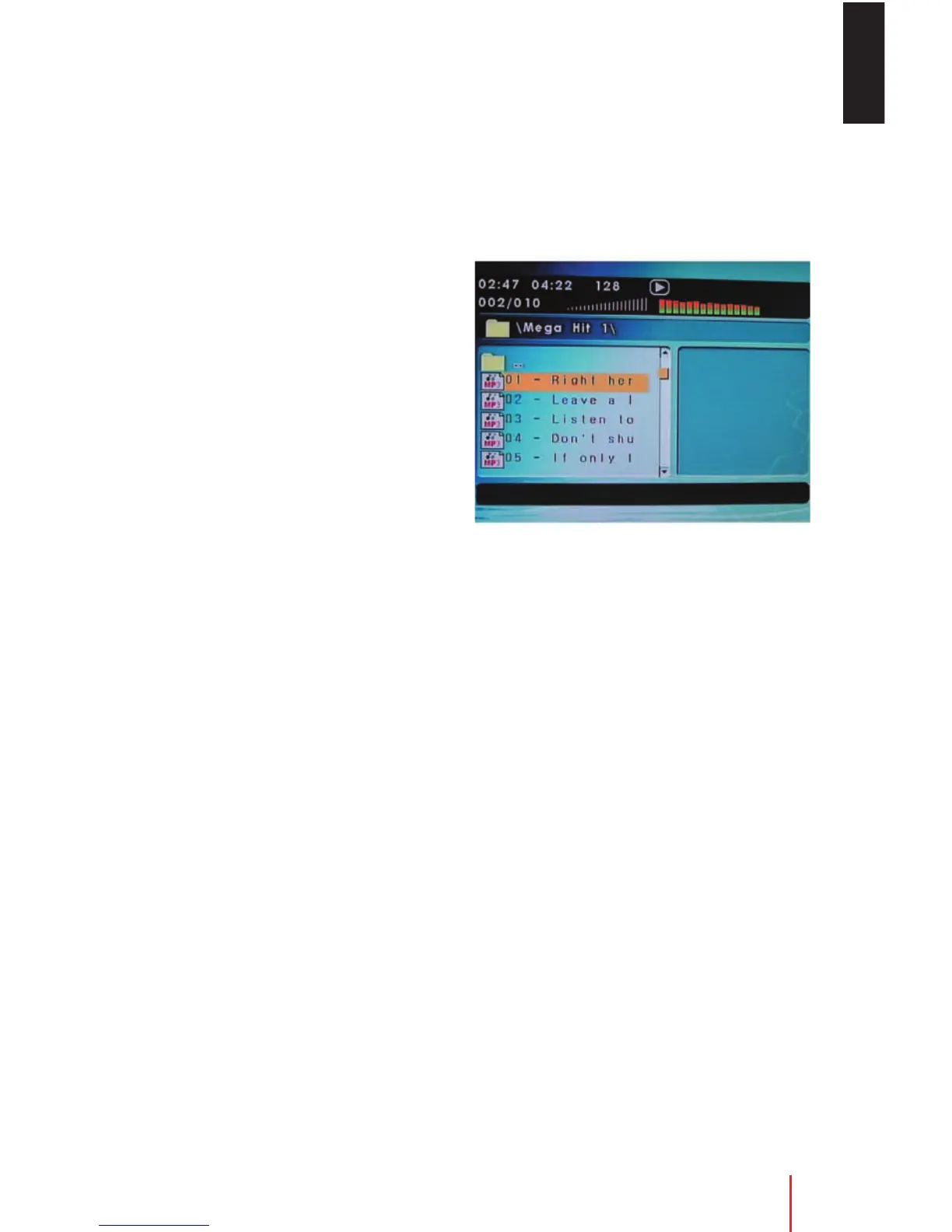
Selecting Folders and Files
When an USB device is inserted in the port, the
navigation screen appears automatically unless
the contained file has auto play; such as a movie.
Then you must hit stop on the remote to receive
the navigation screen. You can change folders
and files through navigating the file system.
1. If a file is playing, press STOP. Press the UP or
DOWN arrow button to go through the folder
list on the left side of the navigation screen.
2. Once the folder you want is highlighted, press
ENTER.
3. Press the UP or DOWN arrow button going
through the file list and highlight the file you
want. Press ENTER to select the highlighted file.
4. If a picture file is selected you may hit the STOP
button on the remote to show the thumbnails
and options list. A thumbnail may be selected
and viewed full screen or select on of the
following: Slideshow-displays thumbnails full
screen size at random. Menu-displays a list of
picture functions. Or you may choose the
previous or next option which allows you to
view the previous or next thumbnail page.
EN
Connecting a USB Device
Connecting a USB Device 23



 To Next Page