For technical assistance call
5
NA / LATAM // 704.752.6513
•
888.55.INVUE
EMEA // +31.23.8900150
APAC // +852.3127.6811
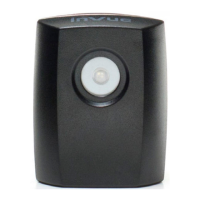
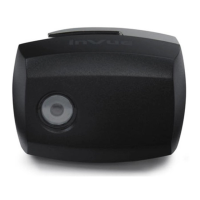
LIVE Cam Lock LL301
27a27a
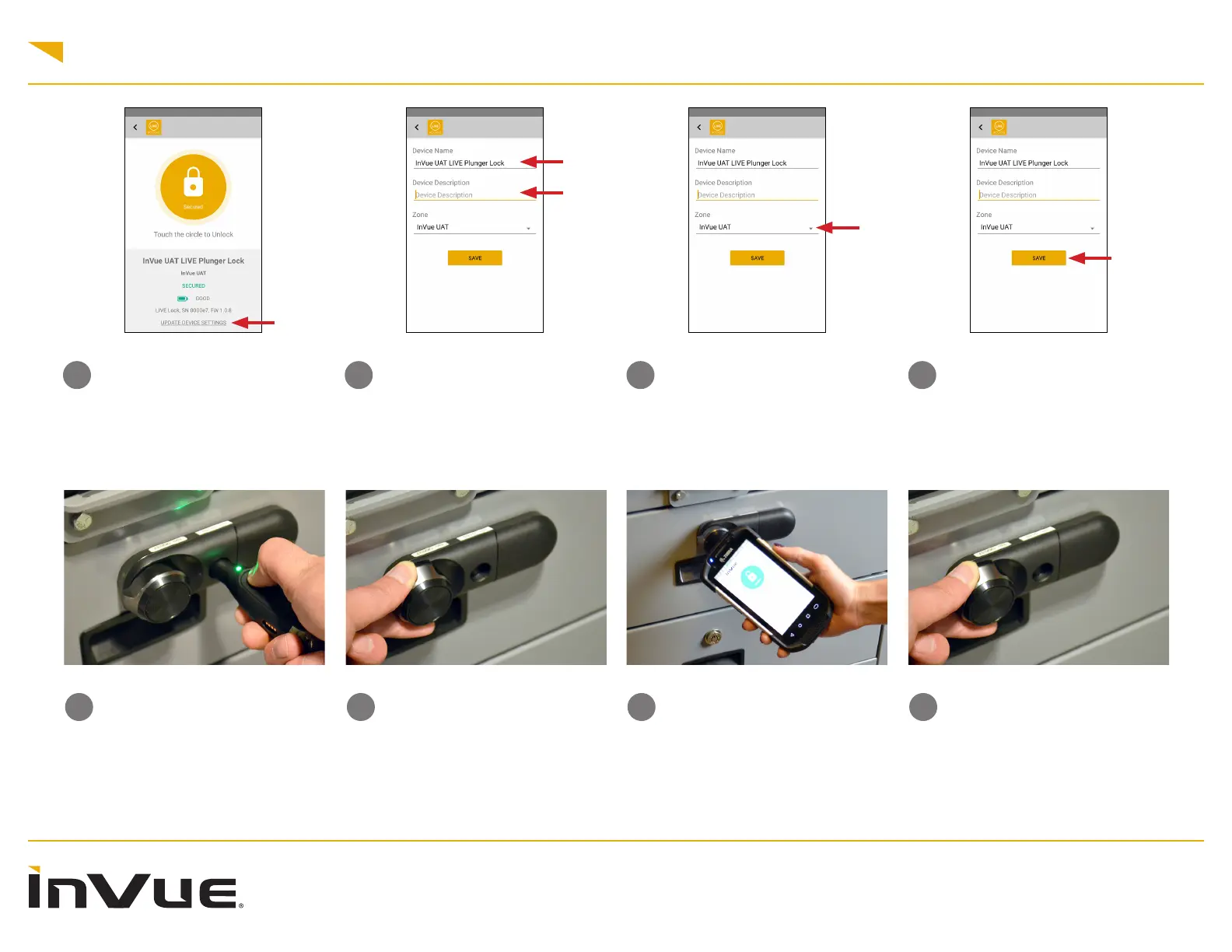
Lock Activation Using NFC:
Open the InVue LIVE Access App
on your smart device. Tap your
device against the round panel on
the lock. Once conrmed by the
App displaying “unlocked” and the
LED ashing green.
26b26b
You will have several seconds to
turn the knob to unlock and open.
If the LED on the lock ashes red
before the lock is opened, it will
need to be unlocked again.
27b27b
You will have several seconds to
turn the knob to unlock and open.
If the LED on the lock ashes red
before the lock is opened, it will
need to be unlocked again.
26a26a
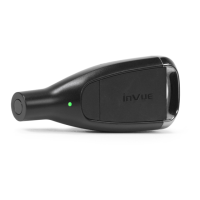
Lock Activation Using OneKEY:
Place a charged and coded
OneKEY against the lens on the
lock and press the button the Key.
The LED on the Key and the lock
will ash green.
25
Click “Save” once the lock
description elds have been lled
out.
24
Assign the device to the
appropriate Zone in your store or
site.
Note: Zones are created in Access
Manager
23
Rename the device and enter an
optional description if desired.
22
Click on the “Update Device
Settings” link to modify the Device
Name, Description, or Zone to
complete the enrollment.
Note: You must have the “Manage
Devices” permission to see and
access this link.



 To Next Page