- 24 -
The Firmware Upgrade Utility
The Windows-based Firmware Upgrade Utility (FWUpgrade.exe) provides a smooth, automated process for upgrading
theKVMswitch’srmware.
TheUtilitycomesaspartofaFirmwareUpgradePackagethatisspecicforeachdevice.Newrmwareupgrade
packagesarepostedonourwebsiteasnewrmwarerevisionsbecomeavailable.Checkthewebsiteregularlytond
the latest packages and information relating to them:
http://www.iogear.com
Before you Begin
Toprepareforthermwareupgrade,dothefollowing:
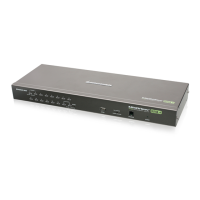
1. From a computer that is not part of your KVM installation, go to our IOGEAR support site and select the product part
number (GCS1722 or GCS1724) to get a list of available Firmware Upgrade Packages.
2. Choose the Firmware Upgrade Package you want to install (usually the most recent), and download it to your
computer.
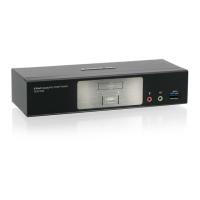
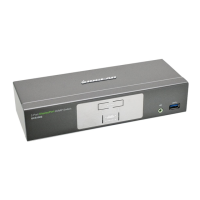
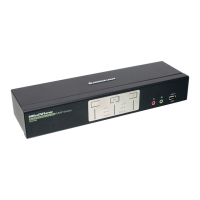
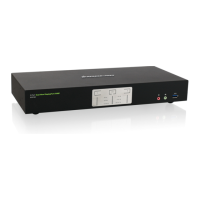
3. Disconnect the GCS1722 / GCS1724 from your KVM installation and power it off. Connect one of the custom KVM
cable set’s Type A USB connectors to a USB hub port on your computer.
4. At the other end of the custom KVM cable set, connect the SPHD connector to the Port 1 KVM section.
5. InvokeFirmwareUpgradeMode(seeFirmwareUpgradeMode,page19).ThefrontpanelLEDsashtoindicatethat
Firmware Upgrade Mode is in effect.


 To Next Page