6
Pairing a Bluetooth Device
1. Turn on your Bluetooth device.
2. Power on Pickup
TM
. If you have previously connected to another Bluetooth device,
Pickup
TM
will reconnect. To disconnect pairing if the Bluetooth icon is lit solid, press and
release the Bluetooth button.
3. Navigate to your Bluetooth device’s setup screen, find “Pickup” and connect.
Note: If your Bluetooth device prompts for a pairing code, enter “0000”.
4. To disconnect pairing while the Bluetooth icon is lit solid, press and release the Bluetooth
button.
5. To connect to another Bluetooth device, repeat step 3.
Note: Maximum range will be achieved when using devices with Bluetooth 4.0 or higher.
Pairing a Bluetooth Device Using NFC
NFC (near-field communication) allows data exchange from devices, such as pairing, by gently
bumping them together. Check in your device’s manual to see if this feature is supported.
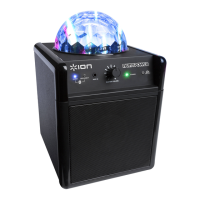
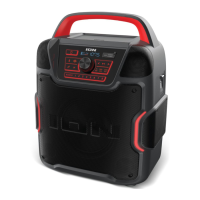
To use NFC to pair with Pickup
TM
:
1. In order to use NFC, your device must be turned on and unlocked.
2. Enter your device’s Settings menu and check that NFC is turned On (one-time step).
3. Power on Pickup
TM
.
4. Touch and briefly hold your device to the NFC logo.
5. Follow the pairing instructions that appear on your phone. If a passcode is required, enter
“0000”.
6. To unpair, gently bump your device against the NFC logo located on Pickup
TM
’s top panel.


 To Next Page