The&Basics&
Turning&On&or&Off&
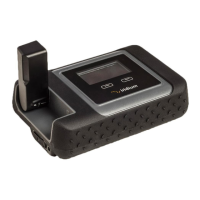
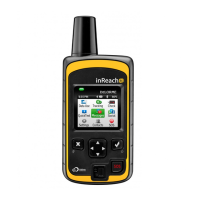
To turn the inReach Explorer on, press and hold the Power/Enter button for 1.5
seconds. When the Power On screen appears, use the arrows on the directional pad to
select Power On, then press the Power/Enter button again. Note that this sequence must
be done in 5 seconds or the device turns back off.
To turn the inReach Explorer off, press and hold the Power/Enter button for 1.5
seconds. When the Power Off screen appears, use the arrows on the directional pad to
select Power Off, then press the Power/Enter button again. This sequence must also be
done in 5 seconds or the device remains on.
Charging&
The status light will flash red when the inReach Explorer is running low on
battery power (below 10%). Lift the protective cover on the side to access the micro-USB
port. Connect the inReach Explorer to the USB cable then to a USB port on your
computer or plug the cable into the AC adapter to charge from an electrical outlet. A
lightning bolt icon will appear on the upper right hand corner of the screen letting you
know the device is connected to external power. A charging percentage will also appear
letting you know how full the battery is. When the battery reaches 100% the lightning
bolt will change to a plug icon to indicate that the device is running on external power.
Once fully charged, the inReach Explorer has approximately 100 hours of battery
life. This time approximation can change depending on several factors including: the
inReach Explorer having a clear view of the sky, frequency of logging and sending track
points, frequency of sending or receiving messages, display brightness, Bluetooth status,
etc.
Note: An exclamation point (!) will appear next to the battery percentage if you
are attempting to charge the inReach Explorer outside the supported temperature range
(32
o
F to 86
o
F). The inReach Explorer will need to cool down or warm up in order to be
charged.
Unlocking&and&Locking&the&Screen&
When the inReach Explorer is on, the screen will automatically lock after 30
seconds of no activity in order to preserve power and prevent accidental button presses.
To unlock the screen, press the Power/Enter button, use the directional arrows to select
Unlock, then press the Power/Enter button again. This sequence must be done within 5
seconds or the screen remains locked. To lock the screen manually, press and hold the
Power/Enter button for three seconds, then use the directional arrows to select Lock
Screen, then press the Power/Enter button again.
You can change the timing or completely shut off the auto-lock feature by
navigating to Settings > Display > Display Timer, then by using the arrows on the


 To Next Page