directional pad to change the time. It is recommended that the screen lock remain on to
prevent accidental button presses.
Navigating&the&Screen&
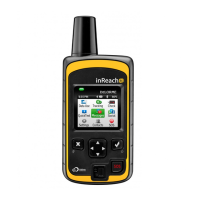
Use the arrows on the directional pad to scroll through and highlight the different
pages or options on the screen. To open a page or select an option, highlight it, and then
press the Power/Enter button. Press the Quit/Preset button to close a page or option.
Sounds&
The inReach Explorer will play a sound for various reasons including sending and
receiving messages, announcing critical alerts, and powering off the device. To change
what sound is played for the various reasons go to Settings > Sounds. You can also mute
the sounds by going to Setting > Sounds, or by pressing and holding the Power/Enter
button for three seconds, then using the directional arrows to select Mute Sound.
Change&the&Screen&Brightness&
To brighten or darken the screen, press and hold the Power/Enter button for three
seconds, then use the directional arrows to select Adjust Display Brightness. The
brightness can also be adjusted by going to Settings > Display.
Another way to change the screen brightness is to change the color scheme of the
screen. The color scheme can be changed by going to Settings > Display > choose Dark
Display to darken the screen or choose Light Display to lighten the screen.
Satellite&Connection&
The inReach Explorer requires a clear view of the sky to acquire a GPS signal and
transmit any data over the satellite network. For the best reception, attach the inReach
Explorer to a backpack shoulder strap or somewhere on the upper body. Note that the
status light will not tell you your connection to the satellite network. The green and red
colors are used to indicate battery power status or the status of any sent or received
messages.
Status&Bar&
The status bar is located at the very top of the screen and is used to review the
inReach Explorer activity. Some of these items may not appear, which means they must
be turned on. See below for turning on certain functions. Starting from the left and
moving right you will see:
• The current time.
• Quality of the GPS signal as indicated by a searching icon or the words 2D or 3D.
The searching icon means no location information is available, while 3D means
you have a high quality GPS signal.
• A double arrow icon will flash when the device is communicating with the
satellite network.
• An envelope icon will appear when you have unread messages. The number
beside the envelope indicates the total amount of unread messages you have.


 To Next Page