Need help?
Do you have a question about the iTOUCH 13941R-51-C12 and is the answer not in the manual?
Instructions and tips for charging your iTouch Connected Analog Smartwatch, including battery life and LED indicators.
Connect your iTouch Connected Analog Smartwatch to your smartphone using the iTouch Wearables app.
Learn how to navigate the analog clock face and digital screen features of your iTouch Connected.
Step-by-step guide on how to power your iTouch Connected Analog Smartwatch on and off.
Understand how to use the motion gesture to activate the watch screen and manage its settings.
How to receive and manage call, text, and app notifications from your smartphone on your watch.
Information on setting and receiving alarms on your iTouch Connected Analog Smartwatch.
Details on how your iTouch Connected tracks steps, calories, distance, and activity goals.
How to enable and use the sedentary reminder to encourage movement throughout the day.
Learn how your iTouch Connected automatically tracks sleep stages and how to view your sleep data.
Instructions on measuring and viewing your heart rate, including important medical use disclaimers.
How to measure blood oxygen saturation (SpO2) and view data, with crucial medical disclaimers.
Track workout stats, recap, and route information using your smartwatch and connected GPS.
Utilize features like Camera Remote to control your phone's camera from your smartwatch.
Explore settings like Find Device, Language, Do Not Disturb, Time/Unit Format, and Wrist Rotation.
Guide to updating your smartwatch firmware via the iTOUCH Wearables app.
Steps to restart your iTouch Connected smartwatch to resolve syncing or tracking issues.
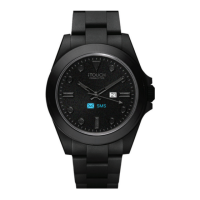
The iTouch Connected Analog Smartwatch is a hybrid device that blends the classic aesthetic of an analog watch with the smart features of a modern wearable. It's designed to keep users informed and connected without sacrificing the traditional watch experience. The device requires a smartphone (iPhone or Android) and the iTouch Wearables app for full functionality, including call, text, and app notifications.
The iTouch Connected serves as a personal activity tracker, sleep monitor, and notification hub, all integrated into a stylish analog watch face with a digital screen. It continuously tracks various stats, including steps taken, calories burned, distance covered, and active minutes. Users can set daily step goals, and the smartwatch will vibrate and display a celebratory badge upon achievement. The device also monitors heart rate and blood oxygen saturation (SpO2%), providing real-time measurements directly on the watch and detailed historical data in the accompanying app. For sleep tracking, it automatically records time asleep and sleep stages (restful, light, and awake), allowing users to view their sleep metrics and history.
Notification and messaging capabilities are central to the iTouch Connected. It displays call, text, social media, and app notifications from a paired smartphone. When a new, unread notification arrives, the LED indicator on the device blinks green. If the notification remains unchecked for 15 minutes, the LED light will stop flashing. The smartwatch vibrates to alert the user of incoming notifications. Users have control over which notifications they receive and can mute all notifications by enabling "Do Not Disturb" mode through the app.
Timekeeping functions include the ability to set up to three vibrating alarms via the iTouch Wearables app, which can be configured to occur once or on multiple days of the week. The watch also features a sedentary reminder, which can be enabled to prompt users to move during specific hours. For fitness enthusiasts, the Connected GPS feature leverages the smartphone's GPS sensors to track workout routes, total distance, steps, and calories burned during activities like running.
Beyond health and fitness, the iTouch Connected offers remote control features. It can act as a camera remote for a paired smartphone, allowing users to snap photos by tapping and holding a specific area on the watch face or by rotating their wrist if the "Activate Display After Wrist Rotation" feature is enabled.
Navigating the iTouch Connected is intuitive. The device features an analog clock face with a digital screen. Users can tap anywhere between the 2-3 o'clock area on the watch to cycle through its various features, such as steps, calories, heart rate, and blood oxygen. Tapping and holding this same area allows for control of specific features, including initiating heart rate or blood oxygen measurements, and powering the device on or off.
To power on the smartwatch, users tap and hold the 2-3 o'clock area for 3-5 seconds until the watch vibrates and the LED indicator briefly turns green. To power off, users navigate to the power icon screen by tapping the 2-3 o'clock area, then tap and hold on the power icon to fully shut down the device.
The "Motion Gesture" feature enhances usability by allowing the watch screen to turn on with a rotation of the wrist. This feature can be customized within the app, where users can set specific active times or choose to have it always on.
The iTouch Wearables app is the central hub for managing and customizing the smartwatch. It allows users to:
The app also provides a comprehensive view of all tracked data, including steps, miles, calories burned, activity duration, sleep data (restful, light, awake), heart rate trends, and blood oxygen measurements. Users can review their exercise history, set personal health and fitness goals, and track their progress over time.
Charging the iTouch Connected is straightforward. The device comes with a clip-in charging cable. Users plug the cable into a USB port (computer or UL-certified USB wall charger) and place the watch into the charging dock. A battery icon appears on the screen, and the LED indicator on the device shows a steady red light during charging. Once fully charged, the LED indicator turns green. A blinking red LED indicates the device needs charging. A full charge typically takes 1-2 hours and provides up to 10 days of battery life in standby mode, though actual battery life varies with usage. It's important to remove any plastic protector films from the case-back and heart rate sensor before charging.
The iTouch Connected is designed for daily wear, and proper care is essential for both the device and skin health. The manufacturer recommends the following cleaning and care tips:
For users with allergies, asthma, or eczema, who may be more prone to skin irritation from wearable devices, it's advised to remove the device if irritation or redness occurs. Consulting a dermatologist is recommended if symptoms persist after 2-3 days of not using the device.
Firmware updates are managed through the iTouch Wearables app. Users will receive a pop-up notification when a new update is available. The update process is initiated from the "Update Firmware" section in the app, and the smartwatch must remain within Bluetooth range of the phone during the update. After a successful update, the watch automatically resets.
If the smartwatch experiences syncing issues, problems with Connected GPS, or activity tracking, a restart can often resolve these. To restart, users navigate to the power icon screen on the watch, then tap and hold the 2-3 o'clock area to power it off. After waiting 2 full minutes, they can tap and hold the same area to turn it back on.


 To Next Page
 General