Apps and Features
Timekeeping
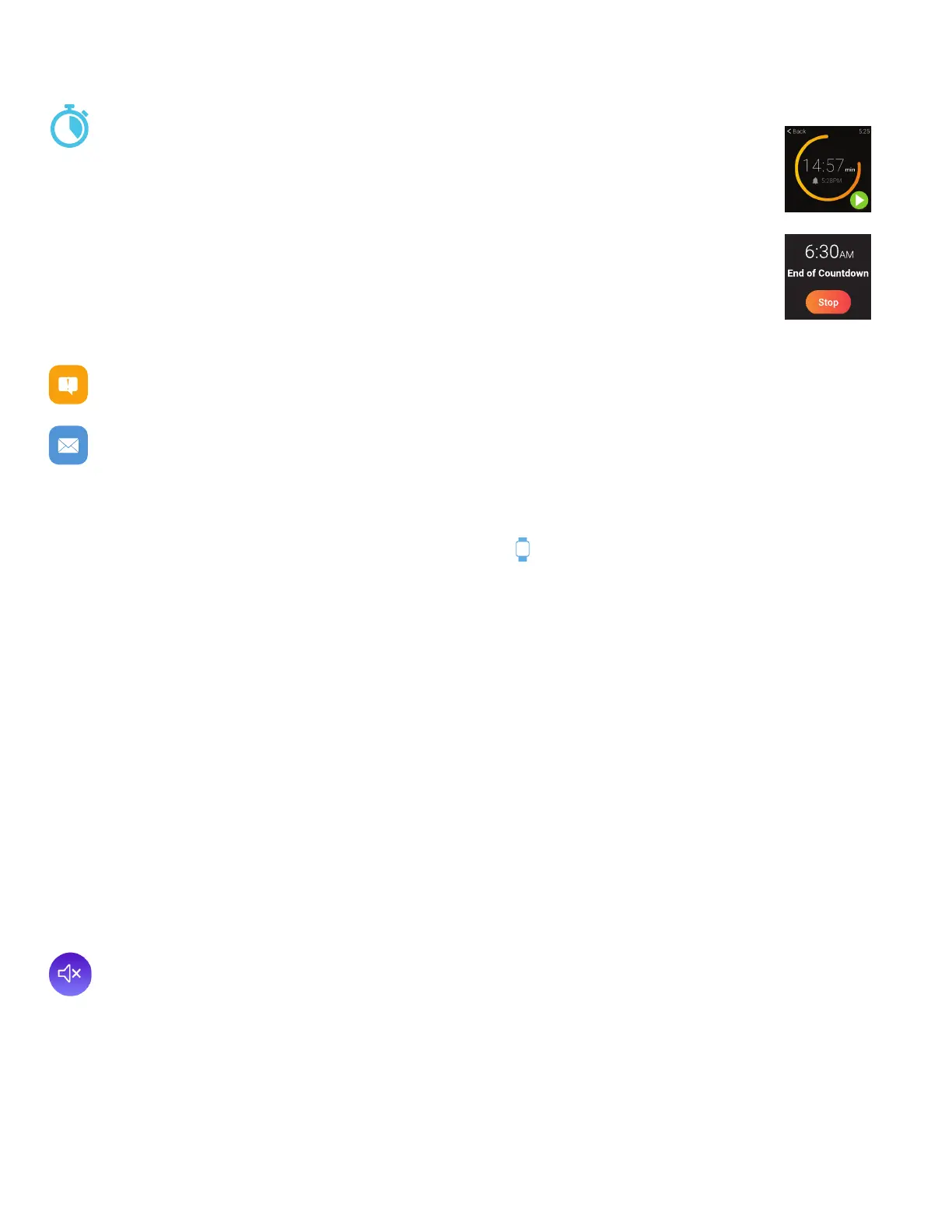
You can also time events with the countdown timer found in the Clock app on your iTouch
Air 3 device. Tap the Countdown timer found in the Clock app. Swipe up and down to see
the different countdown times you can choose from. Tap on your desired time frame and
then you will be taken to the countdown timer screen, tap the green play button to begin.
Unlike the stopwatch function, this feature works whether you’re in the countdown func-
tion or not. So you can enjoy your iTouch Air 3 Smartwatch normally while this feature is
still working. Once the countdown timer is complete, you will get a notification reminder
of this on your watch and the watch will begin to vibrate (similar to if you received an
alarm on your device). Tap ‘Stop’ on this notification on your watch to close it.
Notications & Messaging
iTouch Air 3 can display call, text, social media, and app notifications from your smartphone to keep
you informed. The smartwatch and phone device must be within Bluetooth range of each other to
receive such notifications.
Set Up Notifications: Check that the Bluetooth on your phone is on and that your phone can receive
notifications (often under Settings > Notifications). Then set up notifications:
1. From the iTOUCH Wearables app navigation bar, tap then, go to Notifications.
2. From Notifications, you may select the notifications you wish to receive on your smartwatch.
Note: Notification permissions differ between iOS and Android users. Go to Set up with your smart-
phone in the manual for more information.
Viewing Incoming Notifications: When your iTouch Air 3 and smartphone are within range, notifica-
tions cause the smartwatch to vibrate. If you don’t read the notification when it arrives, you can check
it later by navigating to Messages on your smartwatch.
To view unopened messages and notifications on your iTouch Air 3, swipe to the Messages screen and
tap to open. Select any notification you see and then swipe from right to left on your watch to read
through the notification. Tap the back button to return to the main messaging screen that shows your 3
most recent notifications.
Shortcut: Swipe up from the bottom of the screen on the main clock face screen to view notifications.
Manage Notifications: iTouch Air 3 stores up to 3 notifications, after which the oldest are replaced as
you receive new ones.
Turn off Notifications: Turn off all or certain notifications with the iTOUCH Wearables app from Notifi-
cations in the device settings. You can mute all notifications by turning on Do Not Disturb mode. Learn
more about the Do Not Disturb function in the Additional Features section of the manual.
*Note for Android Users* The ‘Other’ function was created to help provide support for notifications
you want to receive on your watch that support hasn’t been built for directly. However, we strongly
recommend that Android users keep this setting off. Android devices display nearly everything in their
notification section (screen shots, percentage of charge, when a song is changed or etc). Due to this,
while other is on, you will get notifications about these aspects as well.



 To Next Page