www.itrackgpstrackers.com 17
7. Instructions for iTrack Live GPS Tracking Platform
You will need to register an account on our tracking platform before you can use live tracking
via the website or mobile app. The account username and password are the same for both the
website and the app login.
7.1. Instructions for web platform
You will need to create a user account on iTrack Live before using the tracker in GPRS
real-time mode (live tracking).
Please visit
www.itrackgpstrackers.com and click the ‘iTrack Live Login’ link in the top
right corner of the page or go directly to www.itracklivetracking.com. Here you will be
able to create a new user account. The username and password on the online platform
will be the same for the mobile iOS/Android App so please make a note and keep it safe.
Adding your device to the platform
You now you need to add your tracker to the iTrack Live GPS Tracking Platform – you
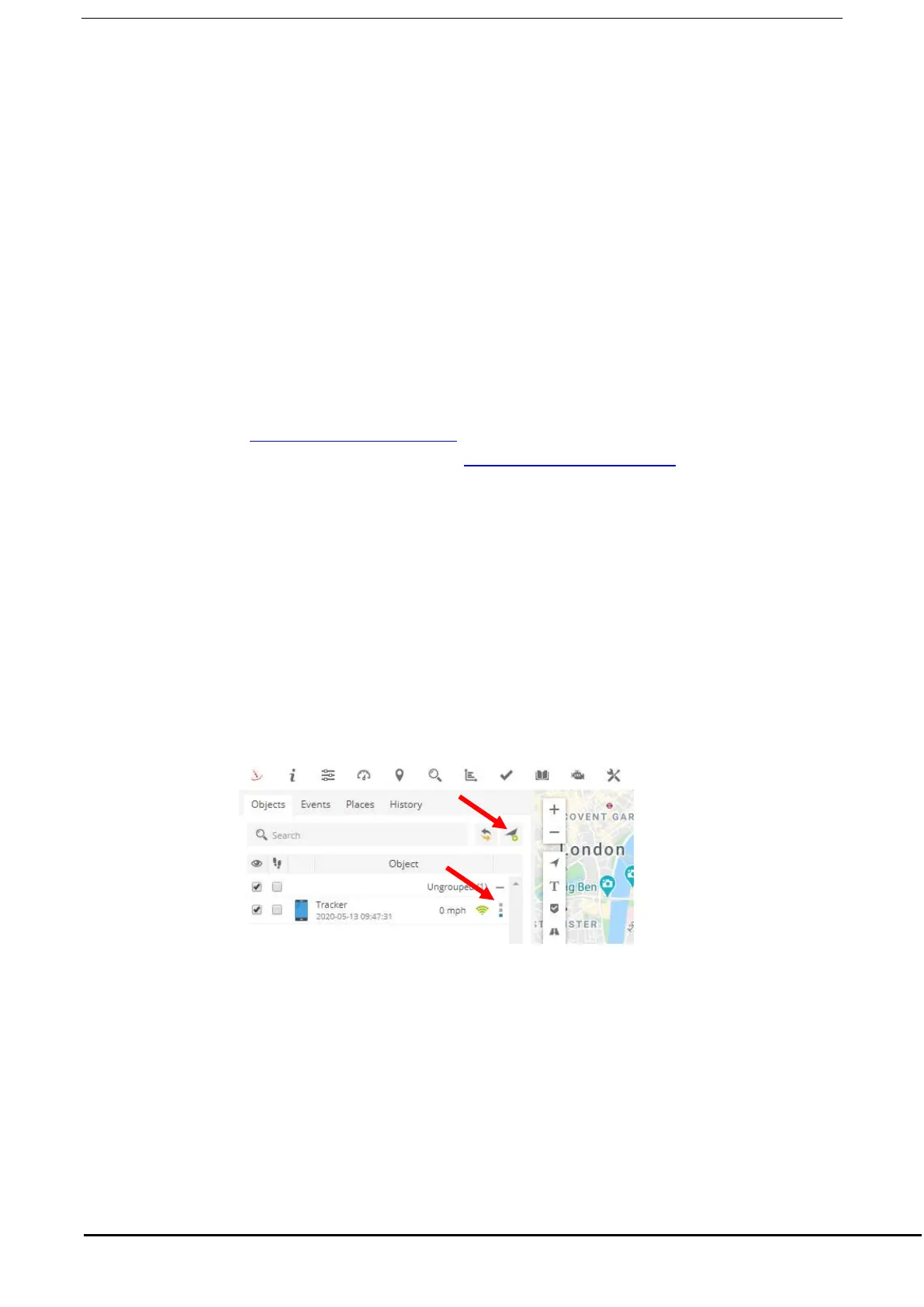
can add multiple trackers. From the control panel on the left hand side click the arrow
icon with the green’+’ sign as shown below. You will need the IMEI number of the
tracker which can be found on a sticker in the battery compartment (alternatively send the
SMS command imei123456 and the device will send the IMEI via SMS).
Once the ‘object’ is added you can then click the three small dots to control the tracker.
Once you have added the tracker to the object list you can now begin to control the monitor
and control the tracker. When the device is online the signal icon will turn green – if the
icon is grey this means the tracker is offline or has no GPRS reception.
GPRS settings must be configured before the tracker will show online (see section 5.19).
You will now be able to use the iTrack Live GPS Tracking Platform and all of its features.


 To Next Page