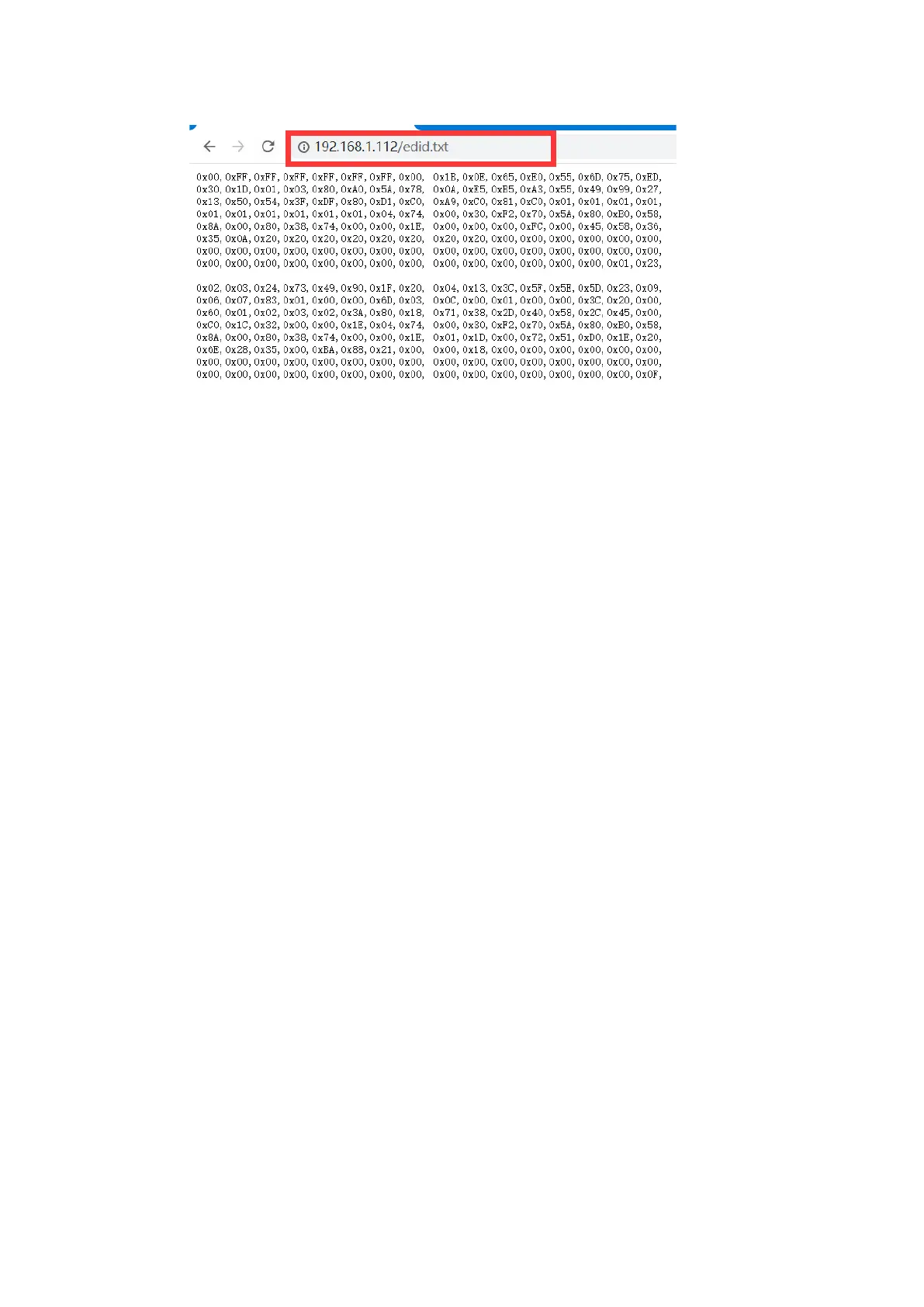
Ø View HDMI Output EDID: To view the HDMI output device’s EDID
information, enter the encoder's IP address + /loop_edid.txt in a web browser
(example: http://192.168.1.112/loop_edid.txt)
Download the HDMI Output EDID: Enter the device's IP address +
/loop_edid.bin in a web browser’s address bar and you will download the HDMI
Output EDID information in a .bin file.
NOTE:(1) In order to successfully download an HDMI Output EDID file, the
corresponding display device must be powered on, set to the correct HDMI input
connected to the HDMI output port of the encoder.
(2) If the device is upgraded to a downloaded EDID file, it may cause the picture not
to be shown in the device if the signal conflicts with the new EDID file.
(3) If you are experiencing signal issues after upgrading the EDID file, restore
factory settings on the device.
● LOGO upgrade:
Ø Select "LOGO" from the drop-down menu
Ø Click the ‘Browse’ button to locate the logo file to be used. After selecting the
file, click the ‘Upgrade’ button to apply the logo update
6) Factory Default Reset
● After confirming you’d like to restore the encoder to factory default settings, pressing
the ‘Factory Default’ button in the ‘System Operation” section of the ‘System’ tab, will
restore factory Settings and all parameters will be restored to the original state.


 To Next Page