English
2. Hardware Installation
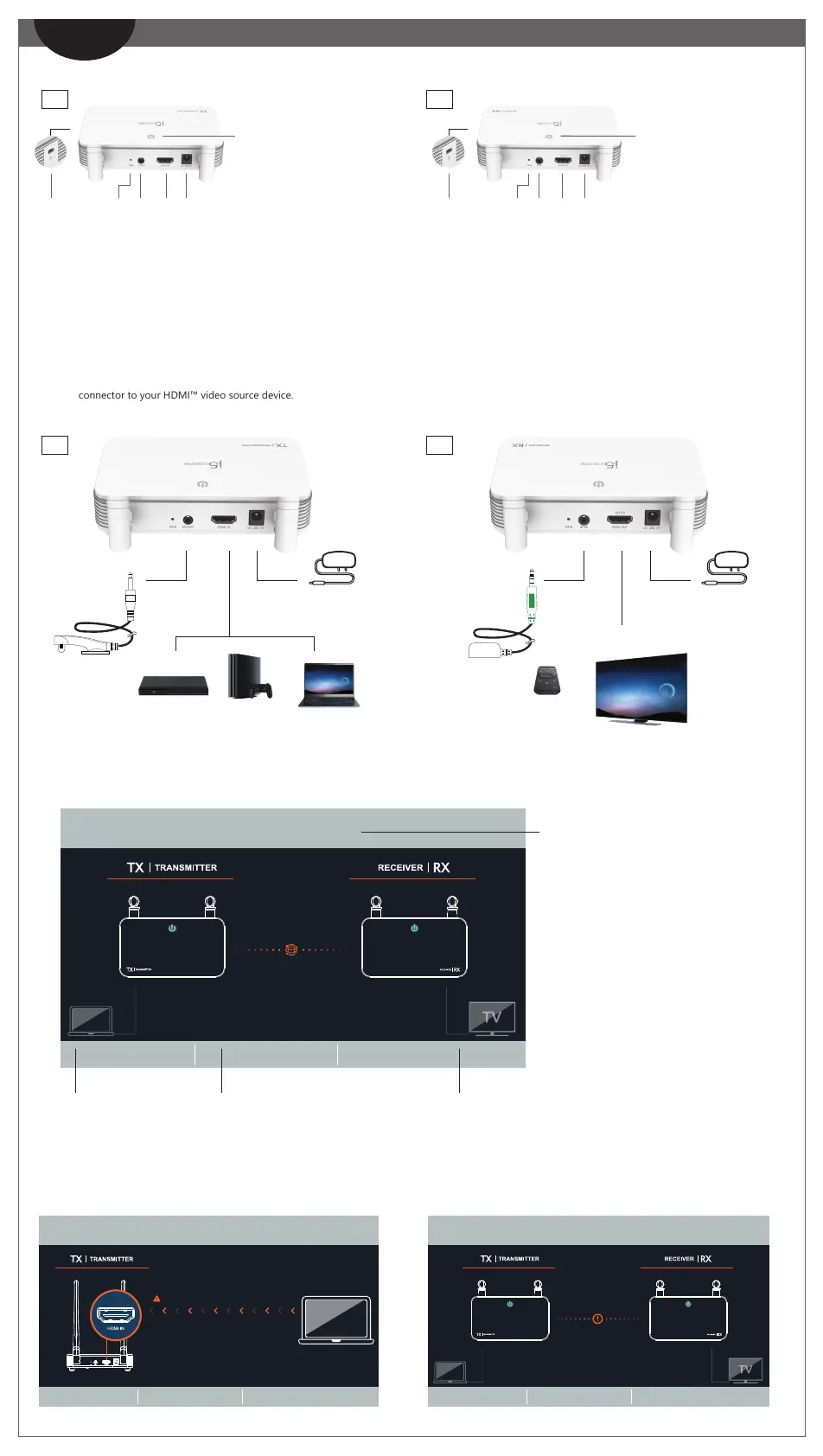
Step 1. Plug in the power adapter and ensure the power led lights are on.
Step 2. (Optional): IR remote control setting
Connect the IR blaster cable into the IR out port.
Step 3. (Optional) Place the IR sensor on the source device, and mount the
IR blaster head beside the device
Step4. Directly connect the HDMI™ cable from the Transmitter HDMI™ in
connector to your HDMI™ video source device.
3. Receiver : OSD (on-screen display) status
1. Hardware Features Overview
HDMI™ in
Power in
④① ② ③ ④① ② ③
HDMI™ out
1080P
LaptopPlayer
Game
Console
⑤ ⑤
⑥
⑥
Step 1. Plug in the power adapter and ensure the power led lights are on.
Step 2. (Optional): IR remote control setting
Connect the IR extension cable (green connector) into the IR out port.
Step 3. (Optional) Place and mount the IR sensor in front of the device.
Step 4. Directly connect the HDMI™ cable from the Receiver HDMI™ out
connector to your HDMI™ monitor.
IR Receiver
cable (green)
IR blaster
cable (black)
①
②
③
④
②
(Remote control
not included)
④
Power in
(Fig.1)
(Fig.2)
(Fig.3)
① PAIR
② IR in
③ HDMI™ out
④ DC 5V
⑤ Security lock slot
⑥ Wireless and power
status indicator
*
*
RX
① PAIR
② IR out
③ HDMI™ in
④ DC 5V
⑤ Security lock slot
⑥ Wireless and power
status indicator
*
*
TX
Please connect your device via the HDMI™ port.
Wireless Display HDMI™ Extender
RX DEVICE NAME RX FIRMWARE VERSION STATUS
HDMI5G_RX0008 2020.5.12.0 No input source from sender
Connecting...
Wireless Display HDMI™ Extender
RX DEVICE NAME RX FIRMWARE VERSION STATUS
HDMI5G_RX0008 2020.5.12.0 Sender not found
Connection failed.
Wireless Display HDMI™ Extender
RX DEVICE NAME RX FIRMWARE VERSION STATUS
HDMI5G_RX0008 2020.5.12.0 Network disconnected
Note:
*① If TX and RX connect failed. You can reduce the distance between the TX and RX. If you still have trouble please contact j5create Customer Service.
*⑥ Indicator: Red: power on / Orange: Waiting for pairing / Red flashing light : TX / RX pairing / Green: TX / RX pairing completed
Network disconnected.
You can reduce the distance between the TX and RX. If you still have trouble,
please contact j5create Customer Service.
Startup screen : OSD show connecting.
RX
TX
①
③
If connecting devices via HDMI™ port fails:
Please check your HDMI™ cable or signal from your source device.
- Sender not found
- TX RX Pairing
- No input source from sender
- Network disconnected


 To Next Page
 Loading...