
 Need help?
Do you have a question about the Jabra Engage 50 II and is the answer not in the manual?
Instructions on how to position the microphone for optimal call quality, specifying distance from the mouth.
Steps for connecting the Jabra Engage 50 II directly to a computer's USB port.
Steps for connecting the headset to a computer via the Jabra Engage 50 II Link.
Guidance on connecting the Jabra Engage 50 II to mobile devices using a USB-C port.
Instructions for connecting the headset using a USB-C extension cable to a computer.
Details the controls for the Jabra Engage 50 II Link for Microsoft Teams.
Instructions on updating the headset firmware using Jabra Direct and indicators during the process.
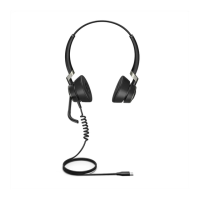
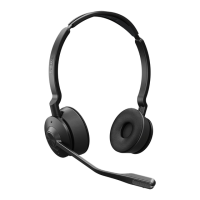
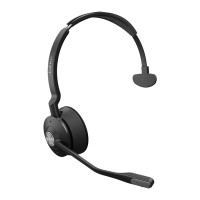
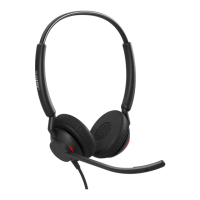
The Jabra Engage 50 II is a professional headset designed for clear customer calls and an optimal user experience in contact center environments and virtual meetings. It boasts a robust design with a three-year warranty, emphasizing its durability and reliability for everyday use. The headset is available in both stereo and mono variants, catering to different user preferences and needs.
A key function of the Jabra Engage 50 II is to provide world-class audio for clear communication. It incorporates advanced speakers to ensure that no word is missed during calls and features advanced hearing protection to safeguard users' ears during extended use. The BalancedVoice™ technology further enhances speech clarity, making conversations more intelligible.
The headset is designed for all-day comfort, featuring a secure and adaptive fit. For the mono variant, optimal comfort is achieved by wearing the T-bar high on the side of the head, rather than directly on the ear. The microphone is positionable, and for optimal call quality, it should be placed approximately 1/2 inch (12mm) from the mouth.
The Jabra Engage 50 II connects to a computer via a USB port (USB-A or USB-C, depending on the variant). It can be connected directly to the computer or through a Jabra Engage 50 II Link, which provides additional controls. It's crucial to ensure the headset is set as the default audio device for both speaker and microphone in the computer's audio settings for proper functionality. The headset also supports connection to mobile devices via a USB-C port, though compatibility with all USB-C devices or apps for audio connection is not guaranteed. An optional extension cable (USB-C to USB-A or USB-C to USB-C) is available for added flexibility in connection, but it's important to note that this extension cable cannot be used with the Jabra Engage 50 II Link.
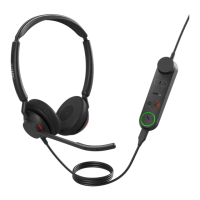
While the headset itself does not have call controls, when connected to a computer, calls and music can be managed either through the computer or by using the Jabra Engage 50 II Link. The Link, available in Microsoft Teams and UC (Unified Communications) variants, offers a range of controls. Both variants include volume controls, a mute/unmute microphone button, and a hold call function. They also feature a programmable button, a busylight on/off button (which can be enabled/disabled by holding it), and an answer/end call button. The Microsoft Teams variant additionally includes a button to open Microsoft Teams notifications. These buttons on the Jabra Engage 50 II Link can be reconfigured using Jabra Direct or a Jabra SDK integration, allowing for personalized control.
The Jabra Engage 50 II Link is equipped with status LEDs that provide visual cues for various functions. A red LED indicates the microphone is muted, yellow signifies a call on hold, and pink indicates a firmware update is in progress. For the busylight, a solid red light means the busylight is on, while no light indicates it's off. Incoming calls are shown by a flashing white light, an active call by a solid white light, and Microsoft Teams notifications by a flashing purple light. A solid purple light indicates connection to Microsoft Teams.
A notable feature is the Busylight LED on the headset itself, which illuminates to signal to colleagues when the user is on a call or busy, helping to minimize interruptions.
The SmartRinger feature allows the Jabra Engage 50 II Link to play a ringtone for incoming calls when the headset is lying flat on a desk. Users can select from three possible ringtones by pressing both programmable buttons simultaneously when not on a call. The SmartRinger volume can be adjusted using the volume controls during an incoming call. This feature, along with the ringtone, can be disabled or configured via Jabra Direct.
Sidetone is another useful feature, enabling users to hear their own voice during a call, which can be configured through Jabra Direct. For stereo headsets, the option to reverse the left and right audio channels is also available and can be set up using Jabra Direct.
To ensure optimal functionality and management, Jabra recommends downloading and installing several software applications. Jabra Direct is a free computer software designed to support, manage, and enable optimal functionality for Jabra devices. Jabra Xpress is another free computer software for managing, updating, and maintaining multiple Jabra devices. For real-time call insights, Jabra Engage+ is available as free computer software.
Firmware updates are crucial for maintaining the headset's performance and can be managed through Jabra Direct. Users will be notified when an update is available. During the firmware update process, the LEDs on the Jabra Engage 50 II will light up pink. It is critical not to disconnect the headset during this process. Similarly, the Jabra Engage 50 II Link automatically updates when the headset is updated or when plugged into an updated headset. The mute LED on the Link controller will light up pink during its firmware update, and it should not be disconnected from the headset at this time.
Maintenance of the Jabra Engage 50 II is straightforward. It is recommended to keep the headset within a temperature range of -5°C to 55°C (23°F to 131°F). If the headset or Link becomes dirty, it should be cleaned with a soft, lint-free cloth lightly dampened with clean water. Replacement accessories, such as ear cushions and extension cables, can be purchased online.
Overall, the Jabra Engage 50 II is a comprehensive and user-friendly headset solution, designed with advanced audio technology, customizable controls, and robust support features to enhance the communication experience in professional settings.
 General
| Headset type | Binaural |
|---|---|
| Product type | Headset |
| Optimized for | UC |
| Product color | Black |
| Wearing style | Head-band |
| Volume control | No |
| Housing material | Plastic |
| Recommended usage | Office/Call center |
| USB connector | USB Type-C |
| USB connectivity | Yes |
| Connectivity technology | Wired |
| Driver unit | 20 mm |
| Ear coupling | Supraaural |
| Maximum input power | 30 mW |
| Package depth | 50 mm |
| Package width | 185 mm |
| Package height | 249 mm |
| Microphone type | Boom |
| Microphone frequency | 100 - 14000 Hz |
| Number of microphones | 3 |
| Microphone sensitivity | -26 dB |
 Weight and Dimensions
| Depth | 54 mm |
|---|---|
| Width | 167 mm |
| Weight | 63 g |




 To Next Page