
 Need help?
Do you have a question about the Jabra Evolve 65 MS Stereo and is the answer not in the manual?
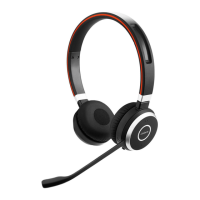
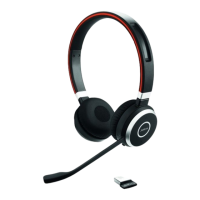
The Jabra Evolve 65 MS Stereo is an enterprise-grade Bluetooth headset designed primarily for professional use, particularly with computers and softphone clients. While it is engineered to connect seamlessly with a computer using its dedicated Jabra Bluetooth adapter, the device also offers the flexibility to be paired directly with a computer, provided the computer supports the necessary Bluetooth profiles. This dual connectivity approach ensures that users have options for how they integrate the headset into their workflow.
At its core, the Jabra Evolve 65 MS Stereo functions as a high-quality audio device for communication and media consumption in a professional setting. Its primary role is to facilitate clear and reliable audio for calls, virtual meetings, and other softphone-based interactions. The "MS" in its name indicates its optimization for Microsoft Teams, ensuring that users can leverage the full suite of call control functionalities when connected via the Jabra Bluetooth adapter. This optimization means that buttons on the headset, such as answer/end call, volume control, and mute, are designed to work intuitively with Teams, enhancing productivity and ease of use during calls.
Beyond its core communication capabilities, the headset supports audio streaming, allowing users to listen to music or other media with good fidelity. This makes it a versatile tool for professionals who might switch between calls and focused work requiring background audio. The stereo design provides an immersive audio experience, which is beneficial for both communication clarity and media enjoyment.
The device's Bluetooth connectivity is a key functional aspect, offering wireless freedom and mobility within a certain range. This allows users to move away from their desk during calls without disconnecting, promoting a more dynamic and less tethered work environment. The reliance on Bluetooth profiles like Hands-Free Profile (HFP) or Headset Profile (HSP) for call audio and Advanced Audio Distribution Profile (A2DP) for high-quality stereo audio ensures compatibility with a wide range of Bluetooth-enabled devices.
The Jabra Evolve 65 MS Stereo is designed with several usage features that enhance its practicality and user experience in an enterprise context.
Optimized Connectivity: The primary and recommended method of use is with the included Jabra Bluetooth adapter. This adapter ensures full functionality, including seamless call control integration with softphone clients like Microsoft Teams. When connected this way, users can expect dedicated buttons on the headset to perform their intended functions, such as answering/ending calls, adjusting volume, and muting the microphone, directly within the softphone application. This eliminates the need to interact with the computer's software interface for basic call management, streamlining the communication process.
Direct Computer Pairing (with caveats): While the adapter is preferred, the headset can also be paired directly with a computer's built-in Bluetooth. This offers an alternative for users who might not have the adapter immediately available or prefer a single Bluetooth connection. However, it's crucial to note that direct pairing may not provide full functionality. Users might experience limitations where audio transmission (sending and receiving) works, but advanced call control buttons (like answer/end, mute) do not integrate with softphone clients. This distinction is important for managing user expectations regarding the device's capabilities in different connection scenarios.
Mobile Device Pairing: The pairing process for direct computer connection mirrors that for mobile devices. This consistency simplifies the user experience, as the steps for establishing a Bluetooth connection are familiar across different types of host devices. This flexibility allows the headset to be used not only with computers but also with smartphones or tablets, extending its utility beyond the desktop.
Wireless Freedom: The Bluetooth connection provides users with the freedom to move around their workspace without being tethered to their computer. This can be particularly useful during long calls or meetings, allowing for greater comfort and flexibility. The range of the Bluetooth connection enables users to step away from their desk for a short period without interrupting their communication.
Stereo Audio: The stereo design of the headset ensures a rich and clear audio experience, whether for voice calls or multimedia. For calls, stereo audio can help in distinguishing multiple voices or environmental sounds, contributing to better comprehension. For media, it provides a more immersive listening experience.
Intuitive Controls: When connected via the Jabra Bluetooth adapter, the headset features intuitive on-device controls for managing calls and audio playback. These controls are strategically placed for easy access, allowing users to quickly adjust settings without fumbling. This ease of use is critical in fast-paced professional environments where quick reactions to incoming calls or meeting prompts are often necessary.
Firmware and Software Updates: To ensure optimal performance and access to the latest features, the device supports firmware updates. Users are encouraged to keep both their Jabra device and any associated softphone clients updated. This proactive approach to maintenance helps in resolving potential compatibility issues and ensures the headset operates with the most current enhancements and bug fixes.
Maintaining the Jabra Evolve 65 MS Stereo involves a combination of software updates and troubleshooting steps to ensure consistent performance and address any connectivity issues.
Firmware/Software Updates: A critical maintenance feature is the ability to update the device's firmware and the software of connected components. Users are advised to ensure that their Jabra Enterprise Bluetooth device, as well as their computer's Bluetooth drivers and softphone clients, are running the latest versions. These updates often include performance improvements, bug fixes, and enhanced compatibility, which are essential for the headset's long-term reliability and functionality. Regular updates prevent common issues that can arise from outdated software.
Bluetooth Connection Verification: In case of connectivity challenges, a primary maintenance step is to verify that the Bluetooth connection is active on the computer. This simple check can quickly rule out basic disconnections as the cause of an issue. Ensuring the computer's Bluetooth radio is enabled and discoverable is fundamental for the headset to establish and maintain a connection.
Re-pairing Procedure: If problems persist, a common troubleshooting and maintenance step is to remove any previous pairings and then re-pair the device. This process effectively resets the Bluetooth connection, clearing any corrupted pairing data that might be causing communication errors. It's a fundamental step in resolving many intermittent connectivity issues.
Device Reset: The Jabra device itself can be reset. A device reset can resolve deeper internal software glitches or configuration issues that might not be fixed by simply re-pairing. This feature allows users to restore the headset to a known good state, often resolving persistent problems without requiring advanced technical intervention. The specific method for resetting the device would typically be outlined in the product's full manual.
Softphone Client Updates: Beyond the headset's firmware, ensuring the softphone client (e.g., Microsoft Teams) is updated to its latest version is crucial. Softphone applications frequently receive updates that improve their compatibility with headsets, enhance call quality, and fix bugs. An outdated softphone client can often be the root cause of issues related to call control or audio routing, even if the headset itself is functioning correctly.
Audio Device Selection Verification: A common troubleshooting step, which also serves as a maintenance check, is to ensure that the Jabra device is correctly selected as the default audio input and output device on both the computer's operating system and within the softphone client's settings. Incorrect audio routing is a frequent cause of "no sound" or "microphone not working" issues, and verifying these settings ensures that audio signals are directed to and from the headset as intended.
These maintenance features and troubleshooting steps empower users to independently resolve common issues, minimizing downtime and ensuring the Jabra Evolve 65 MS Stereo remains a reliable tool for professional communication.
 General
| Connectivity | Bluetooth, USB |
|---|---|
| Battery Life | Up to 14 hours |
| Speaker Frequency Range | 150 Hz - 7 kHz |
| Wearing style | Over-the-head |
| Headset type | Stereo |
| Bluetooth version | Bluetooth 4.0 |
| Talk time | Up to 14 hours |
| Charging time | Approximately 2 hours |
| Microphone | Yes, with noise cancelling |
| Compatibility | Microsoft Teams |
| Type | Wireless |
| Weight | 111 grams |
| Special Features | Busy light |
| Wireless Range | Up to 30m / 100ft |





 To Next Page