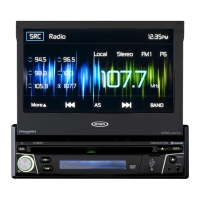
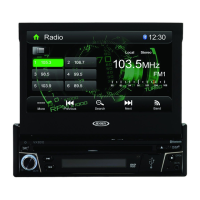
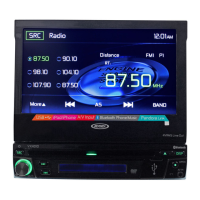
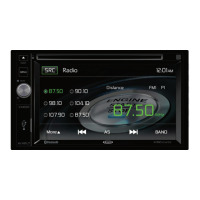
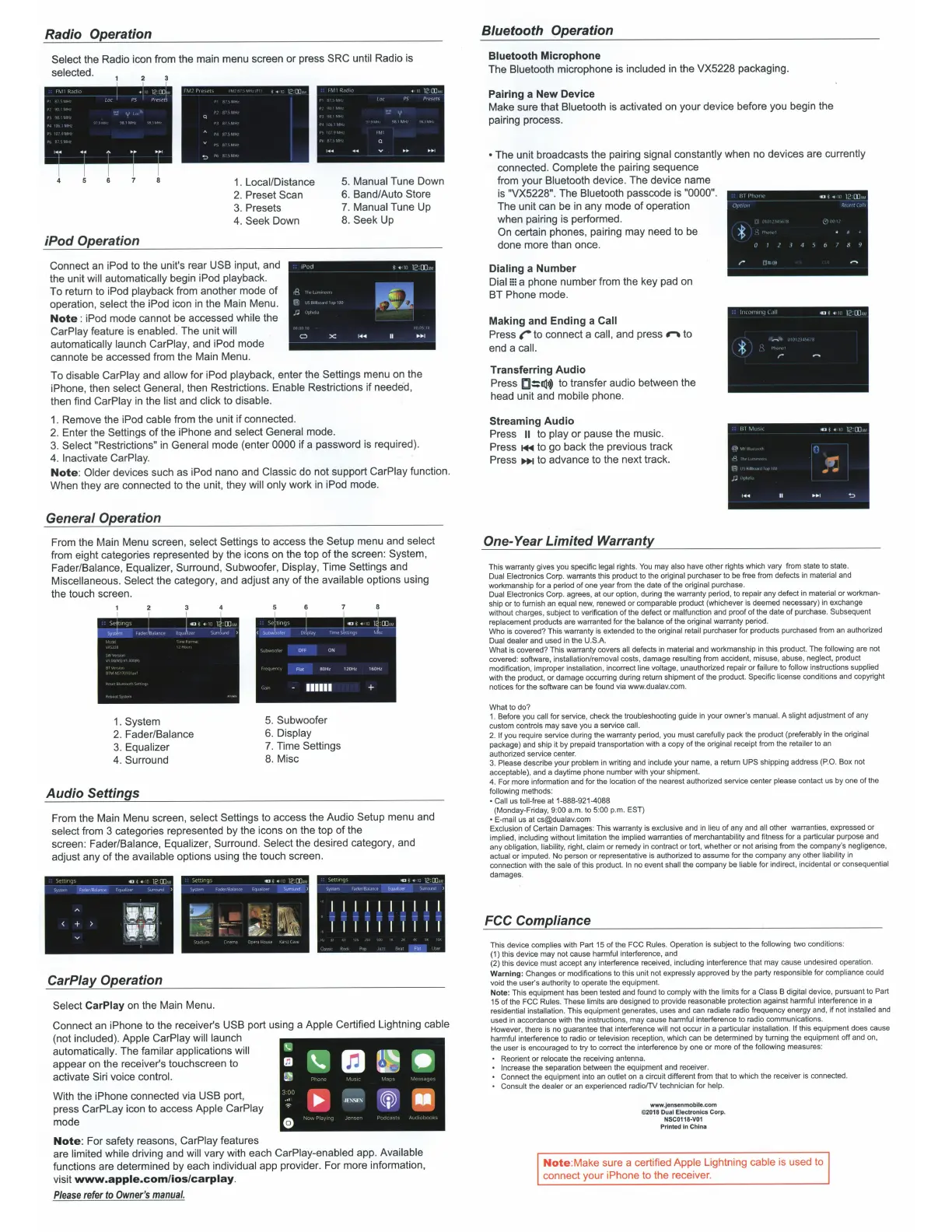
Radio Operation
Select
the Radio icon from the main menu screen or press
SRC
until Radio is
selected.
iPod
Operation
.
~
::.:
w
Q
"'
1.
Local/Distance
2.
Preset Scan
3.
Presets
4.
Seek
Down
12rn·
Q
,.... .... v ....
..
..
1
5. Manual Tune Down
6.
Band/Auto
Store
7.
Manual Tune Up
8.
Seek
Up
Connect
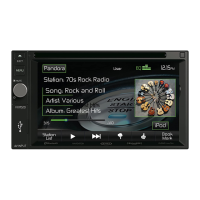
an iPod to the unit's rear
USB
input, and
the unit will automatically begin iPod playback.
To return to iPod playback from another mode
of
operation, select the iPod icon
in
the Main Menu.
Note
:
iPod mode cannot be accessed while the
CarPiay feature
is
enabled. The unit will
automatically launch CarPiay, and iPod mode
cannote be accessed from the Main Menu.
d'tld
l .•
12:[1)·
..
~
,.;
~
0
X
1
<0111<11
II
•
~~>1
To disable CarPiay and allow for iPod playback, enter the Settings menu on the
iPhone, then select General, then Restrictions. Enable Restrictions if needed,
then find CarPiay
in
the list and click to disable.
1.
Remove the iPod cable from the unit if connected.
2.
Enter the Settings
of
the iPhone and select General mode.
3.
Select
"Restrictions"
in
General mode (enter
0000
if a password
is
required).
4.
Inactivate CarPiay.
Note
:
Older
devices such as iPod nano and Classic do not support CarPiay function.
When they are connected to the unit, they will only work
in
iPod mode.
General Operation
From the Main Menu screen, select Settings to access the
Setup
menu and select
from eight categories represented by
the icons on the top
of
the screen: System,
Fader/Balance, Equalizer, Surround, Subwoofer, Display, Time Settings and
Miscellaneous.
Select
the category, and adjust any
of
the available options using
the touch screen.
liD
~
·•
om
' ·•
12:[l)-
..
p,
-
~pl,l
>
.},
OFF
ON
Fl
at
110Hz
120Hl
lbOHl
-
111111
+
1.
System
5.
Subwoofer
2.
Fader/Balance
6.
Display
3.
Equalizer
7.
Time Settings
4.
Surround
8.
Mise
Audio
Settings
From the Main Menu screen, select Settings to access the Audio
Setup
menu and
select from 3 categories represented by the icons on the
top
of
the
screen: Fader/Balance, Equalizer, Surround.
Select
the desired category, and
adjust any
of
the available options using the touch screen.
F.Jder/8.JI.JI'I(e
CJ
;
~
12
ClJ
-
.
<
:
>
-
~
~
~
v
8I
•J
CarP/ay Operation
om
!
..
12:00· ·
"""""
)
St>lt'"
•. '::·
"\~
----:-
•
~-
....
~
_:.
;·
~~~.
~---::
r
_...
/ -
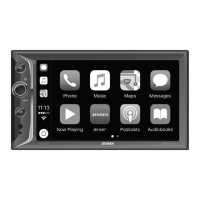
Select CarPiay
on the Main Menu.
.., .
..
12:w-
..
Sy\11'"'
Equo~hler
I I I I I I I I I I
I I I I I I I I I I
Connect
an
iPhone to the receiver's
USB
port using a Apple Certified Lightning cable
(not included). Apple CarPiay will launch
automatically. The familar applications will
appear on the receiver's touchscreen to
activate
Siri
voice control.
With the iPhone connected via
USB
port,
press CarPLay icon to access Apple CarPiay
mode
Note
:
For safety reasons, CarPiay features
~
ra
~
&J
~
r4j
rJI
·
~
~
..
,
JI
'
~SIS
~
Iii'
.
l'::"
~
I
=:1
e ·
are limited while driving and will vary with each CarPiay-enabled app. Available
functions are determined by each individual app provider. For more information,
visit
www.apple.com/ios/carplay
.
Please
refer
to
Owner's
manual.
Bluetooth
Operation
Bluetooth
Microphone
The Bluetooth microphone is included
in
the VX5228 packaging.
Pairing
a
New
Device
Make sure that Bluetooth is activated on your device before you begin the
pairing process.
•
The unit broadcasts the pairing signal constantly when no devices are currently
connected. Complete the pairing sequence
from your Bluetooth device. The device name
is
"VX5228".
The Bluetooth passcode
is
"0000".
The unit can be
in
any mode
of
operation
when pairing
is
performed.
On
certain phones, pairing may need to be
done more than once.
Dialing
a
Number
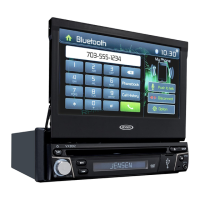
Dial
m
a phone number from the key pad on
BT Phone mode.
Making
and
Ending
a
Call
Press
r
to connect a call, and press
1""\
to
end a call.
Transferring
Audio
Press
[I::Ol>~
to transfer audio between the
head unit and mobile phone.
Streaming
Audio
Press
II
to play
or
pause the music.
Press
~
to go back the previous track
Press
~
to advance to the next track.
One-
Year
Limited
Warranty
lll
;
<l
t
1
ll ]
...
*
1
1
r
~
.J
s
''
r
~
oa~
•-
•
l...!W··
*
~
,_
~
t::
om
< ·•
l~W··
1"
.
..
1
44
II
••
t
'!:>
This warranty gives you specific legal rights.
You
may also have other rights which vary from state to state.
Dual Electronics
Corp.
warrants this product to the original purchaser to be free from defects
in
material and
workmanship for a period
of
one year from the date
of
the original purchase.
Dual Electronics
Corp.
agrees, at our option, during the warranty period, to repair any defect
in
material or
workman-
ship or to furnish an equal new, renewed or comparable product (whichever is deemed necessary)
in
exchange
without charges, subject to verification of the defect or malfunction and proof
of
the date
of
purchase.
Subsequent
replacement products are warranted for the balance
of
the original warranty period.
Who
is
covered? This warranty is extended to the original retail purchaser for products purchased from an authorized
Dual dealer and used
in
the
U.S.
A.
What is covered? This warranty covers all defects
in
material and workmanship
in
this product. The following are not
covered: software, installation/removal costs, damage resulting from accident, misuse, abuse, neglect, product
modification, improper installation, incorrect line voltage, unauthorized repair
or
failure to follow instructions supplied
with the product, or damage occurring during return shipment
of
the product.
Specific
license conditions and copyright
notices for the software can be found via www.dualav.com.
What to do?
1. Before you call for service, check the troubleshooting guide in your owner's manual. A slight adjustment
of
any
custom controls may save you a service call.
2.
If
you require service during the warranty period, you must carefully pack the product (preferably
in
the original
package) and ship it by prepaid transportation with a copy
of
the original receipt from the retailer to an
authorized service center.
3. Please describe your problem
in
writing and include your name, a return
UPS shipping address
(P
.O.
Box not
acceptable), and a day1ime phone number with your shipment.
4. For more information and for the location
of
the nearest authorized service center please contact us by one
of
the
following methods:
•
Call us toll-free at 1-888-921-4088
(Monday-Friday, 9:00 a.m. to 5:00 p.m.
EST}
•
E-mail us at cs@dualav.com
Exclusion
of
Certain Damages: This warranty is exclusive and
in
lieu
of
any and all other warranties, expressed or
implied, including without limitation the implied warranties
of
merchantability and fitness for a particular purpose and
any obligation, liability, right, claim
or
remedy
in
contract
or
tort, whether or not arisi
ng
from the company's negligence,
actual
or
imputed. No person or representative is authorized to assume for the company any other liability
in
connection with the sale
of
this product.
In
no event shall the company be liable for indirect, incidental or consequential
damages.
FCC Compliance
This device complies with Part 15 of the FCC Rules. Operation is subject to the following two conditions:
(1) this device may not cause harmful interference, and
(2) this device must accept any interference received, including interference that may cause undesired operation.
Warning:
Changes
or
modifications to this unit not expressly approved by the party responsible for compliance could
void the user's authority to operate the equipment.
Note: This equipment has been tested and found to comply with the limits for a Class B digital device, pursuant to Part
15
of
the
FCC
Rules. These limits are designed to provide reasonable protection against harmful interference
in
a
residential installation. This equipment generates, uses and can radiate radio frequency energy and, if not installed and
used
in
accordance with the instructions, may cause harmful interference to radio communications.
However, there is no guarantee that interference will not occur
in
a particular installation.
If
this equipment does cause
harmful interference to radio
or
television reception, which can be determined by turning the equipment off and
on
,
the user is encouraged to try to correct the interference by one or more
of
the following measures:
Reorient
or
relocate the receiving antenna.
Increase the separation between the equipment and receiver.
Connect the equipment into
an
outlet on a circuit different from that to which the receiver is connected .
Consult the dealer
or
an experienced radio/TV technician for help.
www.jensenmobile.com
©2018 Dual
Electronics
Corp.
NSC0118·V01
Printed in
China
Note
:
Make sure a certified Apple Lightning cable is used to
connect your iPhone to the receiver.


 To Previous Page
 Loading...