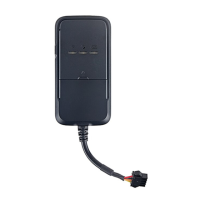
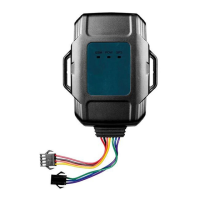
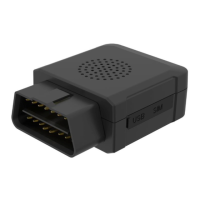
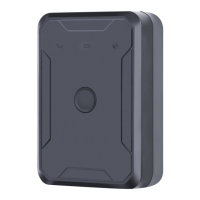
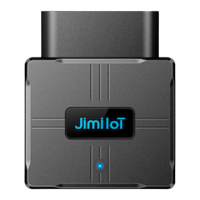
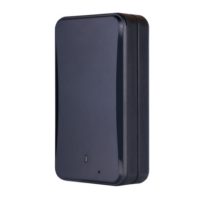
This document outlines the features, usage, and maintenance of the Portable GPS Tracker, a compact device designed for real-time location tracking and security.
Function Description
The Portable GPS Tracker, branded QBIT, is a versatile device primarily used for real-time location tracking. It allows users to monitor the whereabouts of the device through a dedicated mobile application called "JIMIMAX." Key functionalities include:
- Real-Time Location: Provides the current location of the tracker on a map, along with the actual address.
- Trip Tracking & Navigation: Records and displays the trajectory of the device over time, enabling users to review past routes. The accuracy of the trajectory improves with smaller reporting intervals.
- History Playback: Allows users to select a date range and play back the device's historical movements on the map.
- Geo-Fence: Enables the creation of virtual boundaries (fences) on the map. Users receive alerts when the device enters or exits these predefined areas.
- SOS Functionality: Features an SOS button that, when pressed for a specified duration, triggers an alert and calls pre-set emergency numbers.
- Voice Monitoring: Allows for remote monitoring of the device's surroundings.
- Voice Recording: Supports remote initiation of voice recording for a specified duration.
- Whitelist for Calls: Users can set up a whitelist of numbers allowed to call the device, enhancing security and control.
- Remote Control via SMS Commands: Certain functions, such as checking status, position, URL, setting SOS numbers, APN, voice monitor, and recording, can be controlled by sending specific SMS commands to the device's SIM card number.
Important Technical Specifications
While specific technical specifications like battery capacity, dimensions, or weight are not explicitly detailed in the provided pages, the manual implies the following:
- Network Compatibility: The device primarily supports 2G network for SIM card communication, as indicated by troubleshooting steps related to 2G SIM cards.
- SIM Card Type: Requires a Nano SIM card for network connectivity.
- Charging: Charges via a USB charger and USB cable. A full charge takes approximately 2 hours.
- LED Indicator: A multi-color LED (Red, Blue, Green) indicates various device statuses such as charging, power on/off, SIM card status, GPS signal search, and low battery.
- Buttons: Features an SOS button for emergency calls and power control.
- Interfaces: Includes a USB interface for charging and an internal slot for the Nano SIM card.
- Lanyard Hole: A dedicated hole for attaching a lanyard for portability.
- Battery: Contains a rechargeable battery, with indicators for low battery status.
Usage Features
The device is designed for ease of use, with a straightforward setup and intuitive app interface.
- Quick Start:
- Charging: Connect the device to the USB charger. A red light indicates charging, and a slowly flashing red light indicates a full charge. It is recommended to fully charge the device before first use.
- SIM Card Insertion: Open the battery cover, remove the battery connector, insert the Nano SIM card into the designated slot, and then reassemble the battery and cover, ensuring it's aligned and locked.
- Power On/Off:
- Power On: Long press the SOS button for over 3 seconds. Alternating blue, red, and green flickers indicate the device is on.
- Power Off: If a SIM card is detected, short press the SOS button 5 times. If no SIM card is detected, long press the SOS button for over 3 seconds.
- App Download and Setup:
- Download the "JIMIMAX" app by scanning the QR code provided or searching on app stores.
- Sign Up and Login: Create an account by providing an email and setting a password. A verification code will be sent to the email.
- Bind Device to APP: Add the tracker to the app by scanning or typing the IMEI barcode found on the package or device.
- Device Online Status: Once the SIM card network is working, the device should appear online in the app's device list. Tapping on the device leads to the map page.
- Offline Analysis: If the device goes offline, the app prompts an offline analysis to help diagnose the issue. Users can contact customer service for further assistance if the problem persists.
- Real-Time Location Viewing: The app displays the device's location on a map, with options to view traffic, change map type, zoom in/out, and navigate to the device's location.
- Trip Tracking: Access the "Tracking" page in the app to view the device's movement trajectory.
- History Playback: Use the "Playback" function to review past trips by selecting a date range.
- SOS Number Preset: Configure up to three SOS numbers in the app's settings. These numbers will be called when the SOS button is triggered.
- Whitelist Management: Set up a whitelist of allowed numbers to call the device.
- Call Functions:
- Make Phone Call: Long press the SOS button for over 3 seconds to call SOS numbers.
- Pick Up Call: Short press the SOS button to answer incoming calls.
- Reject Call: Long press to reject incoming calls.
- Hang Up: Short press to hang up during a call.
- Call Tracker: Dial the SIM card number of the tracker from a whitelisted number.
- Geo-Fence Setup: Create and manage geo-fences through the "More" -> "Fence" option in the app, allowing users to define safe zones and receive alerts.
Maintenance Features
The manual provides guidance on troubleshooting common issues and ensuring the device's proper functioning.
- Troubleshooting LED Indicator: A detailed table explains the meaning of different LED light patterns for various device states, aiding in quick diagnosis.
- Troubleshooting Offline Status:
- Check Battery Status: Ensure the device is powered on and fully charged.
- Check SIM Card Status: Verify that the SIM card is active, supports 2G networks, and the APN settings are correct. Contact customer service if using the original SIM card.
- Check Data Status: Ensure the SIM card has sufficient data. If using the original SIM, top-up via "JIMI SIM" or wx.linksfield.net.
- APN Configuration: Instructions are provided on how to find and set the correct APN (Access Point Name) for the SIM card, which is crucial for network connectivity. This involves disabling the PIN on the SIM card using a phone and then sending an SMS command to the device.
- Command List: A list of SMS commands is provided for advanced control and troubleshooting, including commands for checking status, location, setting SOS numbers, APN, voice monitoring, and recording.
- Warranty & Support: The device comes with a warranty covering manufacturing defects. Users are advised to contact customer service for support, data clearing, unbinding devices, or any questions regarding the product. Support can be accessed via the "Get Help" icon in the app or by emailing customer-service@jimilab.com.
This comprehensive overview highlights the Portable GPS Tracker's capabilities as a reliable and user-friendly tracking solution, emphasizing its core functions, operational guidelines, and support resources.

 Need help?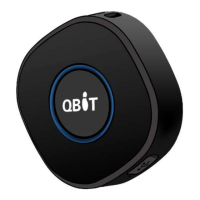

 To Next Page
 General