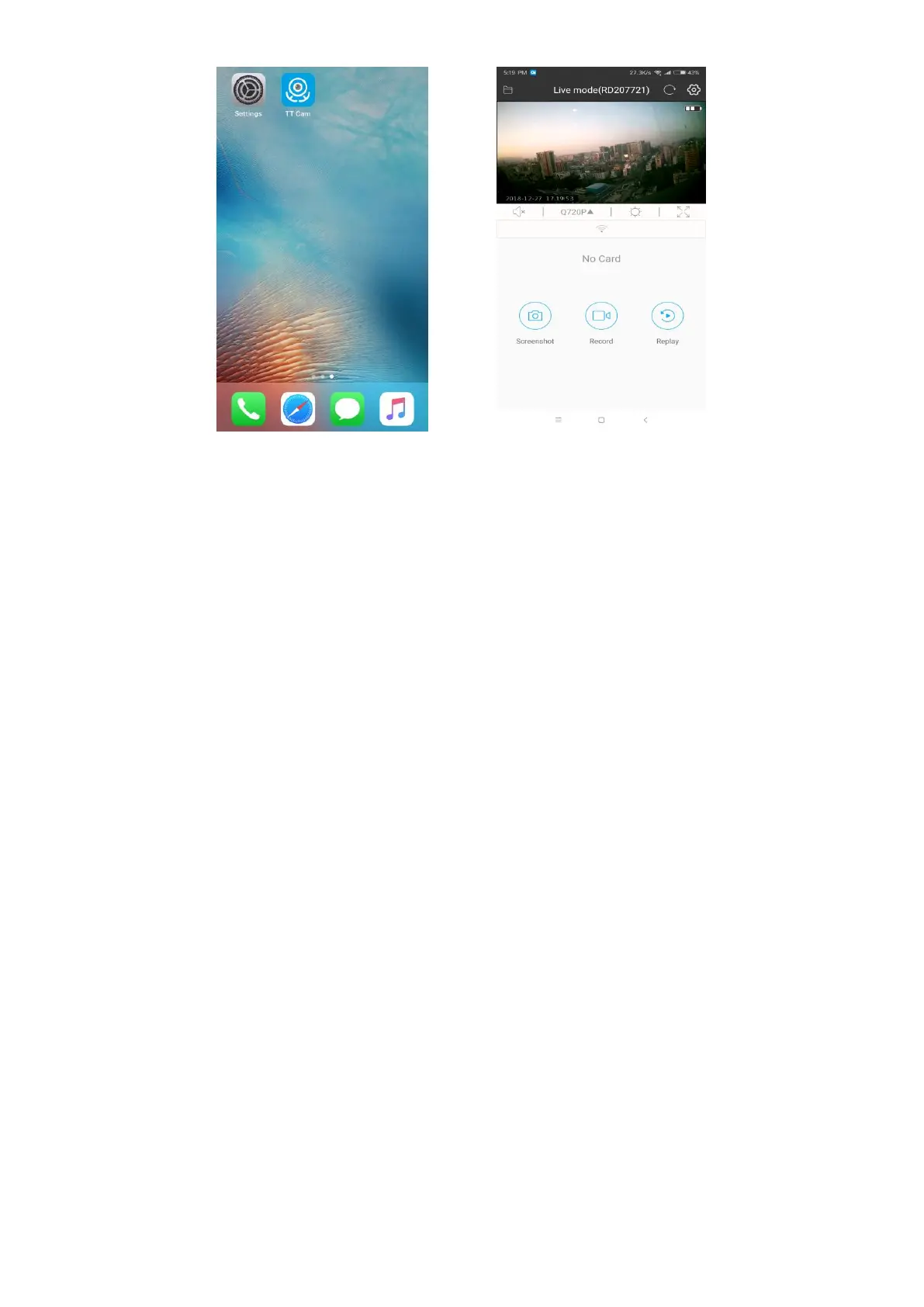
(figure 3) (figure 4)
五、Remote connection mode
Step 1: Make sure the camera is short-range point-to-point mode and your phone is connected to the
camera’s hotspot “HDQ21”.
Step 2: Dial the MODE button to 2 on the back of the camera.
Step 3: Open the APP “TT Cam”. Click wifi icon below the live mode picture or the setting button to enter
“configure WiFi”.
Step 4: You can manually enter your WiFi name or follow the prompts to choose your WiFi, and input
your password. Click “Connect” and prompt to wait for 80 seconds. Actually it does not need 80
seconds. When it prompts “TT Cam:configuration succeed”, you can see your WiFi name displayed
in the WiFi setting option. Only the red light on the back of the camera is on and the blue light
disappears.
Step 5: Exit the settings page to the real-time monitoring screen. If the screen shows offline, exit the
real-time monitoring screen, then refresh and reenter. If your phone is disconnected from the
camera’s hotspot “HDQ21”, it shows the remote connection has been successful.


 To Next Page