16 Archer 2 Rugged Handheld Owner’s Manual
Keypad Backlight
Make keypad brightness adjustments through the Backlight
control panel, Start > Settings> System > Backlight > External
Power. (Note that External Power and Battery Power are
adjusted on different screens. Select screens from the
horizontal menu near the top of the screen. )
Move the Keypad slider up to brighten the backlight or
down to dim it. Dimming the keypad backlight saves
battery power when the Archer 2 is in use.
Note: The keypad backlight turns off when the display
backlight dims or the Archer 2 is suspended.
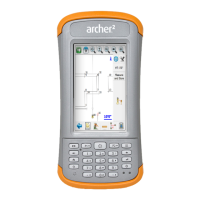
Display and Touchscreen
The Archer 2 has a bright, color display and capacitive
touchscreen with a diagonal viewing area of 4.3 inches
(109 mm). It is easy to view outdoors and sealed against
water and dust. The Windows
®
Embedded Handheld
operating system enhances the ability of the Archer 2 to
recognize touch gestures, making it easy to use a nger to
make selections and navigate. A capacitive stylus (optional
accessory) can also be used.


 To Next Page