ENGLISH - 10 -
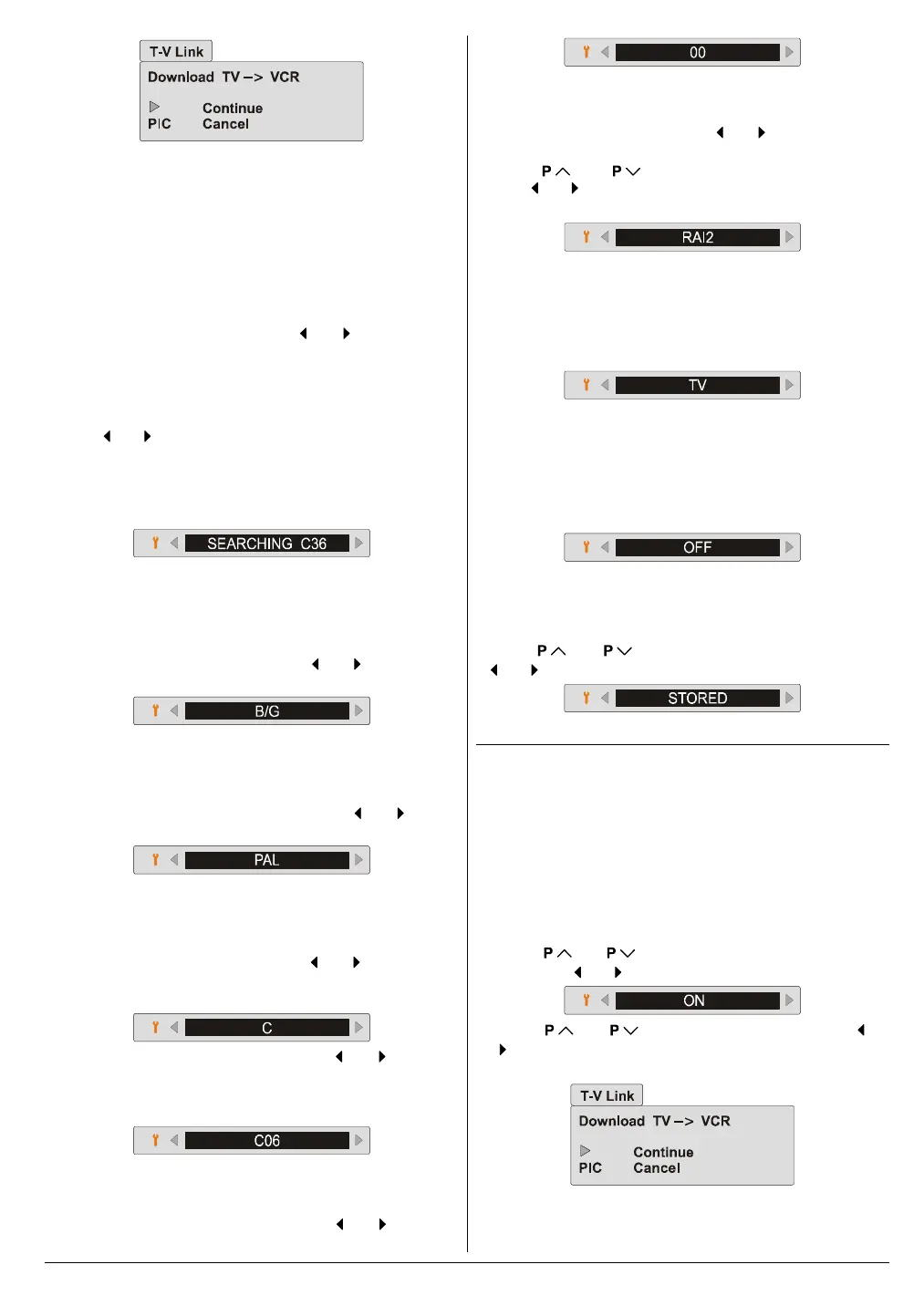
4. If you do not have a T-V LINK compatible VCR, press
PICTURE button to exit the menu.
If you have a T-V LINK compatible VCR connected to the
EXT-2 terminal, follow the operating procedure Down-
loading the data to VCR on page 5 to transmit the Pro-
gramme table data to the VCR.
Search:
You can search a channel manually.
Select Search item. Then press
or button to start
searching. SEARCHING is displayed while the TV is
searching a channel.
Searching stops when the TV finds a channel. Then the
channel is displayed.
Press
or button repeatedly until the channel you want
appears.
When you cannot search a channel you want, select the
"Standard" item and select other broadcasting system.
Then start searching again.
Standard:
If you cannot hear the normal sound even when the picture
appears normally, select the correct broadcasting system to
hear the sound normally.
Select "Standard" item. Then press
or button to se-
lect a broadcasting system.
Colour system:
If the picture is not clear or no colour appears, select the cor-
rect colour system to display the picture normally.
Select Colour system item. Then press
or button
to select a colour system.
Band, Channel:
If you know a channel number, you can find it directly by en-
tering the channel number.
Select the Band item. Then press
or button to se-
lect the band (C or S) where the channel you want is lo-
cated.
Select the Channel item. Then press or button to
select the channel number, or enter the channel number
with the digit buttons. The available channel numbers differ
depending on your COUNTRY and Standard settings.
Fine tuning:
If the channel reception is poor, fine-tune the channel.
Select "Fine tuning item. Then press
or button to
fine -tune the channel.
Name:
You can store the channel name or change it.
Select Name item. Then press
or button to display
a cursor.
Press
or button to select a character and
press
or button to move the cursor.
After the name is completed, press the MENU button.
Mode:
Set Mode item to TV for the TV channels.
When you watch a picture from your VCR and the picture is
unstable, you may improve it by changing the Mode set-
ting from TV to VCR.
Decoder (EXT-2):
You can only set Decoder (EXT-2) item to ON if you have
a decoder connected to a T-V LINK compatible VCR, which
in turn is connected to the EXT-2 terminal. To use this item,
please see the Using the Decoder (EXT-2) function on the
following section.
Store:
After the all settings are completed, store the new channels
setting to the programme number which you selected.
Press or button to select Store, then press
or to store it.
Using the Decoder (EXT-2) function
If you have a decoder connected to a T-V LINK compatible
VCR, which in turn is connected to the EXT-2 terminal, use
DECODER (EXT-2) to unscramble the scrambled TV chan-
nels.
1. Exit the menu.
2. Turn on the decoder power.
3. Display the scrambled TV channel on the TV. Even if the
decoder is working, a scrambled picture appears.
4. Display the INSTALL. menu again.
5. Press
or button to select DECODER (EXT-2),
then press
or button to set to ON
6. Press or to select STORE, then press or
button to store it. T-V LINK menu will appear after the
TV stores the setting.
01-ENG-2835-AK52-1512UK-16-9-(AV-28GH1&BUF&SUF).p65 21.05.2003, 15:0210


 To Next Page