EasyManua.ls Logo

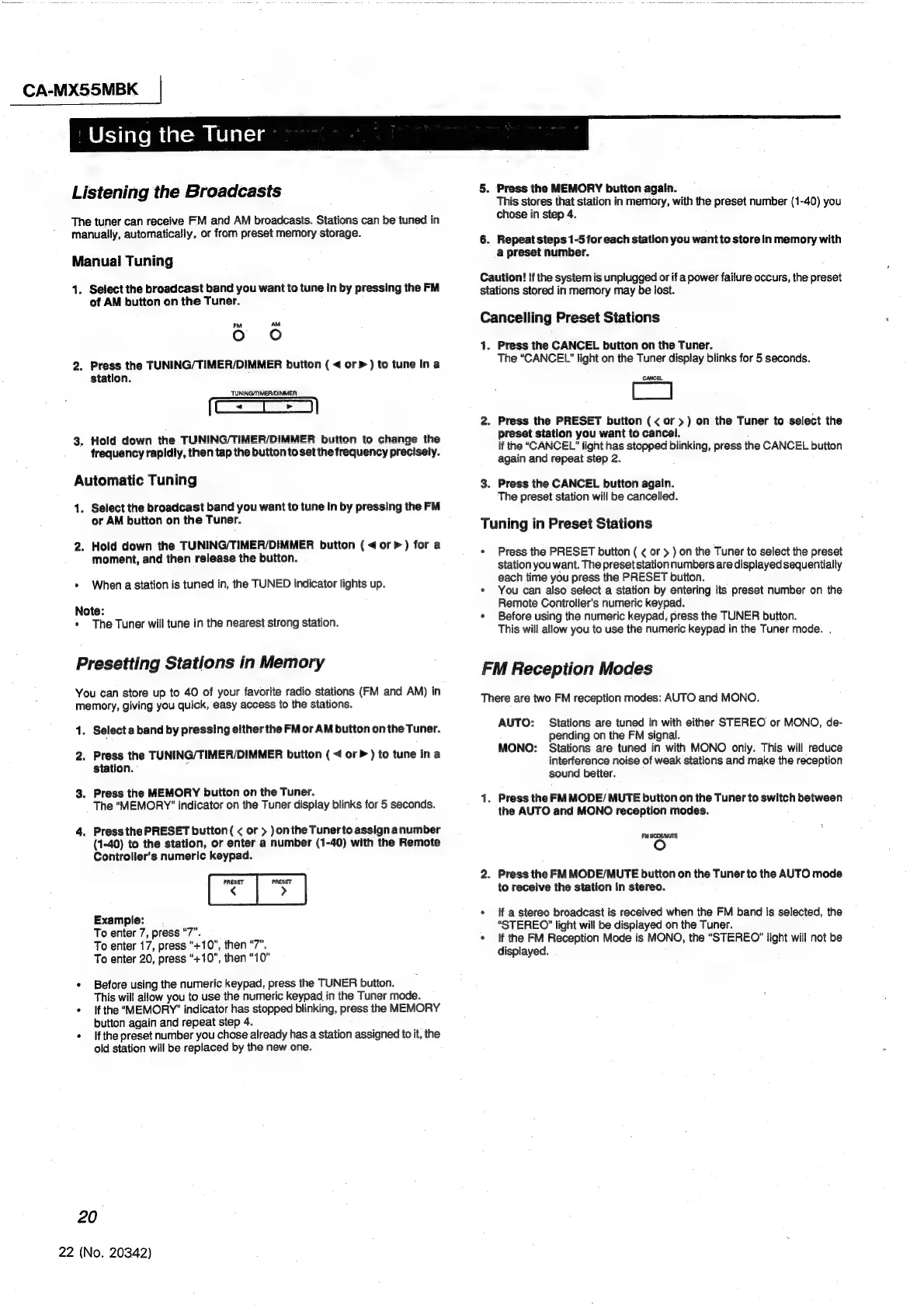
JVC ca-mx55mbk - Tuner Operation; Broadcast Reception Methods; Station Memory and Recall

JVC ca-mx55mbk
27 pages
Print Icon
To Next Page IconTo Next Page
To Previous Page IconTo Previous Page
Loading...
CA-MX55MBK
|
Using
the
Tuner
Listening
the
Broadcasts
The
tuner
can
receive
FM
and
AM
broadcasts.
Stations
can
be
tuned
in
manually,
automatically,
or
from
preset
memory
storage.
Manual
Tuning
1.
Select
the
broadcast
band
you
want
to
tune
in
by
pressing
the
FM
of
AM
button
on
the
Tuner.
FM
aM
Oo
Oo
2.
Press
the
TUNING/TIMER/DIMMER
button
(
<
or
>
)
to
tune
In
a
station.
TUNING/TIMER/DIMMER:
3.
Hold
down
the
TUNING/TIMER/DIMMER
button
to
change
the
frequency
rapidly,
then
tap
the
button
to
set
the
frequency
precisely.
Automatic
Tuning
1.
Select
the
broadcast
band
you
want
to
tune
In
by
pressing
the
FM
or
AM
button
on
the
Tuner.
2.
Hold
down
the
TUNING/TIMER/DIMMER
button
(<
orp)
for
a
moment,
and
then
release
the
button.
*
When
a
station
is
tuned
in,
the
TUNED
indicator
lights
up.
Note:
*
The
Tuner
will
tune
in
the
nearest
strong
station.
Presetting
Stations
in
Memory
You
can
store
up
to
40
of
your
favorite
radio
stations
(FM
and
AM)
in
memory,
giving
you
quick,
easy
access
to
the
stations.
1.
Selecta
band
by
pressing
either
the
FM
or
AM
button
on
the
Tuner.
2.
Press
the
TUNING/TIMER/DIMMER
button
(
<
or
)
to
tune
ina
station.
-
3.
Press
the
MEMORY
button
on
the
Tuner.
The
“MEMORY’
indicator
on
the
Tuner
display
blinks
for
5
seconds.
4.
Press
the
PRESET
button(
<
or
>
)onthe
Tunertoassignanumber
(1-40)
to
the
station,
or
enter
a
number
(1-40)
with
the
Remote
Controller's
numeric
keypad.
PRESET
PRESET
< >
Example:
To
enter
7,
press
7
To
enter
17,
press
“+10",
then
“7”.
To
enter
20,
press
“+10”,
then
“10”
*
Before
using
the
numeric
keypad,
press
the
TUNER
button.
This
will
allow
you
to
use
the
numeric
keypad
in
the
Tuner
mode.
*
Ifthe
“MEMORY?”
indicator
has
stopped
blinking,
press
the
MEMORY
button
again
and
repeat
step
4.
+
Ifthe
preset
number
you
chose
already
has
a
station
assigned
to
it,
the
old
station
will
be
replaced
by
the
new
one.
20
22
(No.
20342)
5.
Press
the
MEMORY
button
again.
This
stores
that
station
in
memory,
with
the
preset
number
(1-40)
you
chose
in
step
4.
6.
Repeat
steps
1-5
for
each
station
you
want
to
storein
memory
with
a
preset
number.
Caution!
!f
the
system
is
unplugged
or
if
a
power
failure
occurs,
the
preset
stations
stored
in
memory
may
be
lost.
Cancelling
Preset
Stations
1.
Press
the
CANCEL
button
on
the
Tuner.
The
“CANCEL”
light
on
the
Tuner
display
blinks
for
5
seconds.
CANCEL,
2.
Press
the
PRESET
button
(<
or
>)
on
the
Tuner
to
select
the
preset
station
you
want
to
cancel.
if
the
“CANCEL”
light
has
stopped
biinking,
press
the
CANCEL
button
again
and
repeat
step
2.
3.
Press
the
CANCEL
button
again.
The
preset
station
will
be
cancelled.
Tuning
in
Preset
Stations
¢
Press
the
PRESET
button
(
¢
or
>
)
on
the
Tuner
to
select
the
preset
station
you
want.
The
preset
station
numbers
are
displayed
sequentially
each
time
you
press
the
PRESET
button.
*
You
can
also
select
a
station
by
entering
its
preset
number
on
the
Remote
Controller's
numeric
keypad.
*
Before
using
the
numeric
keypad,
press
the
TUNER
button.
This
will
allow
you
to
use
the
numeric
keypad
in
the
Tuner
mode.
.
FM
Reception
Modes
There
are
two
FM
reception
modes:
AUTO
and
MONO.
AUTO:
Stations
are
tuned
in
with
either
STEREO
or
MONO,
de-
pending
on
the
FM
signal.
MONO:
Stations
are
tuned
in
with
MONO
only.
This
will
reduce
interference
noise
of
weak
stations
and
make
the
reception
sound
better.
1.
Press
the
FM
MODE/
MUTE
button
on
the
Tuner
to
switch
between
the
AUTO
and
MONO
reception
modes.
FW
MODEMUTE.
2.
Press
the
FM
MODE/MUTE
button
on
the
Tuner
to
the
AUTO
mode
to
receive
the
station
In
stereo.
*
If
a
stereo
broadcast
is
received
when
the
FM
band
is
selected,
the
“STEREO”
light
will
be
displayed
on
the
Tuner.
*
If
the
FM
Reception
Mode
is
MONO,
the
“STEREO”
light
will
not
be
displayed.

Other manuals for JVC ca-mx55mbk

Related product manuals