I ConnectionsToA TV OrVCR
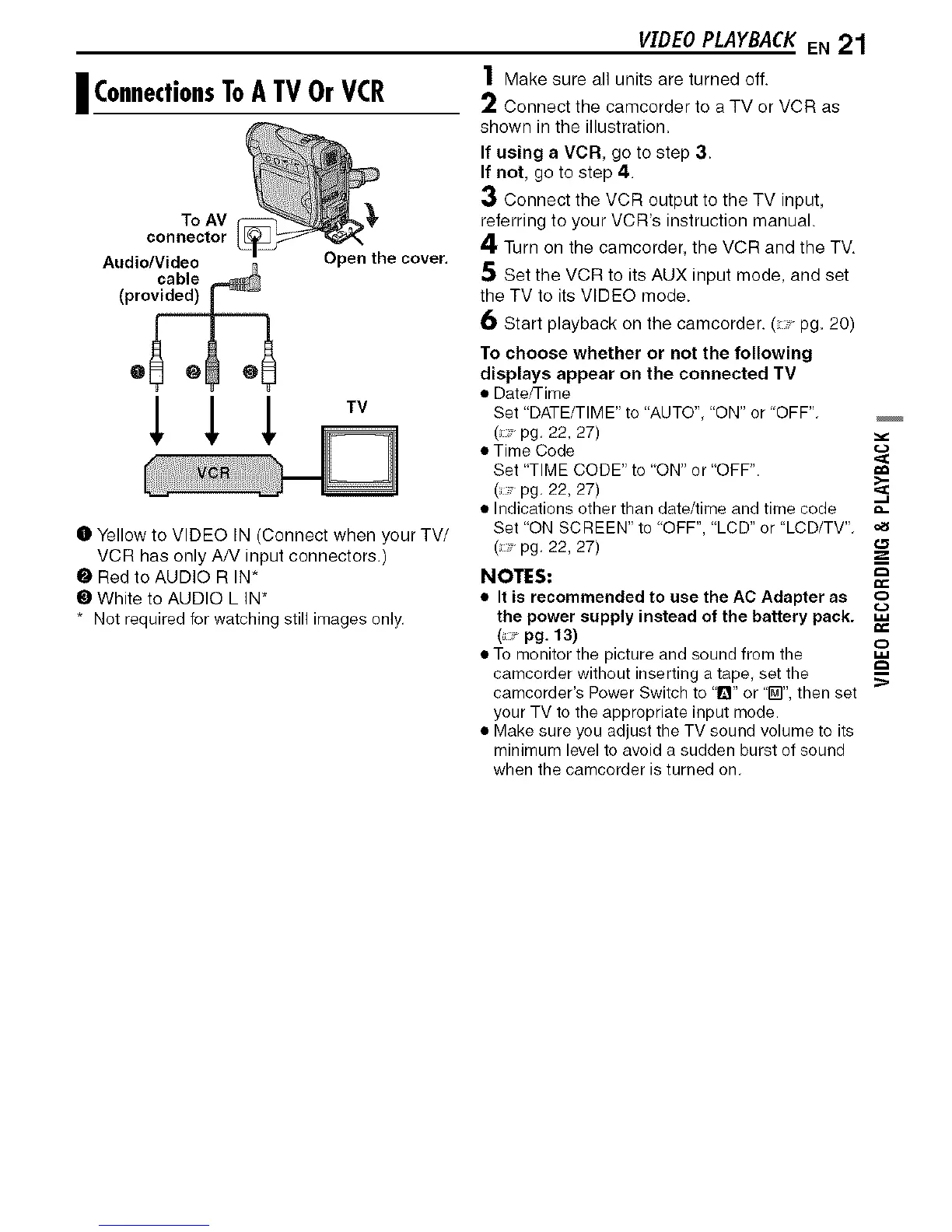
To AV _"
connector
Open the cover.
Audio/Video
cable
O Yellow to VIDEO IN (Connect when your TV/
VCR has only AN input connectors.)
@ Red to AUDIO R IN*
O White to AUDIO L IN*
* Not required for watching still images only.
VXDEOPLAYBACKEN 21
1 Make sure all units are turned off.
2 Connect the camcorder to a TV or VCR as
shown in the illustration.
If using a VCR, go to step 3.
If not, go to step 4.
3 Connect the VCR output to the TV input,
referring to your VCR's instruction manual.
4 Turn on the camcorder, the VCR and the TV.
5 Set the VCR to its AUX input mode, and set
the TV to its VIDEO mode.
6 Start playback on the camcorder. ( -pg. 20)
To choose whether or not the following
displays appear on the connected TV
• Date/Time
Set "DATE/TIME" to "AUTO", "ON" or "OFF".
( pg. 22, 27)
• Time Code
Set "TIME CODE" to ON" or "OFF". =a
( pg. 22, 27) ._
• Indications other than date/time and time code _-
Set "ON SCREEN" to "OFF", "LCD" or "LCD/TV".
( pg. 22, 27)
NOTES:
• It is recommended to use the AC Adapter as
the power supply instead of the battery pack. _:
(pg. 13)
• To monitor the picture and sound from the _"°'
camcorder without inserting a tape, set the
camcerder's Power Switch to "1_" or "_]", then set
your TV to the appropriate input mode.
• Make sure you adjust the TV sound volume to its
minimum level to avoid a sudden burst of sound
when the camcorder is turned on.


 To Next Page