EN35
1
D
S
5
T
W
W
F
F
R
I
E
S
E
I
I
L
L
E
S
L
L
D
N
A
A
M
T
F
E
E
D
S
S
A
U
–
H
H
N
R
T
M
M
C
U
N
I
A
O
U
A
A
M
C
D
T
D
L
E
R
E
J
R
O
.
ME
O
5
A
N
F
S
N
U
F
I M.
5-Second Recording
Record a vacation or an important event in 5-second clips
to keep the action moving. This function is available only
for video recording.
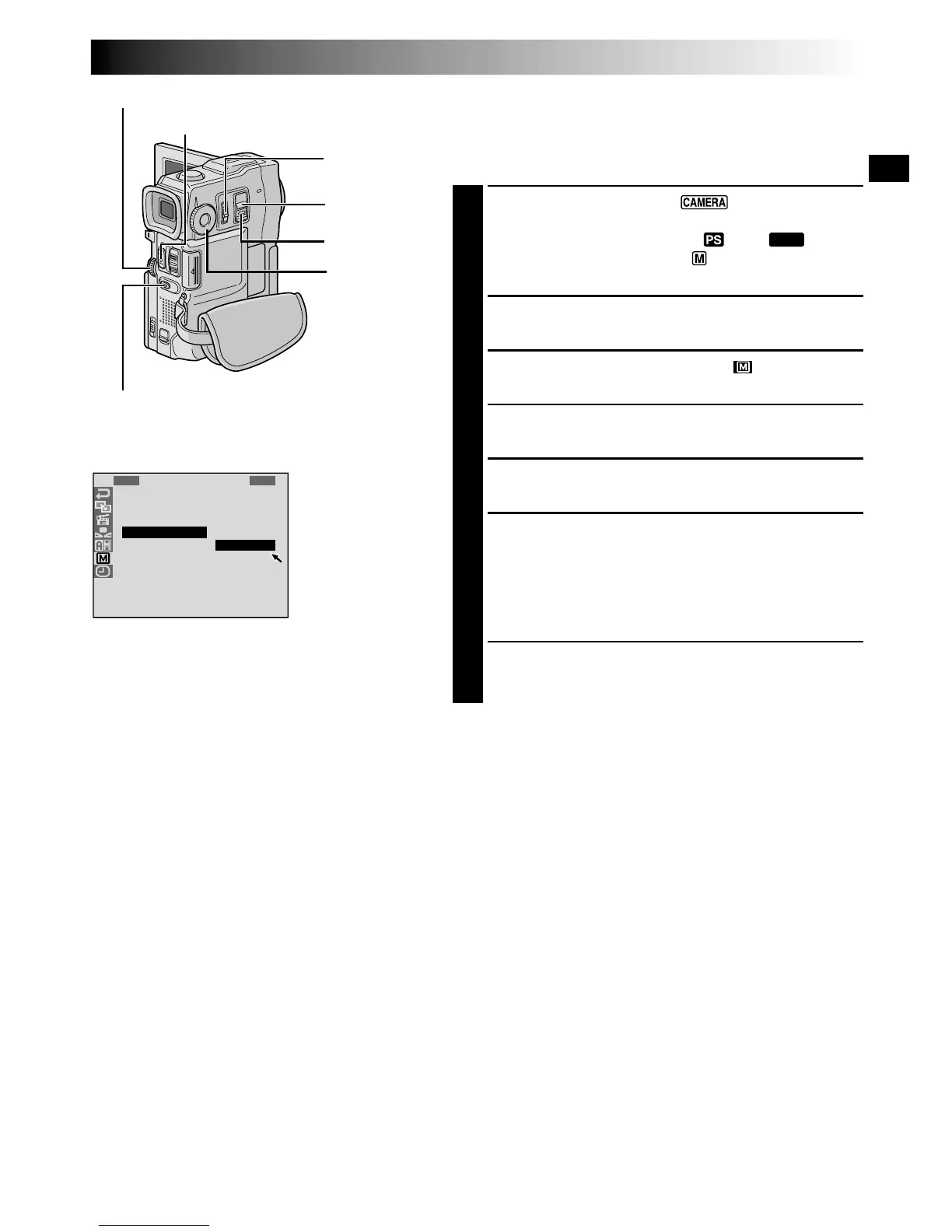
1
Set the POWER Switch to “ ” while pressing
down the Lock Button located on the switch and set
the MODE Dial to “VIDEO”, “ ” or “
DUAL
”, then
set the Operation Switch to “ ”. Pull out the
viewfinder fully or open the LCD monitor fully.
2
Press the MENU wheel. The Menu Screen appears.
3
Rotate the MENU wheel to select “ ”, and press it.
“MANUAL MENU” appears.
4
Rotate the MENU wheel to select “5S”, and press it.
The Sub Menu appears.
5
Rotate the MENU wheel to select “5S”, and press it.
•“5S MODE” appears.
6
Press START/STOP. The tally lamp lights and beep
sounds to indicate the start of recording, and after 5
seconds the camcorder enters Record-Standby mode.
•Even if you press START/STOP again within 5
seconds after recording starts, Record-Standby
mode is not engaged.
7
To exit the 5S mode, select “OFF” in step 5.
To Take A Snapshot In The 5-Second Recording Mode . . .
.... instead of pressing START/STOP in step 6, select the
desired Snapshot mode in the Menu Screen, then press
SNAPSHOT. The camcorder records a 5-second still
( pg. 20). When “5S” is set to “ANIM.” ( pg. 30)
this function is not available.
NOTE:
When “5S” is set to “ANIM.” in the Menu Screen the
5-second recording mode is not available. Animation
recording of a few frames only is taken instead (
pg. 30).
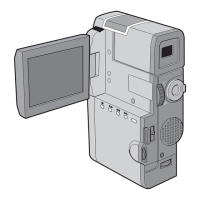
Display
Menu Screen
SNAPSHOT Button
POWER Switch
MENU Wheel
START/STOP Button
MODE Dial
Lock Button
Operation
Switch



 To Next Page