EasyManua.ls Logo

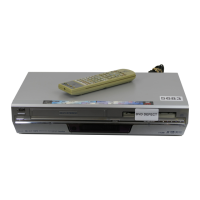
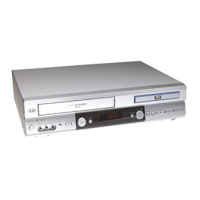
JVC HR-XV28S - User Manual

JVC HR-XV28S
44 pages
Print Icon
To Next Page IconTo Next Page
Loading...
PAL
HR-XV28S
EN
LPT1058-001A
DVD PLAYER &
VIDEO CASSETTE RECORDER
INSTRUCTIONS
VJ9033CP1Z_E-EK.book Page 1 Friday, March 11, 2005 9:53 AM

Table of Contents

Questions and Answers

  • T
    Timothy DavisAug 15, 2025
    Why is my JVC DVD VCR Combo remote control not working properly?
    • M
      mhoweAug 16, 2025
      If the remote control for your JVC DVD VCR Combo isn't working, first, ensure there are no obstructions between the remote and the unit. If there are, remove them. If that doesn't work, replace the batteries with new ones. Also, make sure you're pointing the remote directly at the remote sensor on the DVD VCR Combo and that you are within 23 feet (7 meters) of the unit. Finally, remember that this remote control uses the same buttons for VCR and DVD functions (ex.PLAY). When using a VCR, first press the VCR button. When using a DVD, first press the DVD button.
  • A
    Amy BrownAug 18, 2025
    What to do if JVC DVD VCR Combo does not start playback?
    • A
      Ashley MendozaAug 19, 2025
      If your JVC DVD VCR Combo isn't playing back properly, it could be due to several reasons. First, ensure you've inserted a playable disc, checking its type and regional code. If the disc is unplayable, insert a playable disc. Also, check that the disc is placed correctly, with the playback side down and within the guide on the disc tray. Clean the disc if it's dirty. Finally, the Rating level might be set; try canceling the Rating function or changing the rating level.
  • S
    Sandra FitzpatrickAug 21, 2025
    How to fix timer recording not possible on JVC DVD VCR Combo?
    • E
      Eric CruzAug 21, 2025
      To ensure proper timer recording on your JVC DVD VCR Combo, first set the clock to the correct time. If the clock is already set, reprogram the timer, and after reprogramming, turn the DVD VCR Combo off to enable the timer. Make sure that you reprogram the Timer if the indicator light does not appear after programming timer.
  • I
    Isaiah LeAug 25, 2025
    Why is there no sound coming from my JVC DVD VCR Combo?
    • J
      Jessica PinedaAug 26, 2025
      If there is no sound from your JVC DVD VCR Combo, it could be due to several reasons. Check that the equipment connected with the audio cable is set to receive DVD VCR signal output. Also, ensure the audio cables are securely connected and that the power of the connected equipment is turned on. Finally, verify that the AUDIO options are set correctly.
  • T
    tyler35Aug 28, 2025
    Why is there no picture on my JVC DVD VCR Combo?
    • J
      Jesse MclaughlinAug 28, 2025
      If you're not getting a picture from your JVC DVD VCR Combo, several things could be the cause. First, make sure your TV is set to receive the DVD VCR signal output. Check that the video cable is securely connected. Also, ensure there isn't a mismatch setting between your TV and the unit, and verify that all connections are correct.
  • C
    christiangarciaAug 31, 2025
    Why is the playback picture poor on my JVC DVD VCR Combo?
    • H
      hallmichaelAug 31, 2025
      If you're experiencing poor playback picture quality on your JVC DVD VCR Combo, it could be due to a few reasons. The disc might be dirty, so try cleaning it. Also, make sure your TV channels are properly tuned. If you're playing a tape, the tape heads might be dirty, or the tape could be a rental or recorded on another VCR.
  • S
    Shirley KelleySep 2, 2025
    How to restore Hi-Fi sound on JVC DVD VCR Combo?
    • N
      Nicole BarnesSep 2, 2025
      If you are experiencing no Hi-Fi sound on your JVC DVD VCR Combo, select STEREO by repeatedly pressing AUDIO on the remote control, as the audio mode might not be set properly.
  • J
    Jose GarciaSep 6, 2025
    How to enable NICAM sound recording on JVC DVD VCR Combo?
    • F
      fsmithSep 6, 2025
      To enable NICAM sound recording on your JVC DVD VCR Combo, ensure that the NICAM setting in the menu is set to AUTO for the station you want to record, as the NICAM mode might not be set properly.
  • F
    fmendezSep 8, 2025
    What to do if JVC DVD VCR Combo has power but doesn't work?
    • S
      smithsavannahSep 8, 2025
      If your JVC DVD VCR Combo has power but isn't working, it could be due to a few simple reasons. Ensure the DVD or VCR button is switched properly. Also, check if a disc or tape is inserted, as the unit won't function without either.
  • J
    Jamie StewartSep 12, 2025
    What to do if video tape cannot be inserted into JVC DVD VCR Combo?
    • D
      dhernandezSep 12, 2025
      If you cannot insert a video tape into your JVC DVD VCR Combo, eject the tape currently in the cassette compartment, as the compartment might not be empty.

Summary

Safety Precautions

Important notes on controlling this unit

Guidance on controlling the DVD and VCR functions of the unit.

Before Use

Playable Discs

Details the types of discs compatible with the DVD+VCR.

Remote Control Operation Range

Specifies the effective distance and angle for remote control operation.

Remote Control Battery Installation

Instructions for installing batteries in the remote control.

Before Use (Continued)

Precautions

Important handling and cleaning advice for the unit and discs.

Notes on Discs

Guidance on handling and storing discs to ensure playback quality.

About Symbols

Explanation of symbols used in the manual and on screen.

Selecting the Viewing Source

Instructions on how to switch between DVD and VCR output signals.

Front Panel

Display Window

Remote Control

Rear Panel

Connections

Connecting to a TV

Guides for basic AV and RF connections to a television set.

Connections (Continued)

Connecting to Optional Equipment

How to connect amplifiers and audio/video receivers for optimal sound.

Before Operation-VCR part

Tuning in a video channel on your TV

Steps to tune TV channels for viewing VCR content.

Initial preset

Automatic channel scanning and setup process for the VCR.

Before Operation-VCR part

Setting the clock Manually

Procedure for manually setting the internal clock and date.

To set the colour system

Guide to selecting the appropriate color system and RF audio settings.

Before Operation-VCR part

How to use the main menu

Navigating and using the main on-screen menu system.

Tuning in TV Stations Automatically

Steps for automatically scanning and storing TV channels.

Before Operation-VCR part

Tuning in TV Stations Manually

Procedure for manually tuning and storing TV channels when automatic tuning fails.

Before Operation-VCR part

Changing the order of TV Stations

How to reorder stored TV channels without re-tuning.

Deleting TV Stations

Instructions on how to remove unwanted TV channels from memory.

Before Operation-DVD part

LANGUAGE

Setting preferred languages for menus, audio tracks, and subtitles.

DISPLAY

Adjusting display settings like TV Aspect Ratio and Display Mode.

Before Operation-DVD part

AUDIO

Configuring audio output options like Dolby Digital, DTS, MPEG, and PCM.

OTHERS

Adjusting settings for PBC, Auto Play, and Black Level Expansion.

Before Operation-DVD part

LOCK (Parental Control)

Setting parental control ratings, passwords, and area codes for disc playback.

Password (Security Code)

Procedure for setting, changing, or clearing the parental control password.

Area Code DVD

Setting the DVD region code for playback compatibility.

Operation with tape

Playing a tape

Basic steps for loading, playing, pausing, and searching video tapes.

Operation with tape

Instant Timer Recording

How to start recording immediately for a set duration or until the tape ends.

Operation with tape

VIDEO Plus+ Programming

Using VIDEO Plus+ codes to simplify timer recording setup.

Operation with tape

Timer recording using On Screen Display

Setting up timed recordings using the on-screen display interface.

Operation with tape

Timer recording using On Screen Display (Continued)

Further details on setting, changing, deleting, and managing timer recordings.

Additional Operation - VCR part

Hi-Fi Stereo Sound System (NIC)

Details on VCR's Hi-Fi stereo and NICAM digital sound capabilities.

On Screen Display (F.OSD)

Displaying operational information like time, tape status, and modes on the TV.

Tape Counter Memory Stop

Using the tape counter for precise positioning and rewinding.

Additional Operation - VCR part

Video Doctor (Self-Diagnosis)

Using the self-diagnosis feature to check for unit problems and error messages.

Wide Screen Compatibility 16:9

Recording and playback of 16:9 widescreen programs.

To set the decoder

Instructions for setting up an external decoder for encoded TV stations.

Additional Operation - VCR part

Recording from External Components

Recording audio/video from external devices connected to the unit.

Copying from DVD to VCR

Step-by-step guide for copying content from a DVD to a VHS tape.

Operation with DVD and Video CD

Playback Setup

Initial steps to set up playback for DVD and Video CD discs.

General Features

Overview of common playback functions like title and chapter navigation.

Operation with DVD and Video CD

Still Picture and Frame-by-Frame Playback

How to pause playback and advance frame by frame.

Search

Using search functions for faster navigation on discs.

Time Search

Playing back from a specific time point on the disc.

Marker Search

Creating and recalling markers for specific playback points.

Repeat

Setting repeat modes for titles, chapters, tracks, or the entire disc.

Repeat A-B

Repeating a specific sequence between two points.

Zoom

Enlarging the video image for closer viewing.

Operation with DVD and Video CD

Changing the Audio Channel

Selecting different audio channels or languages on VCDs.

Last Scene Memory

Player memorizes the last viewed scene for automatic recall.

Instant Replay

Reversing playback for 10 seconds and resuming.

Screen Saver

Activating the screen saver to protect the display during idle time.

Special DVD Features

Accessing specific DVD features like menus, angles, and subtitles.

Operation with Audio CD and MP3 Disc

On-Screen Display - DVD

Displaying playback information and status for DVDs.

Maintenance and Service

Guidelines for maintaining the unit and troubleshooting common issues.

Playing an Audio CD or MP3 Disc

Audio CD

Playing standard Audio CDs and navigating tracks.

MP3

Playing MP3 files, including compatibility and file naming conventions.

Playing an Audio CD or MP3 Disc

Audio CD and MP3 Disc Features

Overview of features like Pause, Track skipping, Repeat, and Search for CDs/MP3s.

Random

Enabling random playback of tracks on CDs or MP3 discs.

Moving to another Track

Navigating between tracks on Audio CDs and MP3 discs.

Repeat Track; All; Off

Setting repeat modes for individual tracks or the entire disc.

Search

Using search functions for MP3 and Audio CDs.

Repeat A-B

Repeating a specific sequence of audio tracks.

Playing an Audio CD or MP3 Disc

Programmed Playback

Creating and playing custom track playlists from discs.

Repeat Programmed Tracks

Setting repeat modes for programmed playlists.

Erasing a Track from “Program

Removing individual tracks from a programmed playlist.

Erasing the Complete Program List

Clearing the entire programmed playlist.

Viewing a JPEG Disc

Slide Show JPEG

Viewing JPEG files as an automated slideshow.

Still Picture JPEG

Pausing the slideshow to view individual JPEG images.

Moving to another File JPEG

Navigating between JPEG files.

Zoom JPEG

Enlarging JPEG images for better viewing.

To rotate picture JPEG

Rotating JPEG images for optimal viewing orientation.

Language and Area Code List

Language Code List

Codes for various languages used in disc menus, audio, and subtitles.

Area Code List

Codes for geographical areas used for DVD region compatibility.

Troubleshooting

Troubleshooting (Continued)

The DVD+VCR does not start playback.

Troubleshooting steps when the unit fails to play discs.

Video tape cannot be inserted.

Solutions for issues with inserting video cassettes.

No Hi-Fi sound

Steps to resolve issues with Hi-Fi stereo audio output.

No NICAM sound recording

Troubleshooting NICAM sound recording problems.

The remote control does not work properly.

Resolving issues with the remote control's functionality.

Timer recording is not possible.

Diagnosing and fixing problems with timer recording functions.

Specification

Precautions

JVC HR-XV28S Specifications

General IconGeneral
TypeDVD VCR Combo
BrandJVC
ModelHR-XV28S
Video FormatNTSC
Recording FormatVHS
Remote ControlYes
DVD PlayerYes
VCR PlayerYes
DVD FormatsDVD-Video, DVD-R, DVD-RW
VHS PlaybackYes
VHS RecordingYes
Playback FormatsDVD, VHS
Playable Disk TypesDVD-R, DVD-RW
ConnectorsComposite video, S-Video

Related product manuals