EasyManua.ls Logo

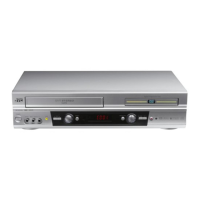
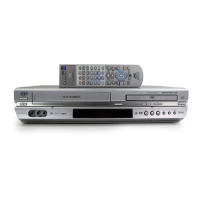
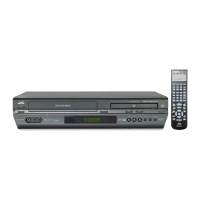
JVC HR-XVC26U - User Manual

JVC HR-XVC26U
92 pages
Print Icon
To Next Page IconTo Next Page
Loading...
Filename [XVC26U_02Cov1.fm]
DVD PLAYER &
VIDEO CASSETTE RECORDER
INSTRUCTIONS
LPT0892-001A
HR-XVC26U
For Customer Use:
Enter below the Model No. and
Serial No. which are located on the
rear of cabinet. Retain this
information for future reference.
Model No.
Serial No.
XVC26U_02Cov1.fm Page 1 Thursday, January 8, 2004 2:54 PM

Table of Contents

Questions and Answers

  • C
    Cory MclaughlinAug 14, 2025
    What to do if the playback picture does not appear on my JVC HR-XVC26U DVD VCR Combo?
    • N
      Nancy AllenAug 14, 2025
      If the playback picture on your JVC DVD VCR Combo doesn't appear while the tape is running, and you're using an RF connection, ensure your TV receiver is set to the VCR channel and that the unit's VCR channel is correctly set. If you're using the AV, S-VIDEO, or Component Video connection, make sure your TV receiver is set to the AV mode.
  • S
    Samuel RodriguezAug 17, 2025
    Why the VCR deck can not be operated on my JVC HR-XVC26U DVD VCR Combo?
    • M
      Michael MathisAug 17, 2025
      If the VCR deck on your JVC DVD VCR Combo cannot be operated, it might not be selected. To select it, press the VCR/DVD button on the unit repeatedly until the VCR indicator lights up. Alternatively, you can press the VCR button on the remote so that the VCR indicator lights up.
  • M
    Mary MannAug 21, 2025
    What to do if the playback picture is blurred on my JVC HR-XVC26U DVD VCR Combo?
    • K
      Kelli McphersonAug 21, 2025
      If the picture from your JVC DVD VCR Combo is blurred or interrupted during playback, but TV broadcasts are clear, or if you see a 'USE CLEANING CASSETTE' message, it's likely that the video heads are dirty. Use a dry cleaning cassette ECL-3F, or consult your JVC dealer.
  • C
    Christopher DunlapAug 25, 2025
    Why is there noise during playback on my JVC HR-XVC26U DVD VCR Combo?
    • A
      Alexandra MillerAug 25, 2025
      If you're experiencing noise during normal playback on your JVC DVD VCR Combo, the automatic tracking mode might be engaged. Try switching to manual tracking.
  • T
    toddcherylAug 27, 2025
    Why are there breaks in Hi-Fi soundtrack on my JVC HR-XVC26U?
    • B
      Brenda FrancisAug 27, 2025
      If you are experiencing breaks in the Hi-Fi soundtrack on your JVC DVD VCR Combo, the automatic tracking mode might be engaged. Try switching to manual tracking.
  • S
    Steven JenkinsAug 31, 2025
    How to fix a JVC DVD VCR Combo remote that is not working?
    • M
      morenomelanieAug 31, 2025
      If your JVC DVD VCR Combo remote isn’t working, the batteries might be dead. Replace the old batteries with new ones.
  • K
    Kimberly WestSep 3, 2025
    How to troubleshoot a JVC HR-XVC26U DVD VCR Combo that has no power?
    • J
      Joseph LevineSep 3, 2025
      If your JVC DVD VCR Combo isn't receiving power, it may be due to the AC power cord being disconnected. Connect the AC power cord to supply power to the unit.
  • J
    Jocelyn GreenSep 6, 2025
    Why won't the tape rewind or fast-forward on my JVC HR-XVC26U DVD VCR Combo?
    • C
      cameronmaddoxSep 6, 2025
      If the tape in your JVC DVD VCR Combo won’t rewind or fast-forward, it might already be fully rewound or fast-forwarded. Check the cassette.
  • T
    Todd BushSep 9, 2025
    What to do if the tape does not run during recording on my JVC HR-XVC26U?
    • S
      Samuel BondSep 10, 2025
      If the tape does not run during recording on your JVC DVD VCR Combo and the counter display blinks, the unit is likely in Record Pause mode. Press PLAY to resume recording.

Summary

CAUTIONS AND WARNINGS

CAUTION: LASER SYSTEM AND PRODUCT LABELS

Safety warnings regarding laser system and product labels.

ELECTRICAL SAFETY PRECAUTIONS

Warnings about preventing fire, shock hazards, and proper power usage.

INSTALLATION AND ANTENNA GUIDELINES

GENERAL SAFETY INSTRUCTIONS

Basic rules for installation, use, and servicing of the product.

INSTALLATION GUIDELINES

Instructions for grounding, power sources, ventilation, and mounting.

ANTENNA INSTALLATION

Guidance for outdoor antenna grounding and lightning protection.

PRODUCT USAGE AND SERVICING

SERVICING AND REPLACEMENT PARTS

Guidance on when to seek qualified service and replacement parts.

REMOTE CONTROL FUNCTIONS

INSTALLING YOUR NEW UNIT: BASIC CONNECTIONS

RF CONNECTION TO TV

Steps for connecting to a TV using RF cable.

AV CONNECTION TO TV

Steps for connecting to a TV using AV cables.

INITIAL SETTINGS: PLUG & PLAY SETUP

PERFORMING PLUG & PLAY SETUP

Steps to connect antenna and power for automatic setup.

INITIAL SETTINGS: MONITOR SET (DVD DECK)

SELECTING MONITOR TYPE MODE

Guide to selecting monitor type for optimal DVD picture quality.

INITIAL SETTINGS: LANGUAGE SET (VCR DECK)

SELECTING ON-SCREEN LANGUAGE

Procedure to choose the display language for VCR messages.

INITIAL SETTINGS: ON-SCREEN LANGUAGE SET (DVD DECK)

SELECTING ON-SCREEN LANGUAGE FOR DVD

Procedure to choose the display language for DVD messages.

INITIAL SETTINGS: DVD MENU, AUDIO, SUBTITLE LANGUAGE

SETTING MENU AND SUBTITLE LANGUAGES

How to set default languages for DVD menus and subtitles.

INITIAL SETTINGS: CLOCK SET

PREPARATIONS FOR CLOCK SETTING

Steps required before setting the clock manually.

ACCESSING THE CLOCK SET SCREEN

Navigating menus to access the clock setting interface.

INITIAL SETTINGS: MANUAL AND SEMIAUTO CLOCK SET

SEMIAUTO CLOCK SET PROCEDURE

Steps for setting clock using host channel and time zone.

MANUAL CLOCK SET PROCEDURE

Steps for manually setting time, date, and year.

INITIAL SETTINGS: TUNER SET

AUTO CHANNEL SET PROCEDURE

Steps for automatically scanning and setting TV channels.

INITIAL SETTINGS: MANUAL CHANNEL SET

ADDING OR SKIPPING CHANNELS

Procedure for manually adding or skipping channels.

VCR OPERATIONS: BASIC PLAYBACK

STARTING AND STOPPING PLAYBACK

Steps for playing and stopping VHS tapes.

VCR OPERATIONS: PLAYBACK FEATURES

VCR OPERATIONS: INDEX AND SKIP SEARCH

VCR OPERATIONS: BASIC RECORDING

STARTING, PAUSING, AND STOPPING RECORDING

Procedures for starting, pausing, and stopping recording.

VCR OPERATIONS: RECORDING FEATURES

INSTANT TIMER RECORDING (ITR)

Easy method for recording programs with automatic shut-off.

VCR OPERATIONS: EXPRESS TIMER PROGRAMMING

ACCESSING THE PROGRAM SCREEN

Steps to access the program setup screen.

ENTERING START TIME, STOP TIME, AND DATE

How to input program start/stop times and date.

VCR OPERATIONS: TIMER PROGRAMMING DETAILS

ENGAGING THE UNITS TIMER MODE

Activating and disengaging the VCR timer mode.

VCR OPERATIONS: PROGRAM MANAGEMENT

VCR OPERATIONS: CANCEL OR CHANGE PROGRAM

CANCELING OR CHANGING PROGRAM SETTINGS

How to cancel or modify existing timer programs.

VCR OPERATIONS: HANDLING PROGRAM OVERLAPS

CONFIRMING AND MODIFYING OVERLAPPING PROGRAMS

Identifying and adjusting conflicting timer schedules.

VCR OPERATIONS: SATELLITE AUTO RECORDING

ENGAGING SATELLITE AUTO RECORDING MODE

Steps to activate automatic recording from satellite receivers.

DVD OPERATIONS: BASIC PLAYBACK

LOADING A DISC AND STARTING PLAYBACK

Steps for loading discs and initiating playback.

DVD OPERATIONS: PLAYBACK FEATURES

DVD OPERATIONS: SEARCH AND VARIABLE SPEED

DVD OPERATIONS: STILL PICTURE, SLOW MOTION, AND RESUME

DVD OPERATIONS: VIDEO FINE PROCESSOR (VFP)

ADJUSTING PICTURE QUALITY MANUALLY

Steps for manually adjusting gamma, brightness, contrast, etc.

DVD OPERATIONS: USING THE ON-SCREEN BAR

DVD OPERATIONS: ON-SCREEN BAR OPERATIONS

DVD OPERATIONS: REPEAT PLAYBACK

SELECTING REPEAT MODES (TRACK, GROUP, ALL, OFF)

How to choose repeat playback modes for discs.

DVD OPERATIONS: A-B REPEAT PLAYBACK

SELECTING REPEAT MODE AND START POINT

Setting the start point (A) for A-B repeat playback.

SELECTING END POINT AND CANCELLING REPEAT

Setting the end point (B) and how to cancel A-B repeat.

DVD OPERATIONS: TIME SEARCH

SELECTING DESIRED TIME FOR PLAYBACK

How to enter a specific time to start playback.

DVD OPERATIONS: CHAPTER SEARCH

SELECTING DESIRED CHAPTER NUMBER

Entering a chapter number to start playback from that chapter.

DVD OPERATIONS: SUBTITLE SELECTION

SELECTING SUBTITLE LANGUAGE VIA ON-SCREEN BAR

Choosing subtitle language using the on-screen bar.

SELECTING SUBTITLE LANGUAGE VIA SUB TITLE BUTTON

Using the dedicated SUB TITLE button to change language.

DVD OPERATIONS: ANGLE SELECTION

SELECTING VIEW ANGLE VIA ON-SCREEN BAR

Choosing different camera angles using the on-screen bar.

SELECTING VIEW ANGLE VIA ANGLE BUTTON

Using the ANGLE button to cycle through scene angles.

DVD OPERATIONS: AUDIO LANGUAGE SELECTION

SELECTING AUDIO LANGUAGE VIA ON-SCREEN BAR

Choosing audio language using the on-screen bar.

SELECTING AUDIO LANGUAGE VIA A.MONITOR BUTTON

Using the A.MONITOR button to select audio language.

DVD OPERATIONS: AUDIO CHANNEL SELECTION

SELECTING AUDIO CHANNEL VIA ON-SCREEN BAR

Choosing audio channels for karaoke/Video CDs via on-screen bar.

SELECTING AUDIO CHANNEL VIA A.MONITOR BUTTON

Using the A.MONITOR button to select audio channels.

DVD OPERATIONS: PARENTAL LOCK SETUP

SETTING COUNTRY CODE AND LEVEL

Choosing country code and setting playback restriction levels.

DVD OPERATIONS: PARENTAL LOCK MANAGEMENT

MP3 PLAYBACK OPERATIONS

MP3 OPERATIONS: REPEAT PLAYBACK AND SELECTION

JPEG PLAYBACK OPERATIONS

JPEG OPERATIONS: REPEAT PLAYBACK AND ZOOM

EDITING (VCR DECK): EDIT FROM CAMCORDER

EDITING (VCR DECK): EDIT TO;FROM ANOTHER RECORDER

EDITING (VCR DECK): DUBBING FROM DVD TO VCR

STARTING AND ENDING DVD TO VCR DUBBING

Procedures for starting and ending the dubbing process.

EDITING (DVD DECK): DIGITAL AUDIO DUBBING

STARTING AND ENDING DIGITAL AUDIO DUBBING

Procedures for starting and ending digital audio dubbing.

CONNECTING EXTERNAL AUDIO DEVICES (DVD DECK ONLY)

SUBSIDIARY SETTINGS: VCR MODE SET

SUBSIDIARY SETTINGS: VCR PICTURE AND TIMER SETTINGS

SUBSIDIARY SETTINGS: DVD MODE SET

SUBSIDIARY SETTINGS: DVD PICTURE AND AUDIO SETTINGS

SUBSIDIARY SETTINGS: OTHER SETTINGS AND CHILD LOCK

TROUBLESHOOTING (VCR DECK)

TAPE TRANSPORT AND PLAYBACK PROBLEMS

Troubleshooting tape not moving or playback issues.

TROUBLESHOOTING (DVD DECK)

DISC COMPATIBILITY AND REGION CODE ERRORS

Addressing issues with unplayable discs and region code errors.

TROUBLESHOOTING: MEDIA AND RECORDING ISSUES

TROUBLESHOOTING: VCR TIMER RECORDING

TIMER PROGRAMMING AND ENGAGEMENT ISSUES

Resolving problems with timer programming and engagement.

JVC HR-XVC26U Specifications

General IconGeneral
TypeDVD VCR Combo
BrandJVC
ModelHR-XVC26U
Video FormatNTSC
Recording Format (VHS)VHS
Recording Formats (DVD)DVD-R, DVD-RW
Video OutputComposite, S-Video
InputsComposite, S-Video
Remote ControlYes
DVD FormatDVD-Video
Playback FormatsDVD, VHS
Audio OutputStereo
OutputsComposite, S-Video
VCR Type4-Head Hi-Fi

Related product manuals