EasyManua.ls Logo

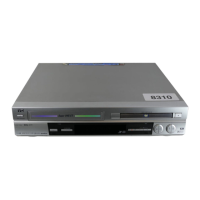
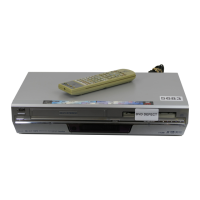
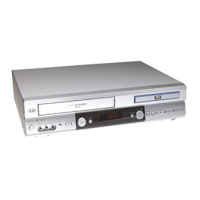
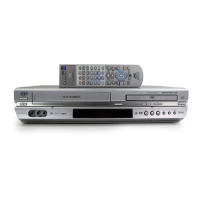
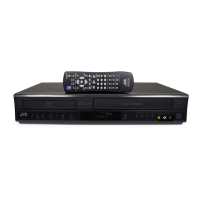
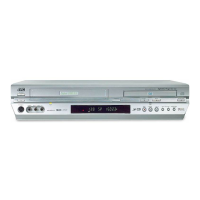
JVC HR-XVS44U - User Manual

JVC HR-XVS44U
96 pages
Print Icon
To Next Page IconTo Next Page
Loading...
Filename [XVS44U_02Cov1.fm]
DVD PLAYER &
VIDEO CASSETTE RECORDER
INSTRUCTIONS
LPT0856-001B
HR-XVS44U
For Customer Use:
Enter below the Model No. and
Serial No. which are located on the
rear of cabinet. Retain this
information for future reference.
Model No.
Serial No.
XVS44U_02Cov1.fm Page 1 Thursday, September 4, 2003 11:08 AM

Table of Contents

Questions and Answers

  • J
    Jonathan MillerAug 19, 2025
    Why is the TV broadcast image distorted on my JVC DVD VCR Combo?
    • S
      sharon74Aug 20, 2025
      If the image of a TV broadcast appears distorted on your TV screen when using your JVC DVD VCR Combo, it might be because the unit is left on with the DVD deck selected. Try turning off the unit, or press VCR to select the VCR deck, then press TV/VCR so that the VCR indicator disappears from the front display panel.
  • K
    Kayla BurnsAug 21, 2025
    What to do if recording cannot be started on JVC HR-XVS44U?
    • C
      claire00Aug 21, 2025
      If recording cannot be started on your JVC DVD VCR Combo, it could be due to the absence of a cassette or the cassette's record safety tab being removed. To resolve this, insert a cassette or cover the hole where the tab was removed using adhesive tape.
  • A
    Amy RayAug 23, 2025
    What to do if TV broadcasts cannot be recorded on JVC HR-XVS44U?
    • F
      fowlerjasonAug 23, 2025
      If TV broadcasts cannot be recorded on your JVC DVD VCR Combo, it might be because “F-1” or “L-1” has been selected as the input mode. Set to the desired channel.
  • L
    Lauren HarveyAug 26, 2025
    Why is camcorder recording not possible on JVC HR-XVS44U DVD VCR Combo?
    • A
      Antonio FryAug 26, 2025
      If camcorder recording is not possible with your JVC DVD VCR Combo, first confirm that the camcorder is properly connected. Also, ensure that the input mode is correctly set to “F-1” or “L-1”.
  • J
    James GarciaAug 27, 2025
    How to operate the DVD deck on JVC HR-XVS44U?
    • A
      amy49Aug 27, 2025
      If the DVD deck on your JVC DVD VCR Combo cannot be operated, press VCR/DVD repeatedly on the unit until the DVD indicator lights up, or press DVD on the remote so that the DVD indicator lights up.
  • D
    Dr. Justin Cole MDAug 29, 2025
    What to do if I see REGION CODE ERROR on JVC HR-XVS44U?
    • S
      Scott RodriguezAug 29, 2025
      If you see “REGION CODE ERROR!” on the TV screen with your JVC DVD VCR Combo, it means the disc's region number doesn't match the unit's. Use discs whose region number includes "ALL" or "1".
  • E
    Erica KimAug 31, 2025
    Why is there whistling during camcorder recording on JVC DVD VCR Combo?
    • P
      pbirdAug 31, 2025
      If whistling or howling is heard from the TV during camcorder recording with your JVC DVD VCR Combo, it may be because the camcorder’s microphone is too close to the TV or the TV’s volume is too high. Try positioning the camcorder so its microphone is away from the TV and turning the TV’s volume down.
  • Z
    Zachary CollierSep 2, 2025
    Why is the # blinking on my JVC HR-XVS44U DVD VCR Combo?
    • C
      Charles LittleSep 2, 2025
      If the “#” symbol on the front display panel of your JVC DVD VCR Combo won’t stop blinking, it means the timer is engaged but there’s no cassette loaded. Load a cassette with the record safety tab intact to resolve this.
  • D
    Dennis SmithSep 4, 2025
    Why MP3/WMA control display appears, but no operation on JVC HR-XVS44U DVD VCR Combo?
    • N
      Nicole WilsonSep 4, 2025
      If the MP3/WMA control display appears on the TV screen of your JVC DVD VCR Combo, but no operation can be performed, it could be because no MP3/WMA files or JPEG files are recorded to the disc, or the disc is an unplayable disc (such as CD-ROM). Replace the disc.
  • H
    Holly MendozaSep 6, 2025
    Why #, - and $ are blinking on JVC HR-XVS44U?
    • E
      Elizabeth BeckerSep 7, 2025
      If “#”, “–” and “$” are constantly blinking on the front display panel of your JVC DVD VCR Combo, it indicates that the loaded cassette has had its record safety tab removed, or the end of the tape was reached during timer recording. Remove the cassette and cover the hole with adhesive tape, or insert a cassette with the record safety tab intact. If the end of the tape was reached during timer recording, the program may not have been recorded in its entirety. Next time make sure you have enough time on the tape to record the entire program.

Summary

Instructions

Cautions

General Safety Precautions

Covers electrical, laser, fire, and moisture hazards for user safety.

FCC Compliance

Details FCC rules and compliance statements for the device.

Declaration of Conformity

Disc Usage Guidelines

About Discs

Details playable and unplayable disc types, and region number information.

File Structure of Discs

Explains how DVD and Audio CD discs are structured into titles/chapters/tracks.

IMPORTANT PRODUCT SAFETY INSTRUCTIONS

Installation Guidelines

Covers grounding, power, ventilation, and mounting for safe setup.

Antenna Installation

Provides instructions for safe antenna installation and grounding.

Safe Usage and Maintenance

Product Usage Precautions

Details safe practices for accessories, water, objects, and heat exposure.

Servicing and Safety Checks

Outlines precautions for servicing, damage, and replacement parts.

Instruction Manual Guide

Explains how to effectively use the instruction manual for information.

Disc Information

About Discs

Details playable and unplayable disc types, and region number information.

File Structure of Discs

Explains how DVD and Audio CD discs are structured into titles/chapters/tracks.

Disc Information

DVD VIDEO Marks

Explains video and audio marks found on DVD discs for content identification.

Disc Operations

Placing a Disc

Instructions on how to open the tray and insert a disc correctly.

Disc Handling and Care

Provides guidelines on handling, storing, and maintaining discs.

Front View and Controls

Unit Controls and Indicators

Identifies and describes the buttons and indicators on the front panel of the unit.

Unit Views and Indicators

Rear Panel Connections

Details the various input and output connectors on the rear of the unit.

Front Display Panel Information

Explains the indicators and displays on the front panel of the unit.

VCR On-Screen Display

VCR Display Indicators

Explains the meaning and function of various indicators shown on the TV screen for VCR operations.

Remote Control Operations

Remote Control Buttons

Identifies and describes the functions of each button on the remote control.

Installing Your New Unit

Basic Unit Connections

Guides through connecting the unit to the TV, power source, and setting the VCR channel.

S-VIDEO Connection

Connecting via S-Video

Provides step-by-step instructions for connecting the unit to a TV using S-Video.

Component Video Connection

Connecting via Component Video

Details how to connect the DVD deck to a TV using component video for enhanced picture quality.

Initial Settings

Plug & Play Setup

Explains the automatic clock and tuner setup process for the unit.

Initial Settings

Monitor Set Configuration

Guides on selecting the correct monitor type for optimal DVD playback picture settings.

Monitor Type Settings

Monitor Type Options

Details the different monitor type settings (16:9 NORMAL, AUTO, 4:3 LB, 4:3 PS) for aspect ratio adjustment.

Pan&Scan and Letter Box

Explains the two styles for displaying wide-screen images on different TV aspect ratios.

Language Settings

VCR On-Screen Language

How to set the display language for on-screen messages on the VCR deck.

DVD Language Settings

DVD On-Screen Language

How to change the language for on-screen messages on the DVD deck.

DVD Disc Language Settings

Menu, Audio, and Subtitle Language

How to set default languages for DVD menus, audio tracks, and subtitles.

Language Code List

Language Codes

Provides a list of country/area codes used for language settings.

Clock Setup

Manual Clock Setting

Steps for manually setting the clock if Plug & Play fails or is not used.

Clock and Time Settings

Semiauto Clock Set

How to manually set host channel, DST, and time zone for accurate time.

Manual Clock Set

Detailed steps for manually setting the time, date, year, and DST.

Tuner Settings

Auto Channel Set

How to automatically scan and set receivable TV and CATV channels.

Manual Channel Set

Adding and Skipping Channels

Instructions for manually adding or skipping channels for tuning.

VCR Deck Operations

Basic Playback

Step-by-step guide to loading a cassette and playing back video tapes.

VCR Playback Features

Still Picture and Slow Motion

How to pause, create still pictures, and use slow motion playback modes.

Variable Speed Search

How to use fast forward and rewind at variable speeds for quick searching.

VCR Playback Navigation

Index Search

How to use index codes to quickly locate specific recording points.

Instant ReView and Skip Search

Functions for quickly reviewing recordings and skipping sections.

VCR Advanced Playback Functions

Next Function Memory and Repeat Playback

Features for setting post-rewind actions and repeating playback sections.

Manual Tracking and Soundtrack

How to adjust tracking and select audio tracks during playback.

VCR Basic Recording

Recording Process

Step-by-step guide to loading a cassette and starting a recording.

VCR Recording Features

Recording While Watching and ITR

How to record one program while watching another and use Instant Timer Recording.

VCR Recording Information

Recording Time Displays

How to view elapsed recording time and remaining tape time.

Second Audio Recording

Information on recording SAP broadcasts and stereo indicators.

Active Video Calibration

Video Calibration Process

Explains how the unit calibrates video for playback and recording quality.

Express Timer Programming

Timer Recording Setup

Step-by-step guide for setting up timed recordings for programs.

VCR Program Management

Checking and Modifying Programs

How to check, cancel, or change programmed timer recordings.

Handling Program Overlaps

Resolving Overlapping Programs

How to manage and resolve conflicts when timer programs overlap.

Satellite Auto Recording

Recording Satellite Programs

Instructions for automatically recording timer-programmed satellite broadcasts.

DVD Deck Operations

Basic DVD Playback

Guide to loading a disc and starting playback on the DVD deck.

DVD Playback Features

Video CD PBC Navigation

How to navigate scenes on Video CDs using the Playback Control function.

DVD Menu Navigation

How to select scenes using top and disc menus on DVD discs.

DVD Navigation and Search

Item Search and Skipping

How to locate specific items or skip sections during playback.

Variable Speed Search

How to perform fast forward and rewind search at different speeds.

DVD Playback Enhancements

Still Picture, Slow Motion, and Resume

How to use still picture, slow motion, and resume playback functions.

Zooming Function

How to zoom in on the picture during playback.

DVD Audio Settings

3 D Phonic Surround Effect

How to activate and adjust the simulated surround sound effect.

VFP Picture Adjustment

Adjusting Picture Quality

How to use the VFP function to customize picture settings like gamma, brightness, and contrast.

DVD On-Screen Bar

Accessing and Using the On-Screen Bar

How to access the on-screen bar and navigate its playback controls.

DVD On-Screen Bar Operations

On-Screen Bar Functions

How to use the on-screen bar for playback modes like Repeat and Time Search.

Changing Time Information

How to view and switch between different time displays on the on-screen bar.

DVD Repeat Playback

Repeat Playback Modes

How to set different repeat modes (Track, Group, All, A-B) using the on-screen bar or REPEAT button.

DVD Advanced Playback

A-B Repeat Playback

How to set start and end points to repeat a specific section of a disc.

Time Search and PBC Reactivation

How to search for playback by time and reactivate PBC for Video CDs.

DVD Chapter Search

Searching by Chapter

How to use the on-screen bar to directly access and play specific chapters.

DVD Playback Modes

Program and Random Playback

How to play tracks in a programmed order or in random sequence.

DVD Subtitle Selection

Selecting Subtitle Language

How to choose the desired subtitle language using the on-screen bar or SUB TITLE button.

DVD Angle Selection

Selecting View Angles

How to select different camera angles for scenes recorded with multi-angle support.

DVD Audio Language Selection

Selecting Audio Language

How to choose the desired audio language for DVD playback.

DVD Audio Channel Selection

Selecting Audio Channels

How to select audio channels for karaoke or stereo playback on Video CDs and SVCDs.

Parental Lock Setup

Setting Parental Controls

How to set parental lock levels, country codes, and passwords to restrict content.

Parental Lock Management

Changing Parental Lock Settings

How to modify existing parental lock settings, change password, country code, or level.

Temporarily Releasing Parental Lock

How to temporarily override parental lock settings to play restricted discs.

Parental Lock Country Codes

Country;Area Code List

A list of country and area codes used for parental lock settings.

MP3;WMA Disc Playback

About MP3;WMA Discs

Information on MP3 and WMA file formats and disc playback characteristics.

MP3;WMA Control Display

Explains the on-screen display for navigating and controlling MP3/WMA playback.

MP3;WMA Playback Control

Navigating MP3;WMA Content

How to use the control display to select groups, tracks, and start playback.

MP3;WMA Repeat and Selection

Repeat Playback Modes

How to set repeat modes for tracks, groups, or all files in MP3/WMA playback.

Group and Track Selection

How to select specific groups and tracks for playback by number.

JPEG Disc Playback

About JPEG Discs

Information on JPEG file formats and disc playback characteristics.

JPEG Control Display

Explains the on-screen display for navigating and controlling JPEG playback.

JPEG Playback Control

Navigating JPEG Content

How to use the control display to select groups, files, and start playback.

JPEG Repeat and Selection

Repeat Playback Modes

How to set repeat modes for groups, files, or all files in JPEG playback.

Group and File Selection

How to select specific groups and files for slide-show playback by number.

VCR Editing

Editing from a Camcorder

How to connect a camcorder and record video onto the VCR deck.

VCR Editing with Another Recorder

Editing with Another Video Recorder

How to connect and edit tapes with another video recorder, either as source or deck.

VCR Dubbing

Dubbing from DVD to VCR

Step-by-step guide for dubbing selected scenes from a DVD disc to a VCR cassette.

DVD Editing

Digital Audio Dubbing

How to dub selected audio from DVD or Audio CD discs to a digital audio device like an MD.

Remote Control

Remote Control Functions

How to use the remote control, including changing remote codes and basic operations.

Multi-Brand Remote Control

Operating Other TV Brands

How to set up and use the remote control to operate TVs from other manufacturers.

Audio Output Connections

Connecting to Dolby Digital;DTS Devices

Instructions for connecting the unit to Dolby Digital decoders or amplifiers with DTS for advanced audio output.

VCR Subsidiary Settings

Mode Set Configuration

How to access and change various mode settings for the VCR deck through the Function Set screen.

VCR Operational Modes

S-VHS ET Recording

How to record in S-VHS ET mode on VHS cassettes for improved picture quality.

Video Calibration and Picture Control

How to use video calibration and picture control settings for optimal picture quality.

VCR Advanced Settings

Superimpose and Auto SP-EP Timer

Settings for displaying operational indicators and automatic tape speed adjustment.

Video Stabilizer and Blue Back

Features for correcting vertical vibration and setting a blue screen for unused channels.

VCR Audio Settings

Second Audio Record

How to record SAP audio and normal audio tracks.

Audio Monitor Options

How to select and listen to different audio tracks (Hi-Fi, Normal, Mix) during playback.

VCR Recording Modes

S-VHS Mode Settings

How to set the unit for recording in S-VHS, S-VHS ET, or VHS modes.

Input and Power Settings

How to configure front/rear aux inputs and set the auto power off function.

DVD Subsidiary Settings

Mode Set Configuration

How to access and change various mode settings for the DVD deck via the Set Up menu.

DVD Picture and Audio Settings

Picture Settings

Options for monitor type, picture source, screen saver, and file type selection.

Digital Audio Output Configuration

How to set the digital audio output format based on the connected device.

DVD Audio Adjustments

Analog Down Mix and Dynamic Range Control

Settings for analog audio output modes and dynamic range compression.

Output Level Adjustment

How to adjust the analog audio output level for connected equipment.

Playback Compatibility and Other Settings

Playback Disc Output Formats

Table detailing output formats for various disc types and audio settings.

Resume and On-Screen Guide

Settings for the resume function and on-screen guide display.

DVD Deck Settings

Child Lock Function

How to enable and disable the child lock feature to restrict unit operation.

Scan Mode Selection

How to switch between progressive and interlaced scan modes for optimal picture quality.

Troubleshooting - Power and VCR Tape Issues

Power and Tape Transport Problems

Solutions for issues related to power, remote function, and tape movement.

VCR Playback Troubleshooting

Common playback problems and their corrective actions for the VCR deck.

Troubleshooting - DVD and MP3;WMA Playback

DVD Playback Issues

Solutions for common problems with DVD playback, region codes, and language settings.

MP3;WMA Playback Issues

Troubleshooting steps for discs with no MP3/WMA files or incorrect file extensions.

Troubleshooting - JPEG and VCR Recording

JPEG Playback Issues

Solutions for problems with JPEG playback, file extensions, and disc compatibility.

VCR Recording Issues

Troubleshooting steps for recording failures, input mode errors, and tape issues.

Troubleshooting - VCR Timer Recording

Timer Recording Problems

Solutions for issues related to timer recording setup, tape limits, and indicator lights.

Troubleshooting - Other Problems

General Operation Issues

Solutions for distorted TV images, audio issues during recording, skipped channels, and incorrect clock settings.

Frequently Asked Questions

Playback and Recording FAQs

Answers to common questions regarding playback, recording, and timer recording functions.

Product Specifications

General and Tuner Specifications

Details power, dimensions, tuner system, channel coverage, and RF output.

VCR and DVD Deck Specifications

Technical specs for VCR video/audio, DVD video/audio, and accessories.

Glossary of Terms

Index of Terms

An alphabetical listing of terms used in the manual with corresponding page numbers for reference.

Service and Support Information

Locating a JVC Service Center

Instructions on how to find authorized service centers for repairs and support.

Product Accessories and Safety

Information on purchasing accessories and a caution against self-servicing.

Warranty Information

Limited Warranty Details

Outlines the terms, coverage, and limitations of the product's limited warranty.

JVC HR-XVS44U Specifications

General IconGeneral
BrandJVC
ModelHR-XVS44U
CategoryDVD VCR Combo
LanguageEnglish

Related product manuals