EasyManua.ls Logo

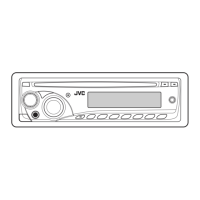
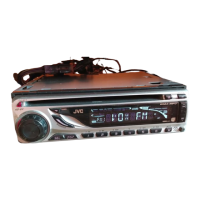
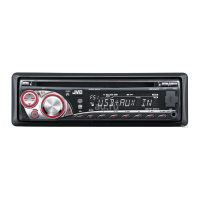
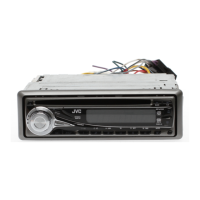
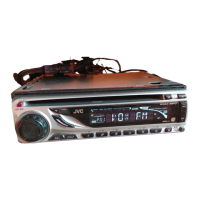
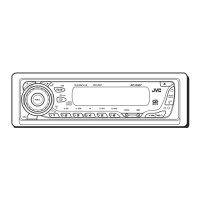
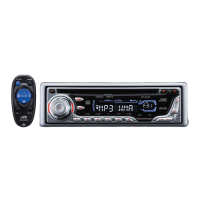
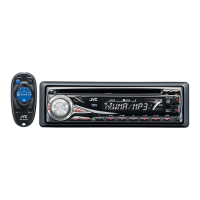
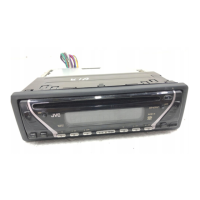
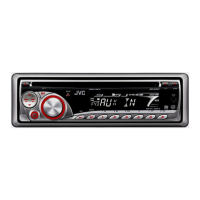
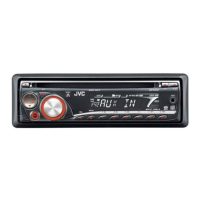
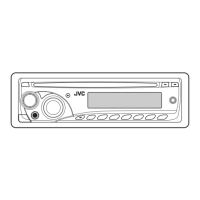
JVC KD-G396 - User Manual

JVC KD-G396
22 pages
Print Icon
To Next Page IconTo Next Page
Loading...
ENGLISH
For canceling the display demonstration, see page 6.
For installation and connections, refer to the separate manual.
INSTRUCTIONS
GET0486-001A
[U/UH]
KD-G396/KD-G395/KD-G245
CD RECEIVER KD-G396/KD-G395/KD-G245
Cover_KD-G396[U_UH]f.indd 1 8/21/07 4:34:09 PM

Questions and Answers

  • K
    Kimberly JenningsSep 23, 2025
    Why are the correct characters not displayed on my JVC KD-G396?
    • D
      Devin MendezSep 23, 2025
      If the correct characters are not displayed on your JVC Car Receiver, be aware that this unit can only display alphabets (upper case), numbers, and a limited number of symbols.
  • D
    Debbie HarrisAug 23, 2025
    What to do if my JVC KD-G396 Car Receiver does not work?
    • B
      Brian MossAug 25, 2025
      If your JVC Car Receiver is not working at all, reset the unit.
  • D
    Dr. Michael JohnsonAug 25, 2025
    Why is there no sound coming from my JVC KD-G396 speakers?
    • V
      Vickie HughesAug 26, 2025
      If you cannot hear sound from your JVC Car Receiver speakers, first, ensure the volume is at an audible level. Then, check the cords and connections to make sure they are properly connected.
  • F
    Fred RamirezAug 27, 2025
    Why is there static noise on my JVC Car Receiver radio?
    • C
      carlmartinAug 27, 2025
      If you are experiencing static noise while listening to the radio on your JVC Car Receiver, ensure that the antenna is firmly connected.
  • D
    David MillerAug 27, 2025
    Why is the sound interrupted on my JVC Car Receiver when playing a disc?
    • T
      Tanya CastroAug 27, 2025
      If the disc sound on your JVC Car Receiver is sometimes interrupted, try the following: * Stop playback while driving on rough roads. * Try changing the disc. * Check the cords and connections.
  • P
    Peter FarleySep 15, 2025
    Why won't my JVC KD-G396 Car Receiver play CD-R/CD-RW?
    • K
      Kyle MartinezSep 15, 2025
      If your JVC Car Receiver will not play a CD-R/CD-RW, ensure that you insert a finalized CD-R/CD-RW.
  • F
    fisherjuliaSep 12, 2025
    Why won't my JVC Car Receiver play the disc?
    • T
      timothy19Sep 12, 2025
      If your JVC Car Receiver will not play the disc, make sure you insert the disc correctly.
  • C
    Christopher TranSep 14, 2025
    Why is the disc sound sometimes interrupted on my JVC KD-G396?
    • E
      Erin ShermanSep 14, 2025
      If the disc sound is sometimes interrupted on your JVC Car Receiver: * Stop playback while driving on rough roads. * Try changing the disc. * Check the cords and connections.
  • B
    Brandon RodgersSep 5, 2025
    Why does my JVC KD-G396 play tracks in the wrong order?
    • J
      jacobsbradleySep 5, 2025
      If tracks are not played back in the order you have intended on your JVC Car Receiver, note that the playback order is determined when the files are recorded.
  • U
    ugaySep 2, 2025
    What does 'PLEASE EJECT' mean on my JVC KD-G396?
    • N
      Nancy FerrellSep 2, 2025
      If “PLEASE” and “EJECT” appear alternately on the display of your JVC Car Receiver, it means the disc cannot be played back.

Summary

Important For Laser Products

Class 1 Laser Product

Identifies the product as a Class 1 laser product, indicating safety standards.

Caution: Do Not Open the Top Cover

Warns users not to open the unit, as there are no user-serviceable parts inside.

Caution: Visible and;or Invisible Class 1 M Laser Radiation

Alerts to potential laser radiation when the unit is open and advises against direct viewing.

Reproduction of Label: Caution Label

Refers to the caution label placed on the exterior of the unit for identification.

Control Panel

Display Window

Details the functions and information shown on the unit's display screen.

Parts Identification

Provides a detailed breakdown and identification of all buttons, jacks, and indicators on the control panel.

Remote Controller

Installing the Lithium Coin Battery

Step-by-step guide for inserting the CR2025 battery into the remote control.

Main Elements and Features

Explains the purpose and function of each button on the remote controller.

Getting Started

Basic Operations

Covers fundamental user actions like powering on/off and adjusting volume.

Basic Settings

Guides users through initial setup, including clock setting and demonstration cancellation.

Radio Operations

Storing Stations in Memory

Instructions for saving radio stations using automatic (SSM) or manual presetting methods.

Start Searching for a Station

Details the process for automatically searching and tuning into available radio stations.

Tune In to a Station Manually

Provides guidance on manually selecting specific radio frequencies for tuning.

Disc Operations

Playing a Disc in the Unit

Step-by-step instructions for inserting, playing, and ejecting CDs and MP3/WMA discs.

Listening to a Preset Station

How to select and listen to radio stations that have been previously stored.

To Fast-Forward or Reverse the Track

Instructions for quickly moving forward or backward within a music track.

To Go to the Next or Previous Track

How to skip to the next or previous music track on the disc.

To Go to the Next or Previous Folder (for MP3;WMA Discs)

Navigation method for MP3/WMA files, allowing movement between folders.

To Locate a Particular Track (for CD) or Folder (for MP3;WMA Discs) Directly

Method for directly selecting specific tracks or folders by entering their number.

Other Main Functions

Skipping Tracks Quickly During Play

Technique for rapidly skipping multiple tracks, especially useful for MP3/WMA discs.

While Playing an MP3 or a WMA Track

Displays album, artist, and track information for MP3/WMA files when Tag Display is on.

Prohibiting Disc Ejection

Explains the feature that allows locking a disc within the unit's loading slot.

Changing the Display Information

Instructions on how to cycle through different display modes while playing audio sources.

Selecting the Playback Modes

Options for managing playback, such as repeat play (track/folder) and canceling repeat.

Sound Adjustments

Random Play

Settings to enable random playback of tracks, either by folder or the entire disc.

Adjusting the Sound

Guides users on how to fine-tune bass, mid-range, treble, fader, and balance settings.

Preset Values

A table detailing default equalizer settings for various music genres.

Other External Component Operations

Connecting an External Component

Instructions for connecting portable audio players or other devices via the AUX input jack.

General Settings - PSM

Introduction to changing Preferred Setting Mode (PSM) items.

General Settings - PSM

DEMO (Display Demonstration)

Options to control the automatic display demonstration feature.

CLK DISP (Clock Display)

Settings for enabling or disabling the continuous clock display.

CLOCK H (Hour Adjustment)

Procedure for setting the hour component of the unit's clock.

CLOCK M (Minute Adjustment)

Procedure for setting the minute component of the unit's clock.

DIMMER

Controls the brightness level of the display and button illumination.

SCROLL

Settings that determine how displayed information is scrolled.

AUX ADJ (Auxiliary Input Level Adjustment)

Adjusts the input sensitivity for the AUX source to prevent sudden volume changes.

TAG DISP (Tag Display)

Enables or disables the display of metadata (artist, album, track) for MP3/WMA files.

AMP GAIN (Amplifier Gain Control)

Setting for amplifier gain to protect speakers from damage.

Maintenance

How to Clean the Connectors

Instructions for cleaning the unit's electrical connectors to ensure proper contact.

Moisture Condensation

Information on potential moisture issues and recommended steps to resolve them.

How to Handle Discs

Guidelines for safely removing, holding, and storing discs to prevent damage.

To Keep Discs Clean

Advice on the proper methods for cleaning discs to ensure optimal playback.

To Play New Discs

Instructions on preparing new discs, including addressing rough edges, for playback.

More About This Unit

Basic Operations

Reminders on essential operations like powering on/off and source selection.

Turning On the Power

Details on using the SRC button to turn the unit on, initiating playback if the source is ready.

Turning Off the Power

Describes the unit's behavior regarding disc playback when turned off.

Tuner Operations

Further explanation on storing stations and manual tuning procedures.

Disc Operations

Cautions regarding DualDisc playback and general compatibility with various disc types.

Playing a CD-R or CD-RW

Specifies requirements and limitations for playing recordable CD-R and CD-RW discs.

KD-G396;KD-G395: Playing an MP3;WMA Disc

Detailed specifications and conditions for playing MP3 and WMA files on compatible models.

Troubleshooting

Symptoms and Remedies;Causes

Lists common operational problems and provides solutions for FM/AM, disc playback, and MP3/WMA issues.

Specifications

Audio Amplifier Section

Technical specifications related to the unit's audio amplifier performance.

CD Player Section

Technical specifications detailing the capabilities of the CD player mechanism.

Tuner Section

Technical specifications for the FM and AM radio tuner performance.

General

General technical specifications including power requirements, dimensions, and operating temperature.

JVC KD-G396 Specifications

General IconGeneral
Power Output50 W x 4
FM Presets18
AM Presets6
CD PlaybackYes
MP3 PlaybackYes
WMA PlaybackYes
BluetoothNo
Display TypeLCD
Detachable FaceYes
ClockYes
Equalizer3-Band
AUX InputYes
Audio ControlsBass/Treble

Related product manuals