ENGLISH
21SETTINGS
Setting menu ( : Initial)
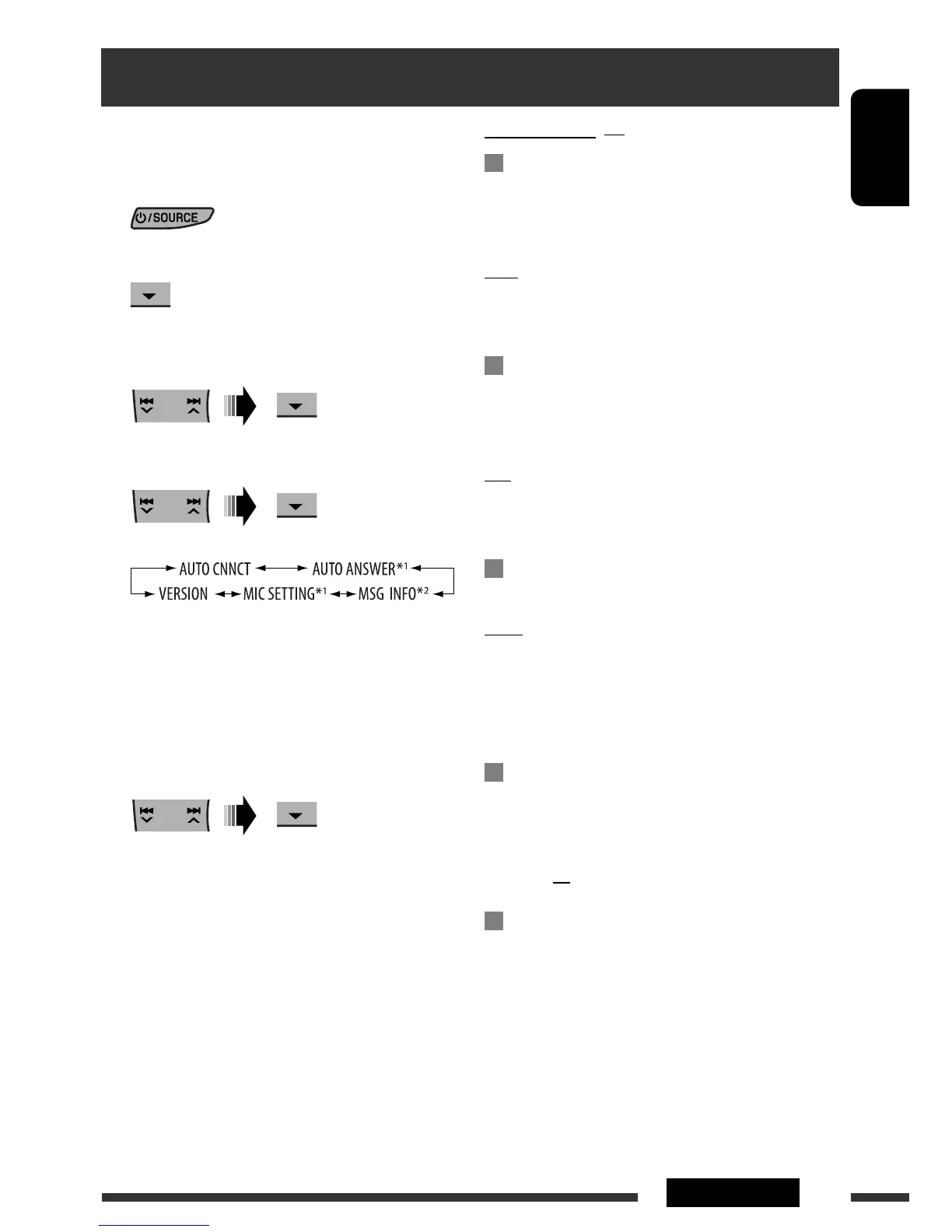
AUTO CNNCT (connect)
When the unit is turned on, the connection is
established automatically with...
OFF: No Bluetooth device.
LAST: The last connected Bluetooth device.
ORDER: The available registered Bluetooth device
found first.
AUTO ANSWER
Only for the device being connected for “BT PHONE.”
ON: The unit answers the incoming calls
automatically.
OFF: The unit does not answer the calls
automatically. Answer the calls manually.
REJECT: The unit rejects all incoming calls.
MSG INFO (message info)
Only for the device being connected for “BT PHONE.”
AUTO: The unit informs you of the arrival of
a message by ringing and displaying
“RCV MESSAGE” (receiving message).
MANUAL: The unit does not inform you of the arrival
of a message.
MIC SETTING (microphone setting)
Only for the device being connected for “BT PHONE.”
Adjust the volume of the microphone connected to the
Bluetooth adapter.
LEVEL 01/02/03
VERSION
The Bluetooth software and hardware versions are
shown.
You can change the settings listed on the right column
according to your preference.
1 Select “BT PHONE” or “BT AUDIO.”
2 Enter the Bluetooth menu.
3 Select “SETTINGS.”
4 Select a setting item.
*
1
Appears only when a Bluetooth phone is
connected.
*
2
Appears only when a Bluetooth phone is
connected and it is compatible with text
message.
5 Change the setting accordingly.
Bluetooth settings


 To Next Page
 Loading...