EasyManua.ls Logo

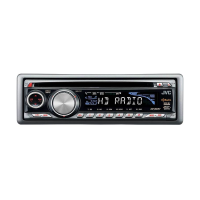
JVC KD-HDR61 - User Manual

JVC KD-HDR61
68 pages
Print Icon
To Next Page IconTo Next Page
Loading...
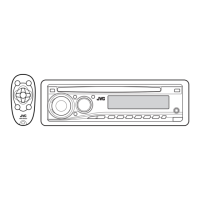
CD RECEIVER / RECEPTOR CON CD / RÉCEPTEUR CD
For canceling the display demonstration, see page 4. /
Para cancelar la demostración en pantalla, consulte la página 4. /
Pour annuler la démonstration des affichages, référez-vous à la page 4.
ENGLISH
ESPAÑOL
FRANÇAIS
INSTRUCTIONS
MANUAL DE INSTRUCCIONES
MANUEL D’INSTRUCTIONS
ʷʾʾʺƖʷʷʸ
ƾƿ
KD-AHD65/KD-HDR61
For installation and connections, refer to the separate manual.
Para la instalación y las conexiones, refiérase al manual separado.
Pour l’installation et les raccordements, se référer au manuel séparé.
For Customer Use:
Enter below the Model
No. and Serial No. which
are located on the top or
bottom of the cabinet.
Retain this information
for future reference.
Model No.
Serial No.

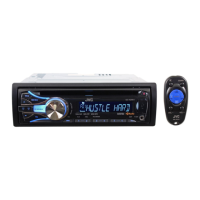
Other manuals for JVC KD-HDR61

Questions and Answers

  • J
    Jennifer OrtizAug 21, 2025
    How to fix JVC Car Receiver when there is no sound?
    • M
      Mia ColemanAug 21, 2025
      If you are experiencing no sound, interrupted sound, or static noise with your JVC Car Receiver, check the cords, antenna, and cable connections. Also, verify the condition of the disc, connected device, and recorded tracks.
  • D
    Dawn WellsSep 3, 2025
    What does 'NOT SUPPORT' mean on my JVC Car Receiver?
    • D
      dustin86Sep 3, 2025
      If “NOT SUPPORT” appears on the display of your JVC Car Receiver, check whether the track is a playable file format.
  • P
    pmendozaSep 1, 2025
    Why is the elapsed playing time incorrect on my JVC Car Receiver?
    • K
      Kenneth GarciaSep 1, 2025
      If the elapsed playing time is not correct on your JVC Car Receiver, this sometimes occurs during playback and is caused by how the tracks are recorded on the disc.
  • S
    Sheena HooperAug 30, 2025
    Why are tracks not playing in order on my JVC Car Receiver?
    • C
      Chelsea PierceAug 31, 2025
      If tracks or folders are not playing back in the order you intended on your JVC Car Receiver, note that the playback order is determined by the file name (if using USB) or the order in which files were recorded (if using a disc).
  • B
    Brian ScottAug 29, 2025
    What does 'MISWIRING CHK WIRING THEN RESET UNIT' mean on my JVC Car Receiver?
    • J
      John MillerAug 29, 2025
      When “MISWIRING CHK WIRING THEN RESET UNIT” or “WARNING CHK WIRING THEN RESET UNIT” appears on the display of your JVC Car Receiver and no operations can be done, ensure the terminals of the speaker leads are properly insulated with tape before resetting the unit. If the message persists, no answer.
  • K
    Kimberly GilbertAug 27, 2025
    Why does my JVC Car Receiver display 'CANNOT PLAY'?
    • K
      Kevin PhillipsAug 28, 2025
      If “CANNOT PLAY” flashes on the display of your JVC Car Receiver, check whether the connected device is compatible with the unit. Also, ensure that the device contains files in a supported format and try reattaching the device.
  • J
    Joshua StewartAug 26, 2025
    What does it mean when 'READING' keeps flashing on my JVC Car Receiver display?
    • D
      David LloydAug 26, 2025
      When “READING” keeps flashing on the display of your JVC Car Receiver, it indicates that a longer readout time is required. Avoid using too many hierarchical levels and folders. If the issue persists, try reloading the disc or reattaching the USB device.
  • A
    Angela DuncanAug 25, 2025
    Why my iPod/iPhone does not work with JVC Car Receiver?
    • K
      Kenneth GreeneAug 25, 2025
      If your iPod/iPhone is not turning on or working with the JVC Car Receiver, check the connection between the unit and your iPod/iPhone. You can also detach and reset the iPod/iPhone using a hard reset. Also, verify the setting is appropriate.
  • S
    shannon92Aug 23, 2025
    What to do if JVC Car Receiver does not work?
    • J
      James DavisAug 23, 2025
      If your JVC Car Receiver is not working at all, try resetting the unit.

Summary

Safety and Compliance Information

Laser Product Safety Details

Details safety compliance and precautions for Class 1 Laser Products.

Operational Precautions and Setup

Vehicle and Unit Safety Warnings

Covers crucial advice on volume, temperature, condensation, and vehicle operation.

Panel, Reset, and Cleaning Procedures

Instructions for panel attachment, resetting, disc ejection, and cleaning.

Preparation and Basic Operations

Display Demonstration and Clock Setting

Guide to cancel display demo and set the unit's clock.

Control Panel and Remote Operations

Control Panel Button Functions

Explains the functions of buttons on the main control panel.

Radio Tuning and Reception

HD Radio Technology Overview

Explains digital sound, PSD, HD2/HD3 channels, and iTunes Tagging.

Radio Station Management

Storing and Selecting Preset Stations

Instructions for manually and automatically storing radio stations.

iTunes Tagging for Song Purchase

Tagging and Transferring Songs

Steps to tag songs from HD Radio and transfer them to iPod/iPhone.

CD and USB Media Playback

Playing CDs and USB Devices

Information on compatible media and file formats for playback.

iPod;iPhone Connectivity and Control

Connecting and Controlling iPod;iPhone

Steps for connecting, selecting control modes, and navigating tracks.

Pandora Internet Radio Operations

Pandora App Setup and Operation

Guide to installing the app, creating an account, and operating Pandora.

External Components and Bluetooth Integration

Connecting External Audio Sources

Instructions for connecting devices via Front/Rear AUX inputs.

Illumination Color Customization

Selecting Preset Illumination Colors

How to choose from preset colors for button and display zones.

Brightness and Sound Adjustments

Adjusting Display Brightness

Steps to set preferred brightness levels for button and display zones.

Remote Controller Management

Remote Controller Preparation

Instructions for initial use and battery replacement of the remote controller.

Menu Operations

Navigating Menu and Display Settings

Guide to menu access, dimmer, brightness, scroll, and tag display.

Advanced Menu Settings

Audio, Tuner, and Source Selections

Details on subwoofer, HPF, gain, SSM, area, mono, and source settings.

Additional Information: Media Files

Disc and Audio File Compatibility

Information on playable discs, audio file formats, and USB device requirements.

iPod;iPhone and USB Device Notes

USB Device Limitations and iPod;iPhone Compatibility

Covers USB device recognition, file limits, and compatible iPod/iPhone models.

Troubleshooting Guide

General and Radio Problem Solutions

Solutions for sound, connection, display, and radio reception issues.

Troubleshooting Specific Errors

Pandora and iPod;iPhone Error Resolution

Solutions for 'NOT SUPPORT', 'CANNOT PLAY', and Pandora setup errors.

Technical Specifications: Audio and Tuner

Audio Amplifier and Tuner Metrics

Details power output, impedance, frequency response for amplifier and tuner.

Technical Specifications: USB and General

USB and General Unit Specifications

Covers USB standards, general requirements, dimensions, and mass.

JVC KD-HDR61 Specifications

General IconGeneral
Tuner BandsAM/FM
HD RadioYes
CD PlaybackYes
MP3 PlaybackYes
WMA PlaybackYes
USB PortYes
BluetoothNo
Display TypeLCD
Detachable FaceYes
Auxiliary InputYes
CD TextYes
Remote ControlYes
Channels4
Max Power Output50 Watts x 4
RMS Power Output22 Watts x 4 Channels
Preamp Outputs3 (Front, Rear, Subwoofer)
Preamp Voltage2.5 Volts
Preset Stations18 FM, 6 AM

Related product manuals