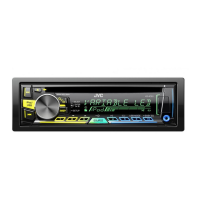
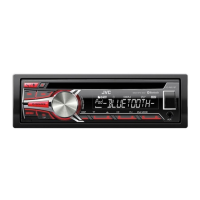
What does it mean when “PLEASE” and “EJECT” appear alternately on my JVC Car Stereo System?
- SSue RodriguezAug 31, 2025
If “PLEASE” and “EJECT” appear alternately on your JVC Car Stereo System, press the eject button, then insert the disc correctly.

What does it mean when “PLEASE” and “EJECT” appear alternately on my JVC Car Stereo System?
If “PLEASE” and “EJECT” appear alternately on your JVC Car Stereo System, press the eject button, then insert the disc correctly.
What to do when JVC KD-R760 shows “SUBSCRIPTION UPDATED – Your subscription is updated. PRESS ENTER TO CONTINUE.”?
If your JVC Car Receiver displays “SUBSCRIPTION UPDATED – Your subscription is updated. PRESS ENTER TO CONTINUE.”, press the volume knob to continue.
Why is the playback order wrong on my JVC Car Stereo System?
The playback order on your JVC Car Stereo System is determined by the file name (USB) or the order in which files were recorded (disc).
What does “NO STATIONS” mean on my JVC KD-R760 Car Receiver?
If your JVC Car Receiver displays “NO STATIONS”, no stations are found.
What does it mean when “PLEASE” and “EJECT” appear alternately on my JVC Car Receiver?
If “PLEASE” and “EJECT” appear alternately on your JVC Car Receiver, press the eject button, then insert the disc correctly.
What does “STATION LMT” mean on my JVC KD-R760?
If your JVC Car Receiver displays “STATION LMT”, retry after deleting unnecessary stations from your device.
What does “NOT CONNCTD” mean on my JVC KD-R760 Car Receiver?
If your JVC Car Receiver displays “NOT CONNCTD”, linking to the application is impossible.
What does “UPDATE APP” mean on JVC KD-R760 Car Receiver?
If your JVC Car Receiver displays “UPDATE APP”, make sure you have installed the latest version of the iHeart Link for JVC application on your device.
Why can't I hear sound during playback on my JVC Car Receiver?
If you are unable to hear sound during playback on your JVC Car Receiver, try the following: 1. Reconnect the Android device. 2. If in [AUDIO MODE], launch any media player application on the Android device and start playback. 3. If in [AUDIO MODE], relaunch the current media player application or use another media player application. 4. Restart the Android device.
How to fix JVC KD-R760 when no sound can be heard?
If you cannot hear any sound from your JVC Car Receiver, try the following: * Adjust the volume to the optimum level. * Check the cords and connections to ensure they are properly connected.
| Brand | JVC |
|---|---|
| Model | KD-R760 |
| Category | Car Receiver |
| Language | English |
Includes FCC warnings regarding radio frequency energy and compliance notes for digital devices.
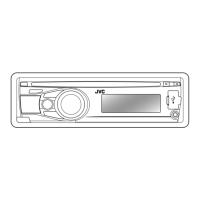
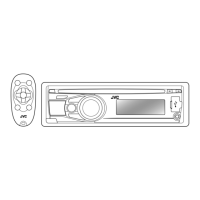
Overview of the main unit's faceplate and the remote control layout.
Instructions for powering on, adjusting volume, selecting sources, and changing display.
Guide to cancel demonstration mode, set the clock, and configure basic settings.
How the source automatically changes and playback begins.
Instructions for playback functions like reverse, skip, repeat, and random play.
Managing playback control modes for iPod/iPhone and Android devices.
Changing audiobook playback speed and performing quick file searches.
How to search for stations, store them in memory, and recall stored stations.
Setting the radio to turn on at a specific time regardless of the current source.
Adjusting tuner settings like SSM, IF BAND, MONO, AREA, and PTY SEARCH.
Instructions for connecting portable audio players and Bluetooth devices via AUX.
Steps for preparing, connecting, and starting Pandora service.
Creating new stations, searching registered stations, and bookmarking songs/artists.
Steps for preparing, connecting, and starting iHeartRadio service.
How to search for stations and navigate city lists alphabetically.
Instructions for starting SiriusXM, storing, and selecting channels.
Explains features like Replay, SmartFavorites channels, and TuneScan for SiriusXM.
Configuring general settings and managing channel lock with a passcode.
Procedures for editing locked channels and clearing settings.
Selecting preset equalizers and storing custom sound settings.
How to navigate and adjust various audio settings through the menu.
Adjusting bass boost, loudness, subwoofer levels, fader, and balance.
Setting volume adjustment, amplifier gain, and special features like D.T.EXP.
Configuring speaker outputs and preout terminals for optimal sound.
Adjusting display brightness, dimmer settings, and color schemes.
Setting display brightness levels and controlling information scrolling.
Customizing display colors for different zones and using color patterns.
Information on playable CD types, file formats, and character limits.
Details on compatible USB devices, iPod/iPhone, and Android OS support.
Information on third-party service availability and functionality.
Using PC/Android applications for audio file management.
How to change displayed information for various sources using DISP-SETUP.
Solutions for common issues related to sound, source selection, and radio reception.
Troubleshooting steps for playback issues, device detection, and compatibility.
Explains error messages related to Pandora and iHeartRadio services.
Troubleshooting SiriusXM specific errors like channel lock and signal issues.
Basic steps like checking troubleshooting, resetting the unit, and contacting support.
Essential safety warnings and procedures for installing the unit.
Step-by-step guide for in-dash mounting and alternative mounting methods.
Guide to connecting the factory wiring harness and recommended connections.
Lists and diagrams of parts required for installation.
Technical details for FM/AM tuner and CD player functions.
Specifications for USB, auxiliary input, and audio components.
Overall operating voltage, temperature, dimensions, and weight.
Loading...