EasyManua.ls Logo

JVC KD-R716 - User Manual

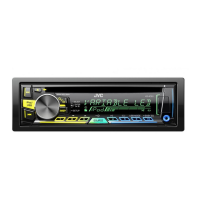
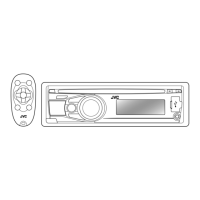
JVC KD-R716
38 pages
Print Icon
To Next Page IconTo Next Page
Loading...
ENGLISH
GET0648-001B
[U/UH]
EN, TH
1209DTSMDTJEIN© 2009 Victor Company of Japan, Limited
For canceling the display demonstration, see page 4. /
CD RECEIVER /
KD-R716
INSTRUCTIONS
For installation and connections, refer to the separate manual.
Having TROUBLE with operation?
Please reset your unit
Refer to page of How to reset your unit
CoverRear_KD-R716_001B_ff.indd 1-2CoverRear_KD-R716_001B_ff.indd 1-2 1/6/10 12:43:34 PM1/6/10 12:43:34 PM

Questions and Answers

  • R
    Robert JohnsonSep 18, 2025
    Why “VOICE DIAL” is not successful on JVC Car Receiver?
    • V
      Victoria WallaceSep 18, 2025
      If “VOICE DIAL” is not successful on your JVC Car Receiver: * Use “VOICE DIAL” calling method in a more quiet environment. * Reduce the distance from the microphone when you speak the name. * Change the to , then try again.
  • J
    Jennifer MorrisonAug 25, 2025
    Why JVC Car Receiver does not detect the Bluetooth device?
    • D
      David RobinsonAug 25, 2025
      If your JVC Car Receiver is not detecting your Bluetooth device, try searching from the Bluetooth device again. If it still fails, reset the unit and then try searching from the Bluetooth device again.
  • S
    stephanie58Aug 25, 2025
    What to do if “PROTECT” appears on JVC Car Receiver display?
    • S
      stevensmithAug 26, 2025
      If your JVC Car Receiver displays “PROTECT” and you can't do anything, make sure the speaker wire terminals are properly covered with insulating tape. After that, try resetting the unit. If the issue remains, it is recommended to consult your JVC car audio dealer or a company supplying kits.
  • B
    breannaskinnerAug 27, 2025
    How to fix “NO DISC” error on JVC KD-R716?
    • T
      thompsonarielAug 27, 2025
      If your JVC Car Receiver displays “NO DISC”, insert a playable disc into the loading slot.
  • T
    Teresa MoranSep 18, 2025
    How to stop noise from iPod/iPhone on JVC Car Receiver?
    • F
      ftuckerSep 18, 2025
      If a lot of noise is generated from the iPod/iPhone on your JVC Car Receiver, turn off (uncheck) the “VoiceOver” feature of the iPod.
  • S
    Steven EscobarSep 23, 2025
    Why is the elapsed playing time incorrect on JVC KD-R716 Car Receiver?
    • K
      Kathy RandallSep 23, 2025
      This is caused by how the tracks are recorded on the disc.
  • M
    Michelle SmithSep 9, 2025
    What to do if “NO FILE” appears on JVC Car Receiver during USB playback?
    • J
      jordanmarkSep 9, 2025
      If “NO FILE” appears on the display of your JVC Car Receiver during USB device playback, verify that the selected folder, the connected USB device, or the iPod/iPhone contains a playable file.
  • J
    Justin GardnerSep 10, 2025
    Why tracks/folders are not played in order on JVC KD-R716 USB?
    • C
      Christopher LopezSep 10, 2025
      If tracks/folders are not played back in the order you intended during USB device playback on your JVC Car Receiver, note that the playback order is determined by the file name. Folders with numbers at the beginning of their names are sorted numerically. Folders without numbers are sorted according to the file system of the USB device.
  • M
    Matthew GallagherSep 3, 2025
    Why does “READ FAILED” or “NO USB” appear on JVC KD-R716?
    • M
      Misty DavisSep 3, 2025
      If your JVC Car Receiver displays “READ FAILED” or “NO USB”: * Check whether the connected USB device or the iPod/iPhone is compatible with this unit. * Ensure the USB device is properly connected.
  • W
    William EspinozaSep 1, 2025
    What to do if iPod/iPhone does not work with JVC Car Receiver?
    • C
      Cory Morgan MDSep 1, 2025
      If the iPod/iPhone is not turning on or working with your JVC Car Receiver: * Check the connecting cable and its connection. * Update the firmware version of the iPod/iPhone. * Charge the battery of the iPod/iPhone. * Reset the iPod/iPhone. * Check whether setting is appropriate.

Summary

Important Laser Product Information

Class 1 Laser Product Designation

Specifies the unit as a Class 1 laser product.

Laser Radiation Safety Cautions

Details cautions regarding visible and invisible laser radiation when the unit is open.

General Safety Precautions

Provides essential safety advice for operating the unit, including volume levels and driving.

How to Read This Manual

Understanding Symbols and Icons

Explains the meaning of icons and symbols used throughout the manual.

Volume Setting Caution

Offers a specific caution regarding volume settings to prevent speaker damage.

Canceling the Display Demonstration

Setting the Clock

Preparing the Remote Controller (RM-RK50)

Replacing the Lithium Coin Battery

Instructions for replacing the battery in the remote controller.

Remote Controller Safety Warnings

Provides safety warnings and precautions for using the remote controller.

Basic Operations

Listening to the Radio

Manual Radio Search

Explains how to manually search for radio stations.

Handling FM Stereo Reception Issues

Provides guidance for improving reception of weak FM stereo broadcasts.

Automatic FM Station Presetting

Details the process of automatically storing FM stations using SSM.

Radio Station Management

Manual Presetting (FM;AM)

Instructions for manually storing radio stations.

Selecting a Preset Station

Explains how to select a stored preset radio station.

Radio Title Assignment

Details how to assign titles to radio stations.

Radio Controls and Display

Changing Display Information

Describes how to change the information displayed for radio stations.

Using the Radio Remote Controller

Explains how to use the remote controller for radio functions.

Listening to a Disc

Stopping Playback and Ejecting the Disc

Instructions for stopping playback and ejecting a disc.

Prohibiting Disc Ejection

Details how to prohibit or cancel disc ejection.

Selecting Folder or Track on Disc

Guidance on navigating and selecting folders and tracks on a disc.

USB Device Operations

Selecting Playback Modes (USB)

Explains how to select different playback modes for USB devices.

Listening to the USB Device

Instructions for connecting and playing audio from a USB device.

Changing Display Information (USB)

Describes how to change the information displayed for USB playback.

Using the Remote Controller (USB)

Explains how to use the remote controller for USB functions.

USB Device Playback Management

Stopping Playback and Detaching USB Device

Instructions for safely stopping playback and removing a USB device.

USB Device Cautions

Provides important cautions and warnings for using USB devices.

Using the Bluetooth Device

Bluetooth Profile Support

Lists the Bluetooth profiles supported by the unit.

Device Preparation

Steps required to prepare for connecting a Bluetooth device.

Pairing a Bluetooth Device

Explains the process of pairing a Bluetooth device with the unit.

Deleting a Registered Bluetooth Device

Connecting;Disconnecting Bluetooth Devices

Using a Bluetooth Mobile Phone

Making a Phone Call

Instructions on how to make a phone call using the connected mobile phone.

Selecting Contacts from Phonebook

Receiving a Call

Bluetooth Call and Message Handling

Switching Conversation Media

Details on switching between unit and mobile phone for conversations.

Switching Connected Mobile Phones

Instructions for switching to the last connected mobile phone.

Handling Incoming Text Messages

Information on how the unit handles incoming text messages.

Using the Remote Controller (Bluetooth Audio)

Using a Bluetooth Audio Player

Remote Controller Operations (Bluetooth Audio)

Selecting Playback Modes

Explains how to select playback modes for Bluetooth audio.

Changing Bluetooth Settings

Bluetooth Settings Configuration

Listening to the iPod;iPhone

iPod;iPhone Preparation

Steps required to prepare the iPod/iPhone for connection.

Stopping Playback and Detaching iPod;iPhone

Instructions for safely stopping playback and removing the iPod/iPhone.

iPod;iPhone Usage Cautions

Provides important cautions and warnings for using iPod/iPhone.

Selecting iPod;iPhone Tracks

Selecting iPod;iPhone Playback Modes

Changing Display Information (iPod;iPhone)

Using the Remote Controller (iPod;iPhone)

Listening to Other External Components

Selecting and Storing Sound Modes

Selecting a Preset Sound Mode

Instructions for selecting preset sound modes for music genres.

Storing Your Own Sound Mode

Details on how to save custom sound adjustments.

Menu Operations

Advanced Menu Settings

Tuner Settings

Configuration options for tuner functions like SSM, MONO, and FADER.

Audio Settings

Configuration options for audio features like LOUDNESS and volume.

System and Source Settings

Audio and Subwoofer Settings

Settings related to subwoofer frequency, level, and amplifier gain.

Source Selection

Options for enabling or disabling various audio sources like AM, AUX, and Bluetooth.

iPod;iPhone Specific Settings

Settings for controlling iPod/iPhone playback and features.

More About This Unit

Basic Operations Overview

General overview of basic unit operations and behavior.

Tuner Operations Overview

Details on tuner operations, including station storage.

Disc;USB Operations Overview

Information regarding disc and USB playback operations.

CD-R;RW Playback Notes

Specific notes and cautions for playing CD-R and CD-RW discs.

MP3;WMA Disc Playback Details

USB MP3;WMA;WAV Playback Details

USB Device Playback Notes

Bluetooth Operations Summary

iPod;iPhone Operation Details

Maintenance

Connector Care

Instructions for cleaning and maintaining the unit's connectors.

Moisture Condensation Issues

Guidance on handling moisture condensation inside the unit.

Disc Handling and Cleaning

Procedures for handling, cleaning, and playing discs.

Prohibited Discs

Lists discs that should not be used with the unit.

Troubleshooting

Troubleshooting MP3;WMA and USB Playback

Troubleshooting USB, Bluetooth, and Phone Issues

Troubleshooting Bluetooth and iPod;iPhone Issues

Specifications

Audio Amplifier Specifications

Technical specifications for the unit's audio amplifier section.

Tuner Specifications

Technical specifications for the unit's FM and AM tuner.

System Specifications

CD Player Specifications

Technical specifications for the CD player section.

USB and Bluetooth Specifications

Technical specifications for the USB and Bluetooth sections.

General System Specifications

General technical specifications for the unit.

JVC KD-R716 Specifications

General IconGeneral
BrandJVC
ModelKD-R716
CategoryCar Receiver
LanguageEnglish

Related product manuals