EasyManua.ls Logo

JVC KD-R794BT - User Manual

JVC KD-R794BT
152 pages
Print Icon
To Next Page IconTo Next Page
Loading...
Data Size: B6L (182 mm x 128 mm)
Book Size: B6L (182 mm x 128 mm)
ENGLISH
ESPAÑOL
NEDERLANDS
PORTUGUÊS
B5A-2126-00 [E]
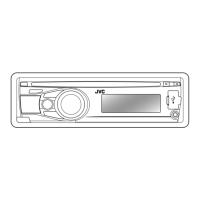
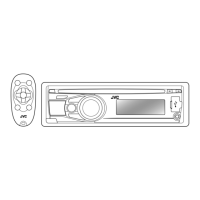
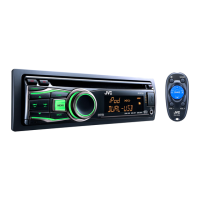
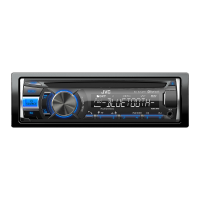
KD-R992BT / KD-R899BT / KD-R891BT /
KD-R794BT / KD-R792BT
CD RECEIVER
INSTRUCTION MANUAL
RECEPTOR CON CD
MANUAL DE INSTRUCCIONES
CD-RECEIVER
GEBRUIKSAANWIJZING
RECEPTOR CD
MANUAL DE INSTRUÇÕES
JS_JVC_KD_R992BT_E_C00.indd 1JS_JVC_KD_R992BT_E_C00.indd 1 7/11/2017 3:32:40 PM7/11/2017 3:32:40 PM

Questions and Answers

  • J
    Jacqueline ReynoldsSep 15, 2025
    Why are correct characters not displayed on JVC Car Receiver?
    • M
      Margaret WilsonSep 15, 2025
      If correct characters are not displayed on your JVC Car Receiver, this unit can only display uppercase letters, numbers, and a limited number of symbols. Depending on the display language you have selected, some characters may not be displayed correctly.
  • M
    Matthew RodriguezAug 25, 2025
    What to do if JVC KD-R794BT Car Receiver does not detect Bluetooth device?
    • N
      Noah RitterAug 25, 2025
      If your JVC Car Receiver isn't detecting any Bluetooth devices, try searching for the device again from the Bluetooth device itself. Alternatively, you can reset the unit.
  • Z
    Zachary TaylorAug 25, 2025
    Why is sound interrupted during Bluetooth playback on JVC Car Receiver?
    • E
      erin02Aug 26, 2025
      If the sound is being interrupted or skipped during playback from a Bluetooth audio player on your JVC Car Receiver, try reducing the distance between the unit and the Bluetooth audio player. You can also try turning the unit off and then on again, then try reconnecting. It is also possible that other Bluetooth devices might be trying to connect to the unit.
  • J
    Jonathan BarberAug 26, 2025
    What to do if 'Cannot Play' appears on JVC Car Receiver?
    • J
      Joseph RodriguezAug 27, 2025
      If “CANNOT PLAY” appears on your JVC Car Receiver, connect a USB device that contains playable audio files.
  • M
    Mackenzie FrancisSep 16, 2025
    Why there is no sound during playback on JVC Car Receiver?
    • A
      Anthony MartinezSep 16, 2025
      If you cannot hear sound during playback on your JVC Car Receiver, reconnect the Android device. If in [AUDIO MODE], launch any media player application on the Android device and start playback. If still in [AUDIO MODE], relaunch the current media player application or use another media player application. You can also restart the Android device. If this does not solve the problem, the connected Android device may be unable to route the audio signal to the unit.
  • D
    Daniel Moore MDSep 23, 2025
    What does 'Loading' mean on JVC Car Receiver when searching?
    • P
      Pamela SandersSep 23, 2025
      This unit is still preparing the iPod/iPhone music list. It may take some time to load, try again later.
  • D
    danielbrianSep 8, 2025
    What to do if 'Check App' appears on JVC Car Receiver?
    • A
      Amy CharlesSep 8, 2025
      If “CHECK APP” appears on your JVC Car Receiver, the Spotify application is not connected properly, or you are not logged in. End the Spotify application and restart it, then log in to your Spotify account.
  • Q
    qwebbSep 8, 2025
    Why does 'Not Support' appear on JVC Car Receiver?
    • T
      Tina LucasSep 9, 2025
      If “NOT SUPPORT” appears on your JVC Car Receiver and the track skips, check whether the track is in a playable format.
  • J
    Jason AllenSep 2, 2025
    What to do if 'Unresponsive Device' appears on JVC Car Receiver?
    • S
      Samantha EverettSep 2, 2025
      If “UNRESPONSIVE DEVICE” appears on your JVC Car Receiver, ensure that the device is not malfunctioning and try reattaching it.
  • S
    Samantha ThompsonAug 31, 2025
    What does 'Please Wait' mean on JVC Car Receiver?
    • D
      Deanna BeckerAug 31, 2025
      If “PLEASE WAIT” appears on the display of your JVC Car Receiver, the unit is preparing to use the Bluetooth function. If the message persists, turn the unit off and then on again, and reconnect the device.

Summary

Regulatory Compliance Declarations

RE Directive 2014;53;EU Compliance Statement

Statement of conformity with the European Union's Radio Equipment Directive.

RoHS Directive 2011;65;EU Compliance Statement

Statement of conformity with the RoHS Directive on hazardous substances.

Getting Started: Initial Setup and Safety

Important Usage and Safety Guidelines

Key instructions for proper operation and essential safety precautions.

Basics: Unit Operation (Models KD-R992 BT;KD-R899 BT;KD-R794 BT;KD-R792 BT)

Faceplate Layout and Controls Overview

Identifies buttons, displays, and ports on the unit's front panel.

Fundamental Operations: Power, Volume, Source

Step-by-step guide for powering, volume control, and source selection.

Basics: Unit Operation (Model KD-R891 BT)

Faceplate Layout and Controls Overview (KD-R891 BT)

Identifies buttons, displays, and ports specific to the KD-R891BT model.

Fundamental Operations: Power, Volume, Source (KD-R891 BT)

Guide to powering, volume control, and source selection for KD-R891BT.

Getting Started: Initial Setup Procedures

Radio Operation: Finding and Storing Stations

Searching for Radio Stations Automatically and Manually

Methods for tuning into FM/AM radio stations.

Storing and Recalling Preset Radio Stations

How to save and access favorite broadcast frequencies.

Spotify Integration: Setup and Playback

Audio Input Options: AUX and Media Sources

Connecting and Playing Media from CD, USB, iPod, Android

Guide to connecting and playing various digital media sources.

Media Playback Control Modes

Media File Management and Search

Spotify: Music Search and Navigation

Bluetooth: Device Pairing and Auto Connection

First-Time Bluetooth Device Pairing Procedure

Step-by-step guide to connect a new Bluetooth device.

Bluetooth: Mobile Phone Call Management

Handling Incoming Calls and Call Rejection

Managing incoming calls, answering, and rejecting them.

Managing Active Calls and Ending Conversations

Steps for ending calls and managing active conversations.

Bluetooth: Advanced Call and Voice Settings

Bluetooth: Phone Features and Voice Control

Making Phone Calls via Bluetooth

How to initiate calls from history, phonebook, or by dialing.

Using Voice Recognition for Calls and Commands

Utilizing voice commands for making calls and controlling functions.

Bluetooth Audio: Playback and Application Control

Playing Audio via Bluetooth Connection

Connecting and playing music from Bluetooth audio devices.

Bluetooth: Remote App and Streaming Setup

Audio Settings: Equalizer and Sound Adjustment

Custom EQ Settings: Easy EQ and Pro EQ

Adjusting bass, mid, treble, and subwoofer levels manually.

Subwoofer Level and Crossover Frequency Settings

Configuring subwoofer output level and crossover points.

Audio Settings: Speaker Configuration and Sound Effects

Audio Settings: Advanced Crossover Configuration

Speaker Output Settings via Lineout Terminals

Detailed setup for speaker outputs when using an external amplifier.

Crossover Frequency, Slope, and Phase Adjustments

Fine-tuning crossover points, slopes, and phase for speaker outputs.

Audio Settings: Detailed Crossover Parameters

2-Way Crossover Setting Items and Options

Comprehensive list of parameters for 2-way speaker crossovers.

3-Way Crossover Setting Items and Options

Comprehensive list of parameters for 3-way speaker crossovers.

Audio Settings: Digital Time Alignment

Digital Time Alignment Setup Procedure

Setting speaker delay times for precise sound staging.

Determining Speaker Distance and Gain Values

Guide to measuring distances and setting gain for time alignment.

Display Settings: Illumination Color Customization

Troubleshooting: General, Radio, and Media Errors

Resolving Sound, Wiring, and Radio Reception Issues

Solutions for common sound, wiring, and radio problems.

Troubleshooting CD, USB, and iPod;iPhone Errors

Fixes for device compatibility, errors, and loading issues.

Troubleshooting: Android and Bluetooth Connectivity

Resolving Android Playback and Connection Problems

Solutions for Android playback errors and connection issues.

Troubleshooting Spotify App and Bluetooth Disconnection

Fixes for Spotify app errors and Bluetooth connection loss.

Addressing Bluetooth Audio Quality Issues

Solutions for echo, noise, and poor sound quality during Bluetooth audio.

Troubleshooting: Bluetooth Device Control and Features

Resolving Bluetooth Player Control and Feature Errors

Solutions for issues controlling Bluetooth players and feature errors.

Installation and Connection: Safety and Basic Steps

Critical Safety Precautions for Installation

Essential safety warnings before performing wiring and mounting.

Overview of the Unit Installation Procedure

Step-by-step guide for installing the unit in a vehicle.

Installation: Mounting the Unit

In-Dash Mounting Procedure

Step-by-step instructions for securely mounting the unit in a dashboard.

Installation: Wiring Connections

Wiring Diagram and Color Codes

Illustrates wire connections and their functions using color codes.

Specifications: Bluetooth and Audio Output Power

JVC KD-R794BT Specifications

General IconGeneral
Audio systemMOSFET
MP3 playbackYes
Audio formats supportedAAC, FLAC, MP3, WAV, WMA
DIN size1 DIN
Output power200 W
Product colorBlack
Ready for iPodNo
Disc types supportedCD, CD-R, CD-RW
Audio output channels- channels
Equalizer bands quantity11
Maximum power per channel50 W
AM band range531 - 1611 kHz
FM band range87.5 - 108 MHz
Supported radio bandsAM, FM
Preset stations quantity24
Display typeLCD
Display number of lines2 lines
Bluetooth version3.0+HS
Bluetooth profilesA2DP, AVRCP, HFP, PBAP
Key illumination colorRed
Weight and Dimensions IconWeight and Dimensions
Weight1200 g
Dimensions (WxDxH)182 x 158 x 53 mm

Related product manuals