L
Lisa HicksSep 23, 2025
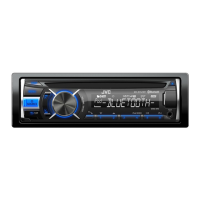
What to do if my JVC KD-R840BT Car Receiver displays “NOT SUPPORT” and track skips?
- CchristinetoddSep 23, 2025
If your JVC Car Receiver displays “NOT SUPPORT” and track skips, check whether the track is a playable format.



 To Next PageTo Next Page
What to do if my JVC KD-R840BT Car Receiver displays “NOT SUPPORT” and track skips?
If your JVC Car Receiver displays “NOT SUPPORT” and track skips, check whether the track is a playable format.
How to fix echo or noise on JVC KD-R840BT Car Receiver?
If you are experiencing echo or noise issues with your JVC Car Receiver, adjust the microphone unit’s position. Also, check the [ECHO CANCEL] setting.
Why is sound interrupted during Bluetooth playback on my JVC KD-R840BT Car Receiver?
If you're experiencing interrupted or skipped sound during playback from a Bluetooth audio player on your JVC Car Receiver, try the following: * Reduce the distance between the unit and the Bluetooth audio player. * Turn off and then turn on the unit, then attempt to connect again. * Consider that other Bluetooth devices might be trying to connect to the unit.
How to fix no Bluetooth device detected on JVC KD-R840BT Car Receiver?
If no Bluetooth device is detected by your JVC Car Receiver, try searching from the Bluetooth device again. If that doesn't work, reset the unit.
What does “ERROR CNNCT” mean on my JVC KD-R840BT Car Receiver?
If your JVC Car Receiver displays “ERROR CNNCT”, it indicates that the device is registered, but the connection has failed. Try connecting the device manually.
What to do if “BT DEVICE NOT FOUND” appears on JVC KD-R840BT Car Receiver?
If your JVC Car Receiver displays “BT DEVICE NOT FOUND” during [AUTO CNNCT], turn on Bluetooth from your device and connect manually.
Why can't I pair my device with the JVC Car Receiver?
If you're having trouble pairing your JVC Car Receiver with a Bluetooth device, make sure you have entered the same PIN code on both the unit and the Bluetooth device. If the problem continues, delete the pairing information from both devices and perform the pairing process again.
How to fix sound if it cannot be heard from JVC Car Receiver?
If the sound cannot be heard from your JVC Car Receiver, adjust the volume to the optimum level. Also, check the cords and connections. You may also want to use a shorter and thicker cord to connect the rear ground terminal to the car’s chassis.
What to do if disc cannot be ejected from JVC KD-R840BT?
If the disc cannot be ejected from your JVC Car Receiver, press and hold 0 to forcibly eject the disc. Be careful not to drop the disc when it is ejected.
Why is there no sound coming from my JVC KD-R840BT Car Receiver?
If you cannot hear any sound from your JVC Car Receiver, try the following: * Adjust the volume to the optimal level. * Check the cords and connections. * Ensure the rear ground terminal connected to the car’s chassis uses shorter and thicker cords.
 General
| Maximum Output Power | 50W x 4 |
|---|---|
| RMS Power | 22W x 4 |
| Bluetooth | Yes |
| USB | Yes |
| AUX Input | Yes |
| Preamp Outputs | 3 pairs (front, rear, subwoofer) |
| Subwoofer Control | Yes |
| Display Type | LCD |
| Detachable Face | Yes |
| Pandora control | Yes |
| iHeartRadio control | Yes |
| Spotify control | Yes |
| Android control | Yes |
| iPhone/iPod control | Yes |
| CD Player | Yes |
| MP3 Playback | Yes |
| WMA Playback | Yes |
| AM/FM Tuner | Yes |
| Remote Control | Yes |
| Type | Single DIN |
Essential safety warnings for operation and driving, covering volume levels and general cautions.
Instructions for cleaning the unit, connectors, and proper handling of discs to ensure optimal performance.
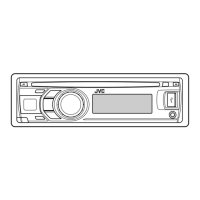
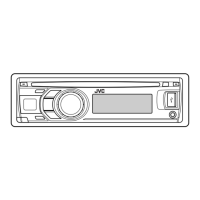
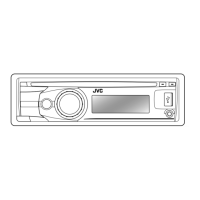
Detailed overview of the unit's faceplate controls and the functions of the RM-RK52 remote control.
Step-by-step guide for essential functions: power, volume adjustment, and source selection.
Procedures for initial setup: disabling demonstration mode, setting clock, and configuring basic system parameters.
Methods for searching, storing, and selecting radio stations via manual or automatic tuning.
Advanced radio settings including SSM, AREA, MONO, IF BAND, and Radio Timer configuration for optimal reception.
Guide to playing audio from CDs, USB devices, and iPods, covering playback modes and navigation features.
Instructions for connecting and utilizing external audio players through the AUX input terminal.
Customization of display and button illumination colors, patterns, and brightness for different zones.
Preparation and operational guide for the Pandora® music streaming service, including bookmarking.
Steps for setting up and listening to SiriusXM™ satellite radio service using the optional vehicle tuner.
Management of SiriusXM™ settings, including channel locking, PIN code, and signal status monitoring.
Instructions on how to pause, resume, and navigate audio playback using the Replay feature.
Guide to connecting the microphone and understanding supported Bluetooth profiles for device functions.
Detailed step-by-step procedure for pairing Bluetooth phones and audio players with the unit.
Procedures for managing incoming calls: answering, rejecting, ending, and switching between connected phones.
Adjusting hands-free call parameters: volume, microphone sensitivity, echo cancellation, and text message alerts.
Navigating the hands-free menu for phonebook access, recent calls, dial numbers, and voice recognition.
Searching contacts, utilizing voice recognition, storing, and deleting contacts for initiating calls.
Procedure for verifying the compatibility of Bluetooth devices with the unit's supported profiles.
Configuring Bluetooth system settings: device pairing, connection management, and initialization.
Guide for streaming Pandora music content via the unit's Bluetooth audio connection.
Selecting, storing, and adjusting equalizer presets for personalized audio output and sound tuning.
Overview of compatible media formats, audio files, USB devices, iPod/iPhone, and Bluetooth devices.
Explanation of information displayed for various sources, playback modes, and system statuses.
Troubleshooting common issues: no sound, poor radio reception, and incorrect character display.
Troubleshooting steps for disc errors, playback interruptions, and device connection failures.
Resolving specific error codes and messages encountered with Pandora and SiriusXM services.
Steps to resolve Bluetooth connection problems: device detection, pairing, and connectivity failures.
Solutions for Bluetooth audio playback issues, poor call quality, and voice recognition errors.
Detailed technical specifications for audio amplifier, tuner, CD player, USB, Bluetooth, and general unit characteristics.
Essential safety warnings and basic procedures for correct and safe unit installation.
Instructions for installing the unit into the vehicle's console and removing it from its mounting sleeve.
Visual diagrams and specific instructions for connecting the unit's wiring harness to the vehicle's system.
List of hardware and accessories provided for the unit's installation process.
Procedures for obtaining warranty service and understanding the warranty limitations in Canada.
Details on warranty exclusions, terms, conditions, and disclaimers for consequential damages.
A list of countries where the Bluetooth functionality of this unit is supported.
Summary of US warranty terms, JVC's obligations, owner's responsibilities, and exclusions.