ENGLISH
9
Data Size: B6L (182 mm x 128 mm)
Book Size: B6L (182 mm x 128 mm)
Pandora®
Preparation:
Install the latest version of the Pandora application on your device
(iPhone/iPod touch), then create an account and log in to Pandora.
• Select
[ON]
for
[PANDORA SRC]
in
[SOURCE SELECT]
.
( 4)
Start listening
1
Open the Pandora application on your device.
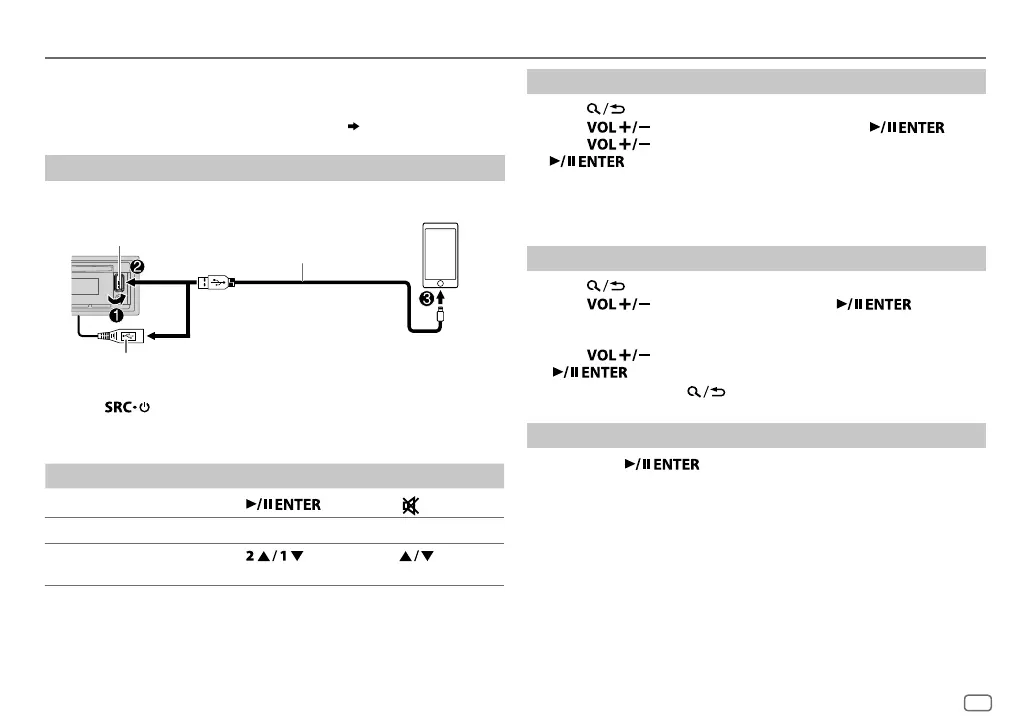
2 Connect your device to the USB input terminal.
3 Press repeatedly to select PANDORA FRONT/PANDORA
REAR/PANDORA.
Broadcast starts automatically.
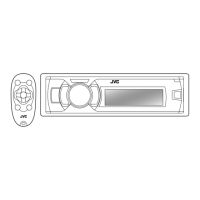
To On the faceplate On the remote control
Playback/pause Press .
Press
.
Skip a track
Press T. Press I.
Thumbs up or thumbs
down*
2
Press . Press .
*
1
Do not leave the cable inside the car when not using.
*
2
If thumbs down is selected, the current track is skipped.
Create and store a new station
1
Press .
2 Press to select
[NEW STATION]
, then press .
3 Press to select
[FROM TRACK]
or
[FROM ARTIST]
, then press
.
A new station is created based on the current song or artist.
4 Press and hold one of the number buttons (3, 4, 5 or 6) to store.
To select a stored station: Press one of the number buttons (3, 4, 5 or 6).
Search for a registered station
1
Press .
2 Press to select an item, then press .
[BY DATE]
:
According to the registered date
[A-Z]
:
By alphabetical order
3 Press to select the desired station, then press
.
To cancel, press and hold .
Bookmark current song information
Press and hold .
“BOOKMARKED” appears and the information is stored to your device.
• The bookmark is available on your Pandora account but not on this
unit.
USB input terminal
Accessory of the iPod/iPhone
*
1
and/or
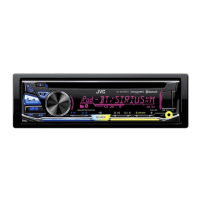
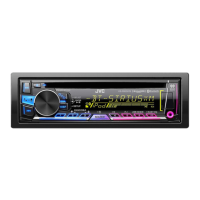
KD-R988BTS
: You can also connect to the USB
cable from the rear of the unit.
JS_JVC_KD_R988BTS_K_EN_5.indd 9JS_JVC_KD_R988BTS_K_EN_5.indd 9 9/1/2016 11:04:22 AM9/1/2016 11:04:22 AM


 To Next Page
 Loading...