ENGLISH
5
Data Size: B6L (182 mm x 128 mm)
Book Size: B6L (182 mm x 128 mm)
Getting Started
Cancel the demonstration
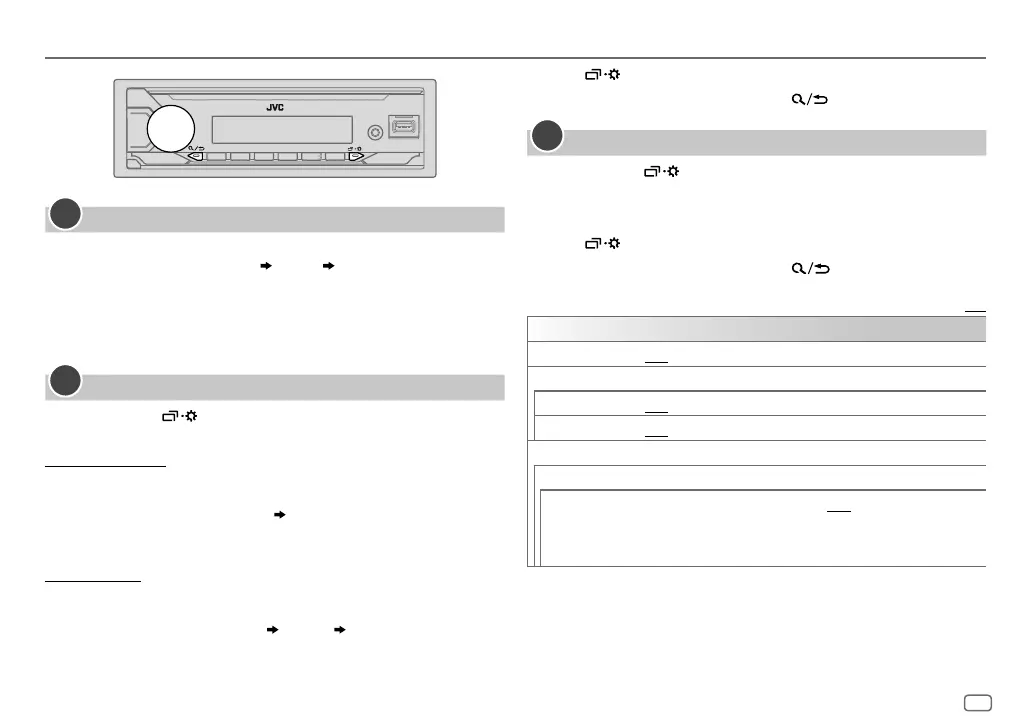
When you turn on the power for the first time (or after you reset the unit),
the display shows: “CANCEL DEMO”
“PRESS” “VOLUME KNOB”
1 Press the volume knob.
[YES]
is selected for the initial setup.
2 Press the volume knob again.
“DEMO OFF” appears.
Set the clock and date
1
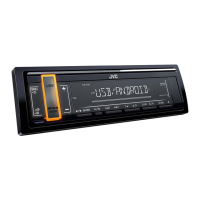
Press and hold .
2 Turn the volume knob to select
[CLOCK]
, then press the knob.
To adjust the clock
3 Turn the volume knob to select
[CLOCKADJUST]
, then press the knob.
4 Turn the volume knob to make the settings, then press the knob.
Set the time in the order of “Hour” “Minute”.
5 Turn the volume knob to select
[CLOCK FORMAT]
, then press the knob.
6 Turn the volume knob to select
[12H]
or
[24H]
, then press the knob.
To set the date
7 Turn the volume knob to select
[DATESET]
, then press the knob.
8 Turn the volume knob to make the settings, then press the knob.
Set the date in the order of “Day” “Month” “Year”.
1
2
9 Press to exit.
To return to the previous setting item, press
.
Set the basic settings
1
Press and hold .
2 Turn the volume knob to select an item (see the following table), then
press the knob.
3 Repeat step 2 until the desired item is selected or activated.
4 Press to exit.
To return to the previous setting item, press
.
Default: [XX]
[SYSTEM]
[KEY BEEP]
[ON]: Activates the keypress tone. ; [OFF]: Deactivates.
[SOURCE SELECT]
[AM SRC]*
[ON]: Enables AM in source selection. ; [OFF]: Disables. (Page 6)
[BUILT-IN AUX]*
[ON]: Enables AUX in source selection. ; [OFF]: Disables. (Page 10)
[F/W UPDATE]
[UPDATE SYSTEM]
[F/W UP xxxx]
[YES]: Starts upgrading the firmware. ; [NO]: Cancels (upgrading is not
activated).
For details on how to update the firmware, visit
<http://www.jvc.net/cs/car/>.
3
JS_JVC_KD_X172M_M2_EN_3.indd 5JS_JVC_KD_X172M_M2_EN_3.indd 5 6/12/2019 12:25:46 PM6/12/2019 12:25:46 PM


 To Next Page