EasyManua.ls Logo

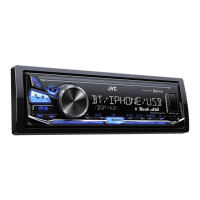
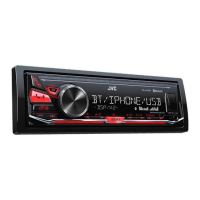
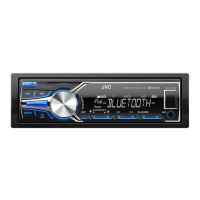
JVC KD-X310BT - User Manual

JVC KD-X310BT
34 pages
Print Icon
To Next Page IconTo Next Page
Loading...
ENGLISH
ESPAÑOL
FRANÇAIS
GET0986-001A [J]
KD-X310BT / KD-X31MBS
DIGITAL MEDIA RECEIVER
INSTRUCTION MANUAL
RECEPTOR DE MEDIOS DIGITALES
MANUAL DE INSTRUCCIONES
RÉCEPTEUR MULTIMÉDIA NUMÉRIQUE
MANUEL D’INSTRUCTIONS
Please read all instructions carefully before
operation to obtain the best possible performance
from the unit.
Por favor lea detenidamente este manual para
comprender a fondo todas las instrucciones y
obtener un máximo disfrute de esta unidad.
Veuillez lires les instructions attentivement avant
d’utiliser l’appareil afin d’obtenir les meilleures
performances possibles de l’appareil.
For customer Use:
Enter below the Model No. and Serial No. which are
located on the top or bottom of the cabinet. Retain this
information for future reference.
Model No.
Serial No.

Questions and Answers

  • M
    Michael CortezAug 16, 2025
    Why is there no sound coming from my JVC KD-X310BT Car Receiver?
    • A
      amandameyerAug 16, 2025
      If you cannot hear any sound from your JVC Car Receiver, first, ensure that the volume is adjusted to an audible level. Also, check all cords and connections to make sure they are properly connected.
  • K
    Kyle WilliamsAug 19, 2025
    What to do if my JVC Car Receiver says 'CHK WIRING THEN RESET UNIT'?
    • K
      Kimberly BartlettAug 19, 2025
      If your JVC Car Receiver displays a 'MISWIRING CHK WIRING THEN RESET UNIT' or 'WARNING CHK WIRING THEN RESET UNIT' message and you cannot operate it, check that the terminals of the speaker wires are properly insulated. Then, reset the unit.
  • C
    Christine LewisAug 22, 2025
    How to fix pairing issues with JVC KD-X310BT Car Receiver?
    • M
      Melissa YoungAug 22, 2025
      If you're having trouble pairing your device with the JVC Car Receiver, double-check that you've entered the same PIN code on both the unit and the Bluetooth device. If the problem persists, delete the existing pairing information from both devices and attempt the pairing process again.
  • K
    Kyle PetersAug 25, 2025
    What does 'BT ERROR PLS UPDATE' mean on JVC Car Receiver?
    • R
      robert69Aug 26, 2025
      If your JVC Car Receiver displays “BT ERROR PLS UPDATE”, you should update the Bluetooth firmware.
  • E
    Emily StoneAug 28, 2025
    Why is my iPod/iPhone not working with JVC Car Receiver?
    • J
      Justin HartAug 28, 2025
      If your iPod/iPhone is not turning on or working with your JVC Car Receiver, check the connection between the unit and your iPod/iPhone. If the connection is good, try detaching and resetting your iPod/iPhone.
  • S
    Suzanne MurphyAug 31, 2025
    Why is my JVC Car Receiver not detecting Bluetooth devices?
    • G
      Gina EvansAug 31, 2025
      If your JVC Car Receiver isn't detecting any Bluetooth devices, try searching for devices again from the Bluetooth device. If that doesn't work, reset the unit.
  • I
    iwilkinsSep 3, 2025
    Why is the radio reception poor on my JVC KD-X310BT Car Receiver?
    • H
      Heather CarterSep 3, 2025
      Poor radio reception or static noise on your JVC Car Receiver can often be resolved by ensuring the antenna is firmly connected. Additionally, make sure the antenna is fully extended.
  • A
    anthony35Sep 6, 2025
    What does 'CANNOT PLAY' mean on my JVC Car Receiver?
    • K
      Kevin AlvarezSep 6, 2025
      If your JVC Car Receiver flashes 'CANNOT PLAY' or fails to detect a connected device, verify that the device is compatible with the unit and that the files are in a supported format. If compatible, try reattaching the device.
  • R
    ryanmarquezSep 9, 2025
    What does 'H/W ERROR' mean on my JVC Car Receiver?
    • K
      Karen ClarkeSep 9, 2025
      If “H/W ERROR” appears on your JVC Car Receiver, reset the unit and try the operation again.
  • M
    maria64Sep 12, 2025
    What to do if my JVC Car Receiver keeps flashing 'READING'?
    • E
      Ernest CastilloSep 12, 2025
      If your JVC Car Receiver continuously flashes 'READING', avoid using too many hierarchical levels and folders on your USB device. You may also try reattaching the USB device.

Summary

Before Use and Maintenance

Safety Warnings

Critical safety instructions to prevent accidents and ensure proper operation.

Operational Cautions

Important warnings regarding volume, metallic objects, and battery handling.

Unit Cleaning

Instructions for cleaning the unit's faceplate with a dry cloth.

Connector Cleaning

Procedure for gently cleaning the unit's connector with a cotton swab.

Basics of Operation

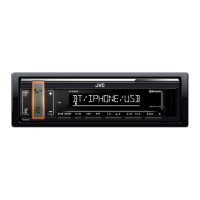
Faceplate Controls

Diagram and description of the unit's front panel controls and display.

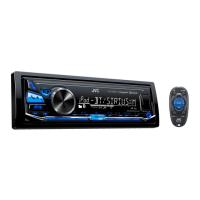
Remote Control Overview

Diagram and description of the included remote control for unit operation.

Getting Started Guide

Cancel Demonstration Mode

Steps to disable the demonstration mode for normal operation.

Setting the Clock

Procedure for setting the unit's clock time accurately.

Basic Settings Configuration

Guide to configuring essential unit parameters for initial use.

USB and iPod Operation

Start Playback

How to begin audio playback from USB or iPod/iPhone devices.

Select Audio File

Steps to choose a specific audio file for playback from connected devices.

Select Audio Folder

Guide to navigating and selecting folders on USB devices for playback.

Seek Within Tracks

Controls for seeking within audio tracks for playback.

Repeat Playback Options

Options for repeating tracks or folders during playback.

Random Playback Settings

Settings for shuffle playback of audio files.

Select File from List

How to select a file from an organized list on the device.

Select Song by Name

Method to search and select songs by name or character.

Change USB Drive

Procedure to select between different storage drives on a connected device.

Adjust Audiobook Speed

Adjusting the playback speed for audiobooks.

Radio Operation

Station Search

How to find FM or AM radio stations automatically or manually.

Store Radio Station

Guide to saving favorite radio stations for quick access.

PTY Search for Programs

Find stations based on program type (PTY code).

Radio Settings

Accessing additional radio tuning options and settings.

AUX Input Usage

Connect Portable Audio Player

Instructions for connecting and playing audio from external devices via AUX.

Pandora Streaming

Pandora Preparation

Steps to set up Pandora application and account for streaming.

Start Pandora Listening

How to begin Pandora streaming via USB connection.

Create New Pandora Station

Guide to creating custom Pandora stations based on songs or artists.

Search Registered Stations

Find previously saved Pandora stations by date or alphabetically.

Bookmark Pandora Content

Save current track or artist for later access on Pandora account.

iHeartRadio Streaming

iHeartRadio Preparation

Steps to set up iHeartLink application and account for streaming.

Start iHeartRadio Listening

How to begin iHeartRadio streaming via USB connection.

Search iHeartRadio Station

Find stations by category or city using the iHeartRadio app.

Skip Cities Alphabetically

Navigate city lists alphabetically during station search.

SiriusXM Radio Operation

SiriusXM Preparation

Connecting the SiriusXM tuner and activating service for reception.

Start SiriusXM Listening

How to tune into SiriusXM channels and browse categories.

Store SiriusXM Channel

Guide to saving favorite SiriusXM channels for quick access.

SiriusXM Replay Feature

Features for pausing and replaying live SiriusXM audio content.

Smart Favorites Channels

User preset channels assigned as Smart Favorites for quick access.

SiriusXM Settings

Configuration options for SiriusXM channels, including locking and signal level.

Bluetooth Connectivity

Connect Microphone

Instructions for connecting the external microphone for hands-free calls.

Pair Bluetooth Device

Steps to establish a wireless connection with a Bluetooth device.

Bluetooth Compatibility Check

Verify connectivity and compatibility of Bluetooth devices with the unit.

Improve Call Sound Quality

Adjusts microphone sensitivity, noise reduction, and echo cancellation.

Bluetooth Mode Operations

Manages calls, phonebook, and dialing functions via Bluetooth.

Use Voice Recognition

Speak names or commands to control phone functions and operations.

Select Contact by Name

Browse contacts alphabetically or by number for selection.

Store Contact in Memory

Save up to 6 contacts using number buttons for quick dialing.

Make Call from Memory

Dial stored contacts using preset number buttons.

Delete Contact from Memory

Remove stored contacts from memory when no longer needed.

Bluetooth Mode Settings

Configure various Bluetooth connection and device settings.

Auto Connect Setting

Configure automatic reconnection of Bluetooth devices.

Initialize Bluetooth Settings

Reset all Bluetooth configurations to factory defaults.

Bluetooth Information Display

Display unit's Bluetooth name and address for identification.

Listen to Pandora via Bluetooth

Stream Pandora audio from a smartphone via Bluetooth connection.

Listen to iHeartRadio via Bluetooth

Stream iHeartRadio audio from a smartphone via Bluetooth connection.

Change Display Information

Cycle through various information displays on the unit screen.

Troubleshooting Guide

No Sound Issues

Solutions for audio issues when no sound is produced.

Wiring Error Troubleshooting

Troubleshooting wiring errors and system reset procedures.

Source Selection Problems

Steps to resolve problems with selecting audio sources.

Poor Radio Reception

Tips for improving radio reception and reducing static noise.

Character Display Issues

Information on character display limitations and potential issues.

Incorrect Playback Order

Explanation of how playback order is determined by file names.

Inaccurate Elapsed Time

Notes on potential inaccuracies in displayed playing time.

Unsupported Tracks and Skips

Troubleshooting unsupported tracks and automatic skipping.

Device Connection Errors

Solutions for device connection errors and "cannot play" messages.

Device Reading Errors

Troubleshooting issues when the unit is continuously reading a device.

iPod;iPhone Power Issues

Steps for troubleshooting iPod/iPhone power and operational issues.

Pandora Troubleshooting

Common Pandora errors and their corresponding remedies.

iHeartRadio Troubleshooting

Common iHeartRadio errors and their corresponding remedies.

SiriusXM Radio Errors

Errors related to SiriusXM channels and subscription issues.

Bluetooth Troubleshooting

General troubleshooting for Bluetooth connection and operation errors.

Bluetooth Audio Playback Issues

Further troubleshooting for Bluetooth connection and audio playback issues.

Bluetooth Device Not Found

Solution for the error when a Bluetooth device is not found.

Echo or Noise Reduction

Tips for reducing echo or noise during phone calls or audio playback.

Poor Phone Sound Quality

Improving mobile phone audio quality and reception.

Unsupported Phone Features

Notes on unsupported phone features and their implications.

General Error Handling

General error troubleshooting advice and checking device compatibility.

Phonebook Copy Failures

Solution for issues when copying phonebook entries fails.

Bluetooth Audio Interruption

Troubleshooting audio playback interruptions from Bluetooth devices.

Uncontrollable Bluetooth Player

Solutions for issues where the Bluetooth audio player is not controllable.

Hardware Error (H;W ERROR)

Hardware error troubleshooting and advice for consulting service.

Bluetooth Firmware Update Error

Solution for Bluetooth errors requiring a firmware update.

Installation and Connection

In-Dash Unit Installation

Step-by-step guide for installing the unit into the dashboard.

Alternative Installation Method

Alternative installation method without using the standard mounting sleeve.

Unit Removal Procedure

Procedure for safely detaching the unit from its mounting.

Wiring Connections

Recommended Wiring Diagram

Diagram showing the typical wiring setup for the unit.

Installation Parts List

List of components included or required for proper installation.

Limited Warranty (USA)

JVCs Warranty Commitment

JVC's commitment to repair or replace defective parts under warranty.

Warranty Service Procedures

Purchaser's responsibilities for warranty claims and service procedures.

Warranty Exclusions

Exclusions from the limited warranty coverage.

Warranty Information (Canada)

Canadian Warranty Service

Procedures for seeking warranty service in Canada.

Canadian Warranty Limitations

Conditions and exclusions for the Canadian warranty policy.

Warranty Standards

Criteria for determining faulty material or workmanship for warranty.

Disclaimer of Express Warranties

Disclaimer stating this is the sole express warranty.

Disclaimer of Consequential Damages

Limitation on liability for indirect damages or loss of use.

JVC KD-X310BT Specifications

General IconGeneral
Detachable FaceplateYes
Pandora ControlYes
iHeartRadio ControlYes
Spotify ControlYes
AM/FM TunerYes
Remote ControlYes
Built-in MicrophoneYes
Power Output50 Watts x 4 Channels
RMS Power22 Watts x 4 Channels
BluetoothYes
USB PortYes
AUX InputYes
Compatible FormatsMP3 / WMA / WAV / FLAC
Equalizer13-Band
Steering Wheel ControlYes

Related product manuals