22
FILE MENU
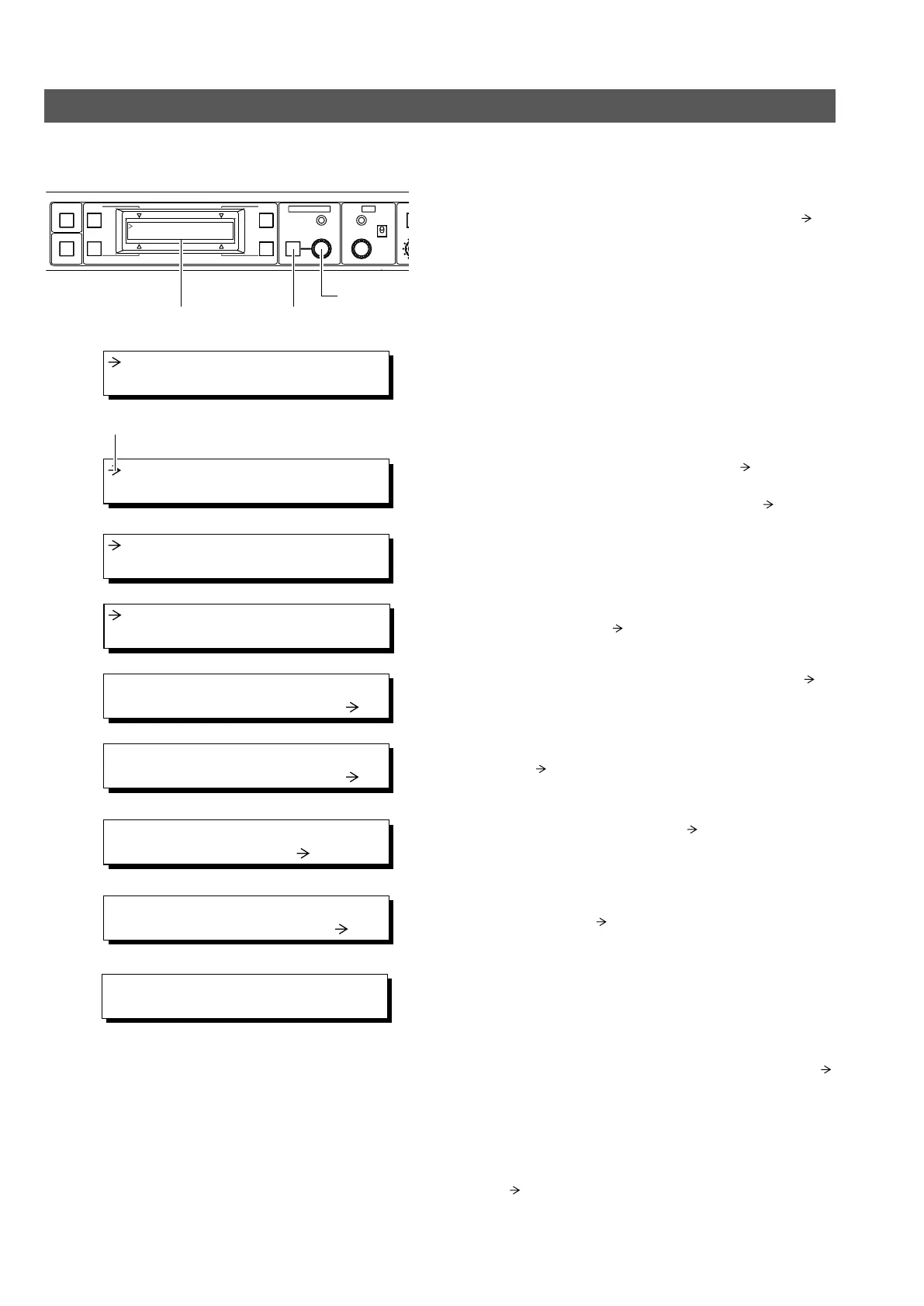
The values set with the menu and applied to the RM-P210 can be saved in two files named A and B.
MENU OPERATION
1.
Press and hold the MENU button for 3 seconds until the
LCD display shows the menu display. The cursor (
) in-
dicates that the item being pointed to can be varied.
FULL AUTO F1
SHUTTER
GAIN
F2
F3
MENU/SHUTTER GAIN
R
STEP
SHUTTER
MENU
PUSH-ON
DOWN UP
VARIABLE
PUSH-ON
HIGH
LOW
MID
DOWN UP
F4
BARS
LCD display MENU button
Control knob
3. FILE
1.
1: GEN LOCK
2: CABLE
2.
3: FILE
4: PROCESS
Cursor
3.
3A: READ FILE
A
4.
3B: WRITE FILE
A
5.
3B: WRITE FILE
A
6.
3B: WRITE FILE
B
2.
Turn the control knob to move the cursor ( ) to “3: FILE”.
3.
Press the control knob to move the cursor ( ) below to
“3A: READ FILE”.
Writing data in a file
4.
To write data in one of the two files, press the control knob
to move the cursor (
) to the “3B: WRITE FILE”.
7.
WRITE FILE B
CANCEL
B
8.
WRITE FILE B
OK
B
9.
STR
CMP
OFF
0dB
ALC
LUX
5.
Press the control knob again to move the cursor ( ) to
the position indicating “A”.
6.
To write data in file B, turn the control knob to move the
cursor (
) to file “B”.
7.
If the control knob is pressed now, the LCD display shows
“WRITE FILE B” and the cursor (
) moves to "CANCEL".
If it is not required to write data now, the control knob
should be pressed again.
8.
To write data in a selected file, turn the control knob to
move the cursor (
) to “OK”.
9.
Press the control knob to write data in a selected file and
return to the previous display.
Reading the data in a file
To read previously written data, in step 3. move the cursor ( )
to “3A: READ FILE”, then perform the same operations as in
steps
4.
to
9.
Resetting data in a file
To reset saved data to the factory settings, in step 3 move the
cursor (
) to “3C: RESET FILE”, then perform the same op-
erations as those in steps
4.
to
9.



 To Next Page