Dubbing a Title from the
HDD to a BD/DVD
Titles stored in the internal HDD can be dubbed to a BD/DVD
as follows.
Memo:
v
Disc types that can be used for dubbing with this unit are:
BD-RE, BD-R, DVD-RW, and DVD-R.
For details, refer to “Discs that enable both dubbing and
playback” (A page 13) .
v
HD content for which the delete scene operation has been
applied cannot be dubbed to BDMV. Perform seamless
conversion before starting a dubbing operation.
v
Contents imported from HDV (DR mode) and HD Everio
cannot be dubbed to a BDMV disc. Perform mode
conversion before starting a dubbing operation.
For details, refer to “Mode conversion” (A page 81) .
Note:
v
The following high bit-rate files may not meet the Blu-ray
Disc standards when they are dubbed to a BD.
v
When a BDAV/BDMV disc is created (high-speed
dubbing) by importing content recorded in the JVC
GY-HM series (SP mode or HQ mode).
v
When a BDAV disc is created (high-speed dubbing) by
importing content captured in the JVC GZ-HD7/6 etc
FHD mode.
v
When a BDAV/BDMV disc is created by importing
content that is captured using another video camera at a
peak bit-rate that exceeds 28.8 Mbps.
v
If the Blu-ray Disc standards are not met, playback on
another player may fail. To ensure that the standards are
satisfied, perform high-speed dubbing after converting the
recording mode, or perform dubbing by specifying a
recording mode.
Dubbing from the HDD to a BD/DVD
m
Preparation
1
Set a BD or DVD on the disc tray
Memo:
v
A message appears on the monitor in the following cases
where a disc cannot be written to. Take the necessary
actions according to the message.
v
When an incompatible disc type is set
v
When there is insufficient space on the set disc
v
When a finalized disc is set
2
Press the [DUBBING] button on the remote
control unit
v
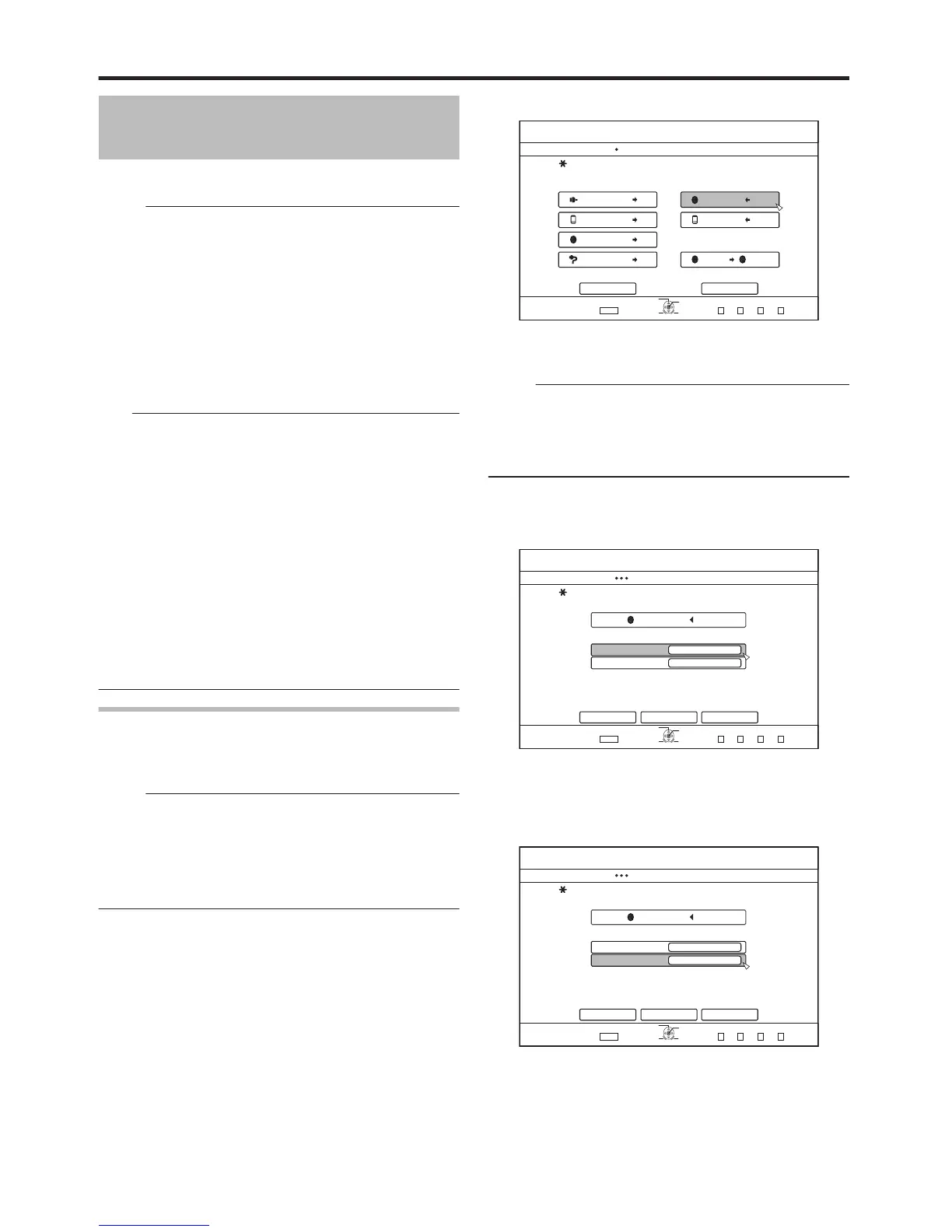
The Dubbing menu screen appears.
3
On this screen, select “DISCiVIDEO”
.
v
A check mark is added to the “DISCiVIDEO” item.
4
Select “NEXT”, and press the [OK] button
Memo:
v
Dubbing can also be performed from the Playback
Navigation screen.
① Select the titles to dub, and press the [OPTION]
button
② Select “DUB”, and press the [OK] button
③ Follow Steps 3 to 4 of “Preparation”
m
Dubbing titles
1
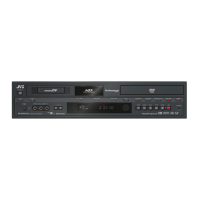
Select “RECORDING FORMAT”, and press the
[OK] button
.



 To Next Page