Firmware Update
Please check the www.kaiserbaas.com/support
page for the latest rmware on your camera.
The current rmware version can be found on
the last settings page.
Power On/O
To power ON your camera:
1. Insert the battery into the camera.
2. Hold the Power/Mode button for 2 seconds
until you see the Kaiser Baas logo appear.
Navigation
Navigate the menus and camera modes using
the 2 buttons found on your camera.
The Power/Mode button cycles through the
cameras modes and settings. Click the power
button consecutively until the desired mode/
page appears.
GETTING STARTED
05 - ENG
The Record/OK button will start/stop recording
video, capture photos and conrm/select
menu items.
When you are in the Settings Mode, hold the
record button to switch between each Setting
category.
VIDEO MODE
06 - ENG
Modes
The X250 features 2 key modes; Video Mode
and Photo Mode.
The following guides will help you understand
each mode.
Video Mode
The default mode is Video Mode.
Click the Record button to start recording.
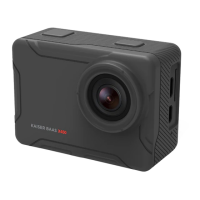
There are 2 Indicator lights on the top of the
X250 Camera. One light will indicate charging
with a red LED and the other is a status LED:
blue when powered on and will ash when
recording. Refer to the Camera Diagram for
exact placement.
Video Resolution
Your action camera can be set to support
an array of resolutions and frame rates.
The higher the resolution the greater the detail
and clarity of footage. Higher frames-per-sec-
ond (FPS) capture more motion and appear
smoother on playback.
Resolution FPS
4K 3840x2160p (Interpolated) 30
2.5K 2688x1520 30
1920x1080 60/30
1280x720 120/60


 To Next Page