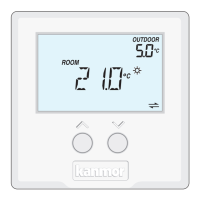
5 of 12 © 2008 D540e - 02/08
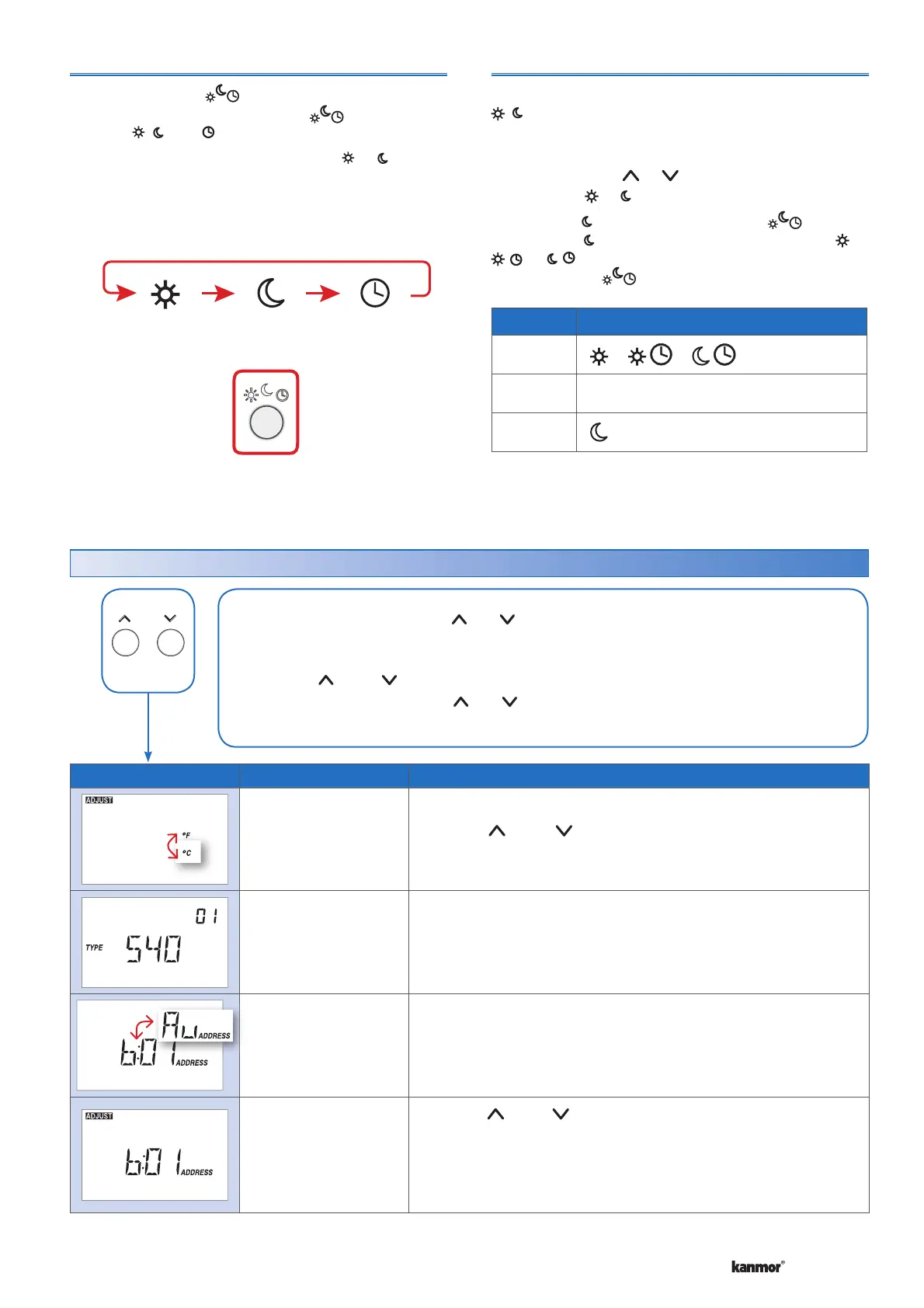
Local Override
The Local Override ( ) button can be used to override
any schedule. Press and release the button to toggle
between , , and (if available).
The thermostat remains at the selected or override
temperature until manually changed back to the
schedule.
Scene Display
1
or or
2
Away
3
Occupied Unoccupied Schedule
Scenes (System Override)
When using scenes, there are three temperature settings:
, , Away. The scene takes precedence over any local
overrides or any programmable schedules.
While in the Away scene, the room temperature cannot be
changed using the
or buttons. Change the scene
from Away to or to change the temperature.
While in the or Away scene and the button is
pressed, the or Away icon will flash. Scene 1 ( or
or ) must be activated before the thermostat
responds to the button.
Display Description
STEP 1
°F or °C
Press the or the button to change from °F to °C and vice
versa.
STEP 2
View Type and Software
Version
The large number shows the type number as 540.
The software version is shown in the upper right hand corner.
STEP 3
View tN4 Address
The thermostat’s tN4 address is shown.
The address toggles between a number and “Au” when using
automatic addressing.
STEP 4
Manually Change tN4
Address
Press the or the button to manually select an address.
The address can be returned to automatic “Au” between addresses
24 and 1.
Ensure to document the address number when manually addressing
thermostats.
User Settings (1 of 1)
• Press and hold down both the and buttons to change from one step to the next. While
holding both buttons down, a new setting will display every 5 seconds.
• Release both buttons once the step has been reached.
• Press the or the button to change the setting, if available.
• Press and hold down both the and buttons for 5 seconds to go to the next step, OR
• After 10 seconds of no button activity, the display goes back to normal operation.
Press
+
Together
ButtonPress the
Display Settings

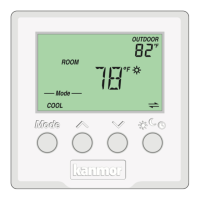

 To Next Page