EasyManua.ls Logo

Kantronics KPC-4 - Page 63

Default Icon
72 pages
Print Icon
To Next Page IconTo Next Page
To Previous Page IconTo Previous Page
Loading...
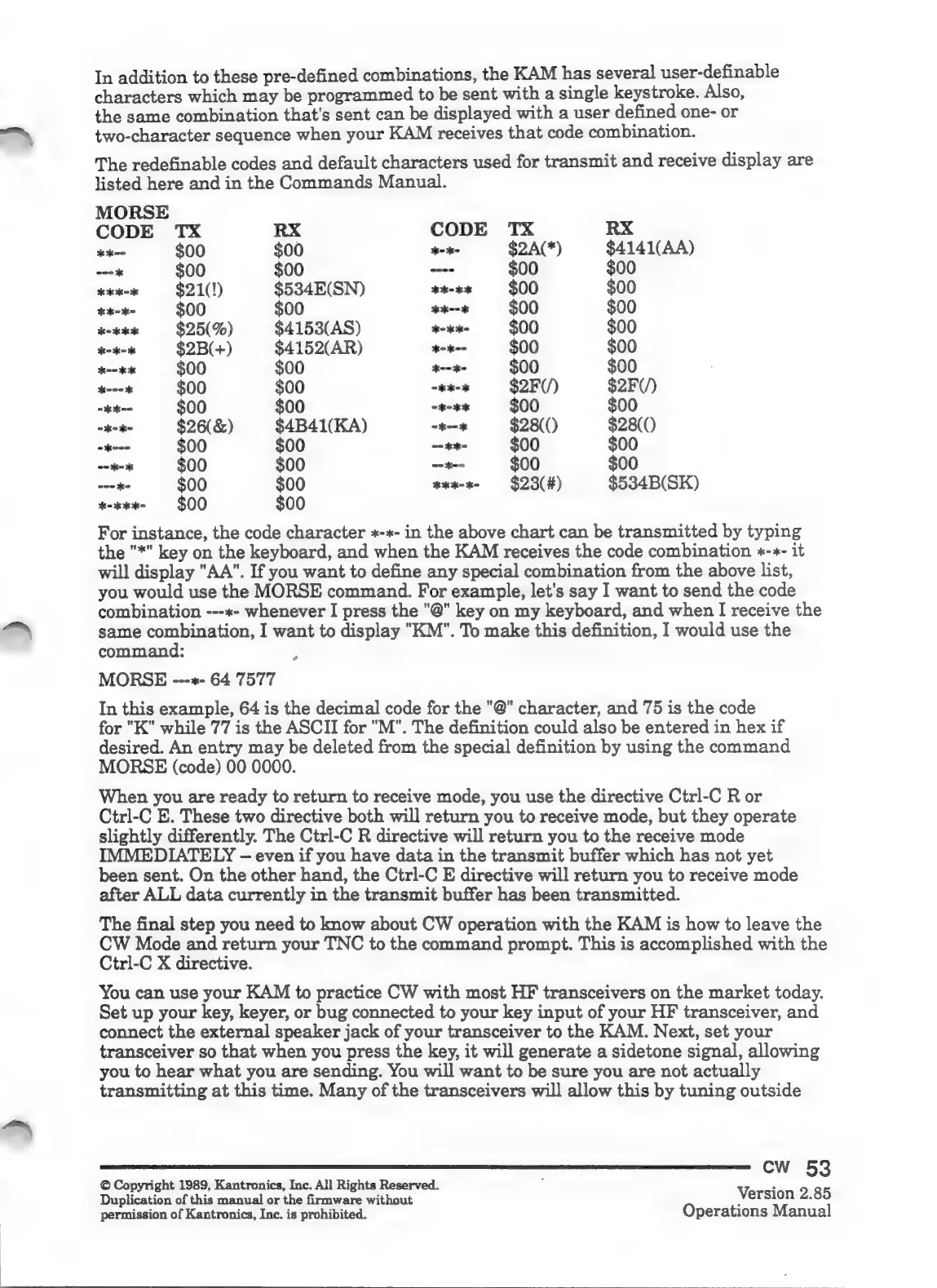
In
addition
to
these
pre-defined
combinations,
the
KAM
has
several
user-definable
characters
which
may
be
programmed
to
be
sent
with
a
single
keystroke.
Also,
the
same
combination
that's
sent
can
be
displayed
with
a
user
defined
one-
or
two-character
sequence
when
your
KAM
receives
that
code
combination.
The
redefinable
codes
and
default
characters
used
for
transmit
and
receive
display
are
listed
here
and
in
the
Commands
Manual.
MORSE
CODE
TX
RX
CODE
TX
RX
**--
$00
$00
keke
$2A(*)
$4141(AA)
---*
$00
$00
----
$00
$00
kkk-
$21(!)
$534E(SN)
**k-**
$00 $00
**-*-
$00
$00
**--*
$00
$00
or
$25(%)
$4153(AS)
+-«4-
$00
$00
koko
$2B(+)
$4152(AR)
*-*--
$00 $00
dedo
$00 $00
*--*-
$00
$00
*---*
$00
$00
-**-*
$2F(/)
$2F(/)
-**--
$00
$00
ook
$00 $00
-*-*-
$26(&)
$4B41(KA)
ok
$28(()
$28(0
-*---
$00
$00
--**-
$00
$00
oko
$00
$00
--*--
$00
$00
---*-
$00
$00
so
$23(H)
$534B(SK)
ox
$00
$00
For
instance,
the
code
character
+*-*-
in
the
above
chart
can
be
transmitted
by
typing
the
"*"
key
on
the
keyboard,
and
when
the
KAM
receives
the
code
combination
+*-*-
it
will
display
"AA".
If
you
want
to
define
any
special
combination
from
the
above
list,
you
would
use
the
MORSE
command.
For
example,
let's
say
I
want
to
send
the
code
combination
---*-
whenever
I
press
the
"@"
key
on
my
keyboard,
and
when
I
receive
the
same
combination,
I
want
to
display
"KM".
To
make
this
definition,
I
would
use
the
command:
A
MORSE
---*-
64
7577
In
this
example,
64
is
the
decimal
code
for
the
"@"
character,
and
75
is
the
code
for
"K"
while
77
is
the
ASCII
for
"M".
The
definition
could
also
be
entered
in
hex
if
desired.
An
entry
may
be
deleted
from
the
special
definition
by
using
the
command
MORSE
(code)
00
0000.
When
you
are
ready
to
return
to
receive
mode,
you
use
the
directive
Ctrl-C
R
or
Ctrl-C
E.
These
two
directive
both
will
return
you
to
receive
mode,
but
they
operate
slightly
differently.
The
Ctrl-C
R
directive
will
return
you
to
the
receive
mode
IMMEDIATELY
even
if
you
have
data
in
the
transmit
buffer
which
has
not
yet
been
sent.
On
the
other
hand,
the
Ctrl-C
E
directive
will
return
you
to
receive
mode
after
ALL
data
currently
in
the
transmit
buffer
has
been
transmitted.
The
final
step
you
need
to
know
about
CW
operation
with
the
KAM
is
how
to
leave
the
CW
Mode
and
return
your
TNC
to
the
command
prompt.
This
is
accomplished
with
the
Ctrl-C
X
directive.
You
can
use
your
KAM
to
practice
CW
with
most
HF
transceivers
on
the
market
today.
Set
up
your
key,
keyer,
or
bug
connected
to
your
key
input
of
your
HF
transceiver,
and
connect
the
external
speaker
jack
of
your
transceiver
to
the
KAM.
Next,
set
your
transceiver
so
that
when
you
press
the
key,
it
will
generate
a
sidetone
signal,
allowing
you
to
hear
what
you
are
sending.
You
will
want
to
be
sure
you
are
not
actually
transmitting
at
this
time.
Many
of
the
transceivers
will
allow
this
by
tuning
outside
Cw
53
©
Copyright
1989,
Kantronics,
Inc.
All
Rights
Reserved.
>
Duplication
of
this
manual
or
the
firmware
without
Version
2.85
permission
of
Kantronics,
Inc.
is
prohibited.
Operations
Manual

Related product manuals