EasyManua.ls Logo

Karaoke USA GQ450 - User Manual

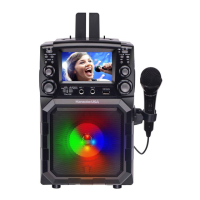
Karaoke USA GQ450
20 pages
Print Icon
To Next Page IconTo Next Page
Loading...
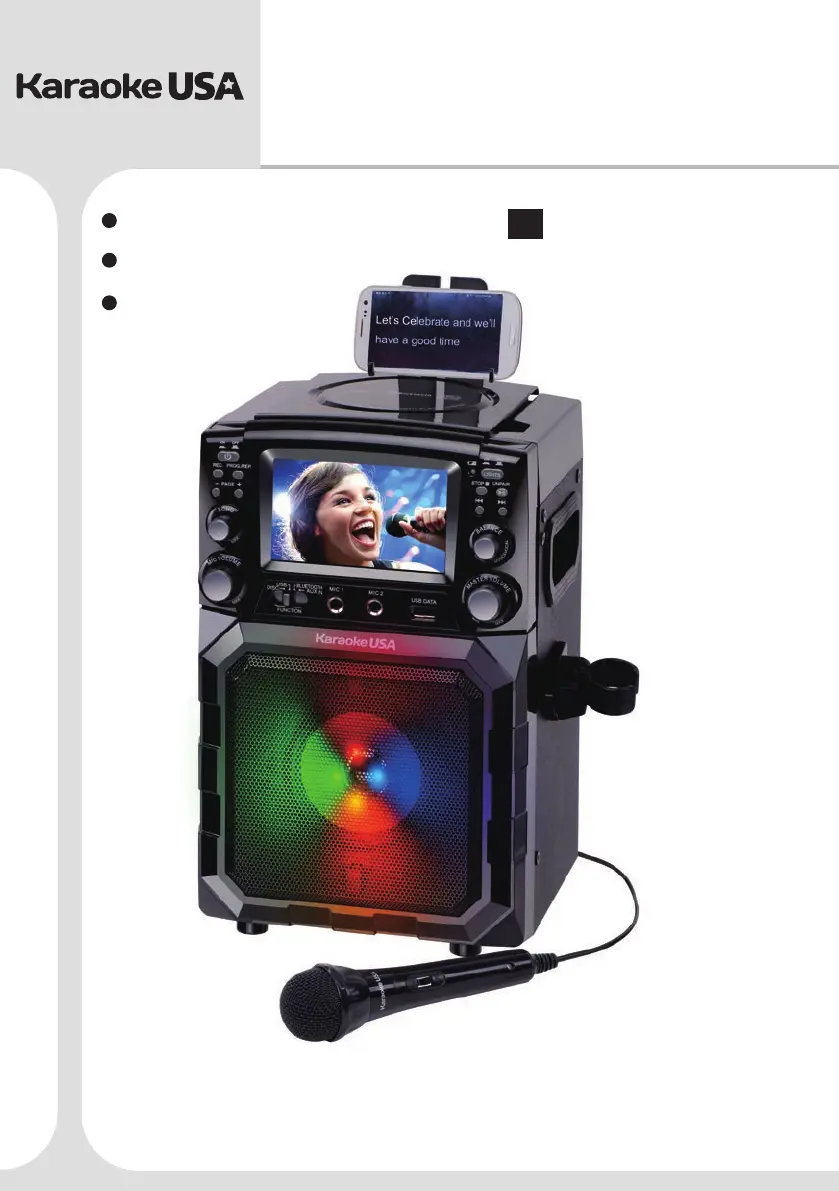
GQ450
Before operating this product, please read these instructions.
Portable CDG/MP3G Karaoke Player and PA
System with 4.3" Color TFT Screen, Bluetooth,
Recording Function and Built-In Battery
Users Guide
MODEL:
EN
Español
Français
English
Smart Device not included

Questions and Answers

  • M
    meganbrownJul 27, 2025
    Why is there no music coming from my Karaoke USA GQ450 Karaoke System?
    • C
      charles79Jul 27, 2025
      If your Karaoke USA Karaoke System is producing no music, first, ensure the AUX IN cable is correctly connected to the appropriate AUX IN input jack on the front. If that's not the issue, check if the unit is set to BLUETOOTH mode and switch the Function switch to AUX IN mode. Also, verify that the volume isn't too low on both your smart device and the unit itself; increase the volume on both.
  • K
    Kent KellerJul 31, 2025
    How to increase music volume on Karaoke USA GQ450 Karaoke System?
    • S
      Sarah BanksJul 31, 2025
      If the volume on your Karaoke USA Karaoke System is too low, ensure that the volume setting on your smart device is not too low. Turn up the volume on both your smart device and the Karaoke USA Karaoke System.
  • L
    Linda RussellAug 4, 2025
    How to fix Karaoke USA Karaoke System when it has no power?
    • G
      gsharpAug 4, 2025
      If your Karaoke USA Karaoke System has no power, ensure that the power cord is firmly connected to the power outlet. Also, verify that the power switch is in the "ON" mode.
  • H
    Heather PadillaAug 8, 2025
    What to do if Karaoke USA GQ450 Karaoke System is powered but not responding?
    • C
      Christopher WilliamsAug 8, 2025
      If your Karaoke USA Karaoke System is powered on but not responding, it might be in the wrong mode; select the correct mode. If that doesn't work, try resetting the machine by turning it off and then on again.
  • M
    Melissa BarnesAug 13, 2025
    How to fix Karaoke USA GQ450 when it is not pairing?
    • K
      Kelly McdonaldAug 13, 2025
      If your Karaoke USA Karaoke System is not pairing, ensure that it is set to Bluetooth mode.
  • J
    Jane JenkinsAug 17, 2025
    What to do if my Karaoke USA GQ450 Karaoke System has no picture?
    • B
      Barbara FisherAug 17, 2025
      If your Karaoke USA Karaoke System displays no picture, make sure that a disc is inserted. If a disc is already inserted, ensure that the disc isn't stained, warped, or scratched, and that it is in good condition. Check that you are using the correct disc type; the unit plays CD, CD+G, and MP3+G formats. Also, ensure the Function switch is in DISC mode.
  • M
    millerrachelAug 21, 2025
    What to do if my Karaoke USA GQ450 is not reading files?
    • J
      jsmithAug 22, 2025
      If your Karaoke USA Karaoke System is not reading files, it could be due to missing files or an incorrect file format on your USB drive. Download the necessary files to your device and try using a different file format if needed.

Summary

Warnings and Precautions

MOISTURE AND CONDENSATION

Proper handling of unit when exposed to moisture and temperature changes to prevent damage.

Important Safety Instructions

Main Control Functions

Monitor; Screen Functions

Setup - Power

Connect Power Adapter

Instructions on connecting the AC adapter to power the unit and turn it on/off.

Built-in Rechargeable Battery Operation

Details on using and charging the internal rechargeable battery for extended use.

USB Flash Drive Operation

Bluetooth Operation

Connect External Device Using Aux-in

Using CD+G, CDs

Connecting to a Television with AV Output Jacks

Recording Operation

Microphone

Echo; Balance Control

Troubleshooting

General Troubleshooting

Common issues related to power, unit response, and connectivity.

Karaoke USA GQ450 Specifications

General IconGeneral
BrandKaraoke USA
ModelGQ450
CategoryKaraoke System
LanguageEnglish

Related product manuals