10 2 3
FN
AB
3 42 5
7 8 9 10 11
6
1
Frequently Asked
Questions
What should I do if I can’t access
the Initial Setup Wizard page or the
Keenetic Web Interface page?
1. Make sure that your mobile device / computer
is connected to your Keenetic device (in Router
Mode) via Wi-Fi or an Ethernet cable and set
up to obtain an IP address and DNS servers
automatically.
2. Check that you have correctly entered the
appropriate Keenetic device web address:
either my.keenetic.net (recommended)
or 192.168.1.1 or 192.168.2.1.
3. Reboot your mobile device / computer and
your Keenetic device.
4. If the Initial Setup Wizard page is still not
appearing, please follow the instructions
below to reset your Keenetic device.
What should I do if I can’t access the
Internet with my Keenetic device?
1. If the Internet LED A on the Main Router is not
illuminated, consult your ISP to make sure that
that service is available, and that you are using
the correct connection parameters, e.g. account
login and password, authentication protocol,
MAC address, etc. Make the necessary changes.
2. If the Internet LED A on the Main Router
is illuminated, please check the wired
or Wi-Fi connections between your Keenetic
Main Router and home devices, including any
Keenetic extenders.
Can I connect a Keenetic Extender
to a non-Keenetic main router?
Absolutely. Press the Wi-Fi button D on your
Keenetic in Extender Mode. Within two minutes,
start a WPS session on your main router
by pressing the appropriate button on the Non-
Keenetic device. A Keenetic Extender will adopt
the wireless network name and password of the
main router. The Internet LED A on the Extender
will illuminate when it has connected successfully
to your network. To configure the repeater settings,
first open the user interface of the main router
to determine the IP address assigned to your
Keenetic Extender. Then, enter that IP address
in the web browser to open the Web Interface
on the Keenetic Extender to make necessary
changes.
What should I do if I forget
my wireless password?
The default password for connecting to your
Wi-Fi network can be found on a sticker on the back
of your Keenetic device, or if you are using a Mesh
Wi-Fi System, you should use the password on the
Main Router. If the default Wi-Fi password has
been changed and subsequently lost, the changed
password can be retrieved or reset by logging
in to the web interface or in the Keenetic Mobile
Application.
What should I do if I can't add
an extender to the Keenetic Mesh
Wi-Fi System?
Make sure the Operating Mode Switch on the case
is set to I B — Extender Mode. If this is correct
then next restore the factory settings of your
extender (see below), and repeat the procedure
of adding the extender to the Mesh Wi-Fi System.
What should I do if I forget my Web
Interface page password?
To create a new password, please follow the
instructions to restore the factory settings on
your Keenetic device in the question below.
How do I reset/restore the original
factory settings on my Keenetic
device?
Make sure that your Keenetic device is connected
to a power supply. Press and hold the Reset
Button B until the Status LED C begins to blink
rapidly, release the Reset Button and wait while
your device restarts.
Important: After restoring factory settings, you
will need to reconfigure your Internet connection
and re-add extenders to your Mesh Wi-Fi System.
Keenetic Explorer
Details
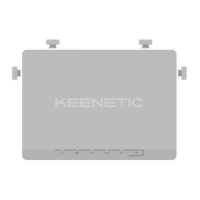
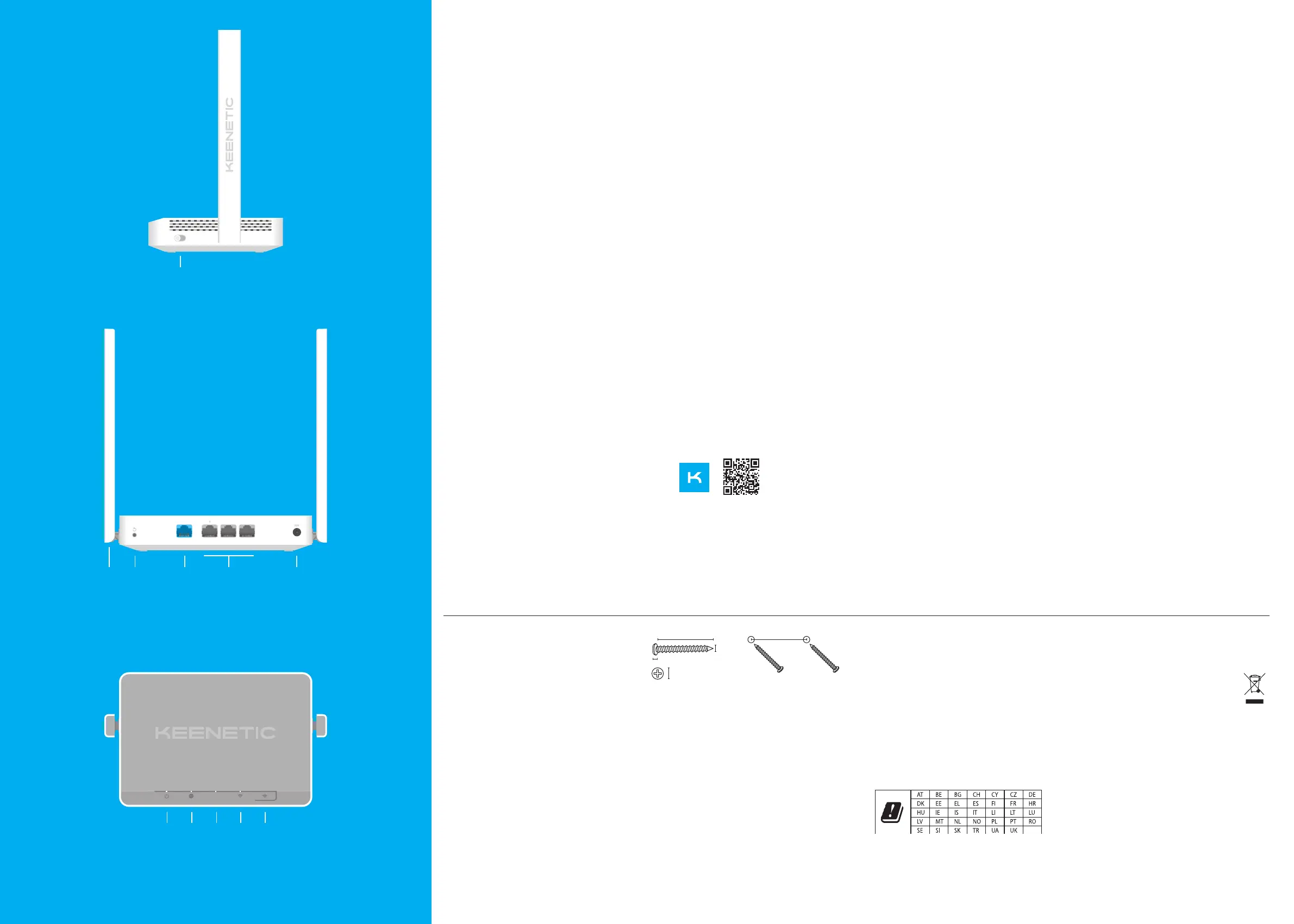
1. Operating Mode Switch
A
— Router Mode.
B
— Extender Mode.
2. Wi-Fi Antennas
Two fixed precision printed dipole Wi-Fi antennas
with 5 dBi gain. We recommend keeping the
antennas in a vertical position.
3. Reset Button B
Restores the original factory settings and resets the
administrator password. For instructions on how
to reset your Keenetic device to factory settings, see
the Frequently Asked Questions section below.
4. Network Port 0
The blue port marked 0 is preconfigured for Internet
connection in Router Mode. In Extender Mode, this
port works for home or office network connection.
5. Network Ports 1, 2 & 3
By default, these ports are intended for home
devices, but they can be reconfigured and connected
to the Internet in Router Mode.
6. DC Power Socket F
For use with the power adapter supplied
in the package. The Keenetic device is designed
for continuous operation and does not need
to be powered off daily.
7. Status LED C
Solid green
— Ready for operation.
Blinking green
— Starting up or
updating the operating system.
Rapidly blinking for 2 seconds followed by
continuous illumination
— The Wi-Fi Control
Button has been pressed, and the function
assigned to the button has started.
Rapidly blinking for 2 seconds followed
by no illumination
— The Wi-Fi Control
Button has been pressed, and the function
assigned to the button was stopped.
Off
— Off.
8. Internet LED A
Solid green
— Internet connection is established.
Off
— No Internet connection.
9. FN LED
By default, it shows that an update for the KeeneticOS
is available The purpose of this LED can be changed
in the settings.
On
— An update is available.
Off
— No updates available.
10. Wi-Fi LED D
Solid green
— Wi-Fi network enabled.
Blinking green
— Transferring data.
Blinking slowly
— Quick connection
session (WPS) in progress.
Off
— Wi-Fi network disabled.
11. Wi-Fi Control Button D
By default, this button allows you to easily add
extenders to the Keenetic Mesh Wi-Fi System,
or other WPS-compliant devices to the wireless
network.
Pressing it once
— Starts a quick connection
session for adding a new device.
Pressing and holding for 3 seconds
—
Turns the Wi-Fi on or off.
You can assign other functions to this button
if necessary.
Management
Options
The Keenetic web interface is the primary way
to manage your device, offering all features and
configuration options. You can also book a private
domain name with the free KeenDNS service to have
secure, HTTPS-protected remote management
of your network anytime, and from anywhere. Open
my.keenetic.net to start.
The Keenetic mobile application provides the
easiest way to manage your home network through
your iOS or Android devices on the go, focused
on routine tasks, parental functions and traffic
monitoring. Download the Keenetic app, available
on Google Play and the Apple App Store, on your
mobile phone.
The Keenetic RMM system is a cloud-based multi-
site remote monitoring and management solution
purpose-built for Small / Medium-sized businesses
to help keep critical networks and infrastructure
online 24/7. Visit rmm.keenetic.com to learn more.
Scan for
Keenetic App
What's in the Box
■ 1 Router preloaded with KeeneticOS;
■ 1 Level VI energy-efficient 100–240 V power adapter;
■ 1 Ethernet cable;
■ 1 Quick Start Guide;
■ 1 Quick Start Guide (multilingual).
Safety Instructions
■ Your Keenetic device is ONLY for indoor use — NEVER
use it outside.
■ Before use, remove protective labels from your
Keenetic device, and ensure vents are unblocked.
■ Never use your Keenetic device in an enclosed space,
and ensure that the Keenetic-supplied power adapter
is always easily accessible.
■ ONLY use a Keenetic-supplied power adapter — cease
to use any damaged adapter IMMEDIATELY.
■ Your Keenetic device and its power adapter contain
no user-serviceable parts — DO NOT OPEN.
■ Keep your Keenetic device away from water, excessive
humidity or heat, and direct sunlight.
■ Your Keenetic device can be safely wall-mounted using
two screws, firmly attached, on any wall surface strong
enough to support 4 times the device's weight.
Device Warranty
For the most up to date Warranty Information, please
visit our website keenetic.com/legal.
Your Keenetic device comes with a non-transferable
3-year warranty from the documented date of purchase
(including your 2-year European Limited Warranty). Valid
claims in case of a defect will be honored subject to local
legal requirements.
Environmental Conditions
■ Operating temperature range: 0 to +40°C
■ Operating humidity: 20 to 95% non-condensing
■ Storage temperature range: –30 to +70°C
■ Storage humidity: 10 to 95% non-condensing
Certification Information
Keenetic Limited hereby declares that this device
is in compliance with all relevant provisions of directives
2014/53/EU, 2009/125/EC, and 2011/65/EU. Details of the
original EU declaration may be found at keenetic.com
within details on specific model pages.
This product can be used across EU member states.
This device complies with EU radiation exposure limits
set forth for an uncontrolled environment.
This equipment should be installed and operated with
a minimum distance of 20 cm between the antennas
and a person’s body.
The frequency and the maximum transmitted power
for your device, per the requirements of the EU are
listed below:
2400-2483,5 MHz: 20 dBm;
5150-5350 MHz: 23 dBm;
5470-5725 MHz: 30 dBm.
This device will support DFS and TPC functionality
while operating in the 5 GHz band.
This device is restricted to indoor use only when
operating in 5150 to 5350 MHz frequency range
(channels 36 - 64).
Per (EC) No 1275/2008, the power consumption
in networked standby if all wired network ports
are connected and all wireless network ports are
activated is 5.6 W.
Disposal
In accordance with European directives, your
Keenetic device, including the power adapter
and cables may not be disposed of with
general household waste. Consult your local
authority or your supplier for information
about disposal.
Notice
When you use your Keenetic device (including when
you connect your Keenetic device the first time),
Keenetic Limited will process certain personal data
about you, e.g., service tag, serial number, model
name, software version, and IP address of your
Keenetic device. For more information, please
go to keenetic.com/legal.
If you are in the European Union / European Economic
Area, Keenetic GmbH will process certain personal
data about you, e.g., service tag, serial number,
model name, software version, and IP address of your
Keenetic device. Please read our Device Privacy Notice
for the European Union / European Economic Area
at keenetic.com/legal.
3.0 mm
1.5~2.0 mm
5.0~6.0 mm


 To Previous Page
 Loading...