Need help?
Do you have a question about the KeeNetic Giga and is the answer not in the manual?
Resets the administrator password and user settings to default.
Ports 1-4 for home devices or Internet connection, with status indicators.
Combines RJ-45 Ethernet and SFP slot for internet connection.
Connector for the supplied DC power adapter.
Indicates the operational status of the Keenetic device.
Shows the status of the internet connection.
Indicators whose purpose can be changed, default to showing USB port status.
Shows if the Wi-Fi network is enabled or if data transfer is occurring.
Button for quick WPS connection or toggling Wi-Fi on/off.
Buttons with default function to safely remove USB drives, can be reconfigured.
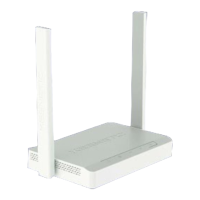
Ports for connecting USB devices like modems, printers, and drives.
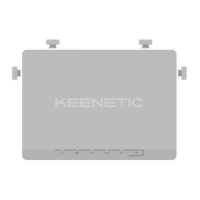
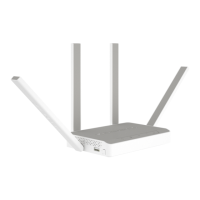
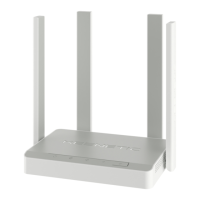
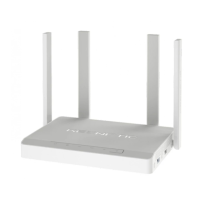
Four PCB Wi-Fi antennas with 5 dBi gain for wireless connectivity.
Steps to configure the Keenetic using its web interface via a browser.
Instructions for setting up the Keenetic using the My.Keenetic mobile application.
Connects to the internet via ISP's Ethernet cable or fiber optic line using SFP module.
Connects to the internet via DSL or PON modem using a network cable.
Connects to the internet using a 3G/4G USB modem.
Guidance on optimizing Wi-Fi performance, including channel width and device capabilities.
Details on supported USB file systems, setup, and data safety precautions.
Steps to diagnose and resolve issues when the internet connection stops working.
Information on software updates and how to access support resources.
Explains the product warranty period, terms, and conditions for claims.
Covers package contents, operating/storage conditions, legal restrictions, and term of service.
Guidelines for proper disposal of the electronic waste.
The Keenetic Giga is a versatile network device designed for home use, offering a range of connectivity options and smart features. It functions primarily as a Wi-Fi router, providing Internet access and managing your home network. The device is equipped with multiple ports and indicators to facilitate its operation and configuration.
The Keenetic Giga serves as a central hub for your home network, enabling Internet connectivity and managing various connected devices. It features several network ports (1, 2, 3, 4) that, by default, are intended for home devices. These ports can be re-configured to connect to the Internet, offering flexibility in network setup. Indicators above these ports light up when a connection is established and flash during data transfer, providing visual feedback on network activity.
A key feature is the Combo port "0," which allows for Internet connection via either an RJ-45 Ethernet cable or an SFP slot for a fiber optic connection (using a separately sold SFP module). Only one connection type can be active at a time; if an SFP module is plugged in, the RJ-45 connector is disabled. An indicator above this port shows the currently active connection. This dual-option port makes the Keenetic Giga adaptable to different types of Internet service providers (ISPs).
The device also includes USB 3.0 and USB 2.0 ports (marked "1" and "2" respectively, with the USB 3.0 port colored blue) for connecting compatible USB devices such as 3G/4G modems, printers, and external hard drives. These ports expand the functionality of the Keenetic Giga, allowing it to act as a file server, print server, or even a backup Internet connection via a USB modem. FN1 and FN2 indicators are associated with these USB ports, showing when a USB device is ready.
Wireless connectivity is provided by four PCB Wi-Fi antennas with 5 dBi gain, supporting both 2.4 GHz and 5 GHz bands. The Wi-Fi network status is indicated by a dedicated Wi-Fi indicator, which lights up when the network is enabled, flashes frequently during data transfer, and flashes slowly during a WPS session. A Wi-Fi control button allows for easy connection of new devices via WPS or to turn Wi-Fi on/off.
Programmable FN1 and FN2 buttons offer additional functionality. By default, these buttons are used to safely remove drives connected to the USB ports. However, their functions can be customized in the settings menu, providing users with control over various device operations.
The Keenetic Giga is powered by a DC power adapter, designed for continuous operation without the need for daily power cycling. A main status indicator shows the overall operational state of the Keenetic, indicating when it's ready, turned off, rebooting, or updating its operating system. This indicator also provides feedback when FN buttons or the Wi-Fi button are pressed, confirming the start or stop of assigned functions. An Internet indicator specifically shows whether an Internet connection has been established.
Setting up the Keenetic Giga can be done through its web interface or the My.Keenetic mobile app. For web interface setup, the device needs to be powered on and the status indicator steady. Users can connect to the Keenetic's wireless network (details found on the device label) or via an Ethernet cable to port 1. Accessing my.keenetic.net in a browser will initiate a quick setup wizard.
The My.Keenetic mobile app offers a convenient alternative for configuration. Users can download the app from keenetic.com/getapp or by scanning a QR code. The app guides users through a few steps to set up the Keenetic and allows for remote management of the home network.
Connecting to the Internet can be achieved in several ways. For Ethernet or fiber optic connections, the ISP's cable is connected to port "0." If the ISP requires a specific MAC address, it can be provided from the Keenetic's label or changed during setup. For fiber optic, an SFP module is plugged into the SFP slot. If an IPTV set-top box or TV is used, connecting it to the Keenetic via an Ethernet cable is recommended.
For DSL or PON modem connections, the modem's LAN port is connected to port 0 of the Keenetic. To fully utilize the Keenetic's features, the modem should be in bridge mode. This connection can serve as a primary or backup Internet source.
Connecting via a 3G/4G USB modem requires placing the modem near a window for optimal signal and disabling its PIN code request beforehand. The modem is then connected to a USB port on the Keenetic. Once the FN indicator lights up, the connection can be configured. This also provides a flexible primary or backup Internet connection.
To maximize Wi-Fi speed, it's recommended to install the Keenetic in a central location, away from concrete walls which can reduce network speed. Positioning the antennas vertically helps the signal propagate horizontally. For outdoor Wi-Fi, placing the Keenetic by a window overlooking the desired area is advised. Using WPA2 AES security is recommended over WEP or WPA for better speed. Regularly updating firmware for all wireless devices and laptops is also crucial. For critical connections or in congested 2.4 GHz environments, using the 5 GHz band is preferable, keeping in mind its shorter range and susceptibility to obstacles.
The Keenetic Giga supports various USB drives with different file systems (NTFS, FAT32, FAT, EXT2, EXT3, EXT4, Apple HFS+). It automatically detects and mounts compatible drives. USB applications like Transmission torrent client, UPnP AV/DLNA, or FTP server can be enabled after connecting a USB disk. Access to the file server is open by default to all users on the home network but can be restricted using folder permissions. For Time Machine backups, the Apple network application needs to be installed and enabled, and a shared folder set up on the USB drive.
For safe use, the Keenetic should be operated indoors, in conditions compliant with the Important Information section, avoiding dusty or dirty rooms. All protective film should be removed before operation. The device heats up during use, so it should not be installed in enclosed spaces or near heat sources. Casing vents should not be blocked and should be cleaned of dust promptly. Only the supplied power adapter should be used, and it should not be connected if damaged. The power adapter should only be connected to working electrical outlets within the specified voltage range and unplugged during prolonged breaks.
Users should never open the Keenetic or its power adapter or attempt to service them. In case of malfunction, Keenetic customer support should be contacted. For cleaning, a damp cloth with mild detergent should be used, and the device should always be turned off first. Liquids should be kept away from the Keenetic and its power adapter; if contact occurs, they should be immediately unplugged and thoroughly dried before reconnecting.
To prevent data corruption on USB drives, flash drives should not be used for torrent downloading. USB drives should not be removed during operation; instead, the corresponding FN button should be pressed, and the FN indicator allowed to go out before removal. If a USB drive lacks sufficient power from the USB port, it should be connected to an external power supply via a USB hub.
If the Internet connection stops working, users should first check if other devices on the network have Internet access and use network troubleshooting tools. Keenetic settings should be checked for any configured Internet access restrictions. If the issue affects all devices, the Internet and Wi-Fi indicators, as well as network port indicators, should be checked. A simple restart of the Keenetic and other home network devices, along with verifying cable connections, can resolve many issues. If the problem persists, contacting the ISP's helpdesk is recommended.
The Keenetic operating system receives regular updates to improve performance, compatibility, and security. Users can enable automatic updates or install them via the My.Keenetic mobile app. For questions or support, the Keenetic support page help.keenetic.com provides instructions, answers, and expert assistance.
The product's term of service is 3 years, provided it is used in strict accordance with the manual and applicable technical standards. The warranty covers hardware defects for 3 years from the documented purchase date, or from the first Internet connection/helpdesk call, not exceeding 4 years from the manufacture date. Warranty service is provided through authorized service centers. The warranty is voided under specific conditions, such as altered labels, improper use, unauthorized software, damage from third-party equipment, liquid penetration, physical damage, unauthorized repairs, or transportation damage not handled by an authorized center. Keenetic Limited is not responsible for data loss or corruption on connected storage devices, emphasizing the importance of backups. KeenDNS services and online updates are provided "as is."
 General
| DSL WAN | No |
|---|---|
| Ethernet WAN | Yes |
| WAN connection type | RJ-45 |
| Wi-Fi band | Dual-band (2.4 GHz / 5 GHz) |
| Wi-Fi standards | Wi-Fi 6 (802.11ax) |
| Top Wi-Fi standard | - |
| WLAN data transfer rate (max) | 1201 Mbit/s |
| Product type | Tabletop router |
| Product color | Grey, White |
| VPN server | OpenVPN |
| Networking standards | IEEE 802.11k, IEEE 802.11r, IEEE 802.11v, IEEE 802.1Q |
| Ethernet LAN interface type | Gigabit Ethernet |
| Cables included | LAN (RJ-45) |
| Antenna gain level (max) | 5 dBi |
| Flash memory | 128 MB |
| Internal memory | 512 MB |
| Processor cores | 2 |
| Processor frequency | 880 MHz |
| Internal memory type | DDR3 |
| Processor manufacturer | MediaTek |
| AC input voltage | 100 - 240 V |
| Power source type | AC |
| AC input frequency | 50 - 60 Hz |
| USB 2.0 ports quantity | 1 |
| Ethernet LAN (RJ-45) ports | 5 |
| Operating temperature (T-T) | 0 - 40 °C |
| Operating relative humidity (H-H) | 20 - 95 % |
| Mobile operating systems supported | Android, iOS |
| Security algorithms | HTTPS, IPSec, WEP, WPA-PSK, WPA2-Enterprise, WPA2-PSK, WPA3-Enterprise, WPA3-PSK |
| Package type | Box |
 Weight and Dimensions
| Depth | 154 mm |
|---|---|
| Width | 214 mm |
| Height | 33 mm |
| Weight | 488 g |

 To Next Page