Currently, they will probably be green and red since the HA2 unit has not yet joined the pair. For
an explanation of all icon colors and statuses, refer to Section 8.1.2.
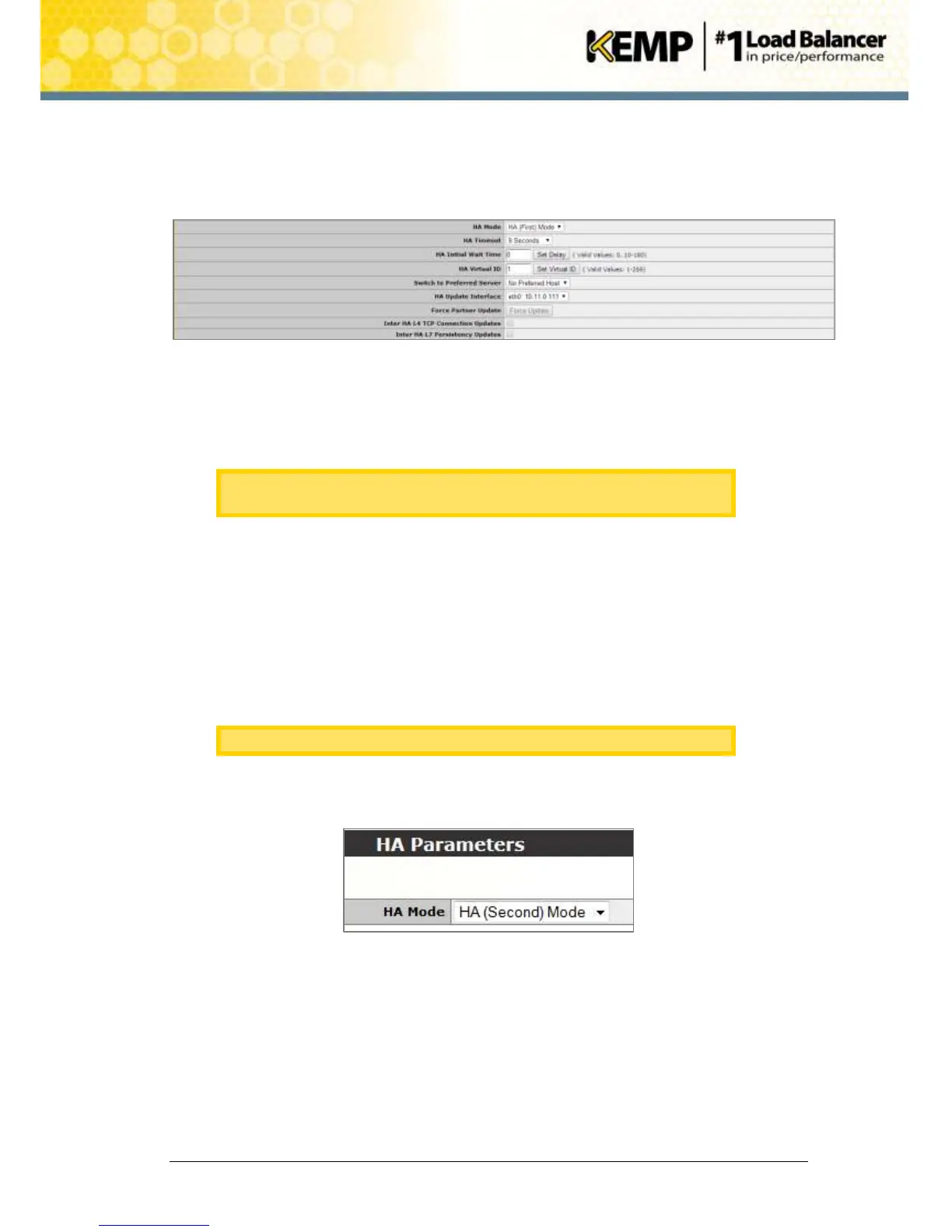
16. Go to HA Parameters in the main menu.
Figure 5-7: HA Parameters
17. Enter a different number (different from the IDs of other HA devices) in the HA Virtual
ID text box and click Set Virtual ID. Using the same ID as other HA devices may cause
problems.
KEMP highly recommends using a higher value than 10, as any other HA
device using the same ID could interfere with HA operations.
5.2 Set Up the Second Unit
Now that HA has been configured on the first unit, the second unit needs to be setup. Follow the
steps below to do this.
1. Enter the IP address of the second unit in the address bar of the browser and press
Enter.
Ensure to enter https:// before the IP address.
2. In the main menu, select the System Configuration > Miscellaneous Options > HA
Parameters option
Figure 5-8: HA Parameters screen
3. Select HA (Second) Mode as the HA Mode.


 To Next Page