EasyManua.ls Logo

Kenwood KMM-BT325 - User Manual

Kenwood KMM-BT325
140 pages
Print Icon
To Next Page IconTo Next Page
Loading...
Data Size: B6L (182 mm x 128 mm)
Book Size: B6L (182 mm x 128 mm)
For your records
Record the serial number, found on the back of the unit, in the spaces designated on the warranty card, and in the space provided below. Refer to the model and serial
numbers whenever you call upon your Kenwood dealer for information or service on the product.
Model KMM-BT525HD/KMM-X503/KMM-BT325U/KMM-BT325/KMM-BT250U/KMM-BT225U/KMR-M325BT
Serial number
US Residents Only
Register Online
Register your Kenwood product at http://www.kenwood.com/usa/
B5A-2605-00 (KN)© 2018 JVC KENWOOD Corporation
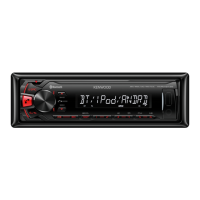
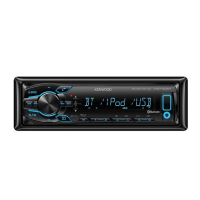
KMM-BT525HD
KMM-X503
KMM-BT325U
DIGITAL MEDIA RECEIVER
INSTRUCTION MANUAL
RÉCEPTEUR MULTIMÉDIA NUMÉRIQUE
MODE D’EMPLOI
RECEPTOR DE MEDIOS DIGITALES
MANUAL DE INSTRUCCIONES
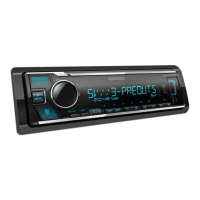
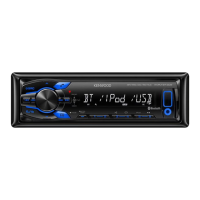
KMM-BT325
KMM-BT250U
KMM-BT225U
KMR-M325BT
JS_KWD_KMM_BT525HD_KN_C.indd 1JS_KWD_KMM_BT525HD_KN_C.indd 1 7/11/2018 10:44:51 AM7/11/2018 10:44:51 AM


Questions and Answers

  • A
    Andrew GriffinAug 15, 2025
    What to do if the Kenwood Car Receiver source does not change to USB?
    • A
      Alicia WilsonAug 15, 2025
      If the Kenwood Car Receiver source doesn't switch to USB when you connect a USB device, turn off the power, unplug the USB device, then turn the power back on and reattach the USB device.
  • J
    Jennifer BrightAug 18, 2025
    Why is my iPod/iPhone not working with my Kenwood KMM-BT325?
    • K
      kyle60Aug 18, 2025
      If your iPod/iPhone isn't turning on or working with the Kenwood Car Receiver, check the connection between the unit and your device. If that doesn't work, disconnect and reset your iPod/iPhone using a hard reset.
  • J
    jenniferrodriguezAug 21, 2025
    How to fix “iPod ERROR” on Kenwood KMM-BT325 Car Receiver?
    • L
      Latoya StewartAug 22, 2025
      If “iPod ERROR” appears on the Kenwood Car Receiver, try reconnecting the iPod. If the issue persists, reset the iPod.
  • R
    Robert Collins Jr.Aug 25, 2025
    Why does “LOADING” appear when I enter search mode on my Kenwood KMM-BT325?
    • S
      Stephanie WilkersonAug 26, 2025
      If “LOADING” appears when you enter search mode on your Kenwood Car Receiver, the unit is still preparing the iPod/iPhone music list. Allow some time to load and try again later.
  • H
    Hailey WangAug 28, 2025
    How to fix “HF ERROR XX” or “BT ERROR” on Kenwood KMM-BT325?
    • M
      Michael ReyesAug 28, 2025
      If “HF ERROR XX” or “BT ERROR” appears on the Kenwood Car Receiver, reset the unit and try the operation again.
  • V
    Vickie CurrySep 1, 2025
    What does “USB HUB IS NOT SUPPORTED” mean on my Kenwood Car Receiver?
    • O
      Olivia MeltonSep 1, 2025
      The Kenwood Car Receiver does not support a USB device connected via a USB hub, if “USB HUB IS NOT SUPPORTED” appears.
  • L
    Linda WallaceSep 4, 2025
    Why is the elapsed playing time not correct on my Kenwood KMM-BT325 Car Receiver?
    • J
      Jessica DeanSep 4, 2025
      The elapsed playing time on the Kenwood Car Receiver depends on the earlier recording process.
  • T
    Timothy PinedaSep 7, 2025
    Why is the playback order not as intended on my Kenwood Car Receiver?
    • R
      Ryan SnowSep 8, 2025
      The playback order on the Kenwood Car Receiver is determined by the order in which the file names were recorded (USB).
  • A
    amanda01Sep 12, 2025
    What to do if “ERROR” appears on Kenwood KMM-BT325?
    • M
      mcleanjamesSep 12, 2025
      If “ERROR” appears during operation on the Kenwood Car Receiver, try the operation again.

Summary

BEFORE USE

Product Safety Warnings

Important warnings and cautions for safe operation and handling.

BASICS

GETTING STARTED

Initial Setup Procedure

Steps for initial setup: language, clock, date, and basic settings.

HD Radio Tuner Operation

RADIO Operation

Station Search and Tuning

How to find and tune AM/FM radio stations and save favorites.

USB, iPod, and Android Connectivity

Source Selection and Playback

Connecting and playing audio from USB, iPod, and Android devices.

Pandora App Integration

Pandora App Setup and Use

Preparation and steps to start listening to Pandora.

iHeartRadio App Integration

iHeartRadio App Setup and Use

Preparation and steps to start listening to iHeartRadio.

Spotify App Integration

Spotify App Setup and Use

Preparation and steps to start listening to Spotify.

SiriusXM Radio Setup

SiriusXM Subscription and Activation

Connecting the tuner, checking Radio ID, and activating the subscription.

SiriusXM Listening Guide

How to select categories and channels for listening.

BLUETOOTH Connectivity

Bluetooth Device Pairing

Steps to pair a Bluetooth device with the unit for the first time.

BLUETOOTH Mobile Phone Operations

Automatic Bluetooth Pairing

Auto-pairing procedure for iPhone/iPod touch via USB.

Mobile Phone Call Management

Handling incoming and outgoing calls via Bluetooth.

BLUETOOTH Audio and Voice Quality

Making and Receiving Calls

Procedures for making calls and setting auto-answer.

BLUETOOTH Settings and Testing

Bluetooth Device Management

Connecting, disconnecting, deleting, and initializing Bluetooth devices.

BLUETOOTH Audio Playback

Bluetooth Audio Player Operations

Controlling audio playback from connected Bluetooth devices.

BLUETOOTH Remote Application

KENWOOD Remote App Configuration

Setting up the Remote app for iPhone/iPod or Android devices.

AUDIO SETTINGS

Equalizer Control Options

Adjusting manual, preset, and graphic equalizer settings.

AUDIO SETTINGS

Digital Time Alignment Setup

Adjusting speaker time delay for optimal sound staging.

DISPLAY SETTINGS

DISPLAY SETTINGS

REFERENCES

TROUBLESHOOTING

General and Radio Troubleshooting

Common issues and solutions for general unit and radio operation.

TROUBLESHOOTING

INSTALLATION AND CONNECTION

Installation Safety and Parts

Safety warnings, precautions, and list of installation parts.

INSTALLATION AND CONNECTION

Wiring Connections Guide

Detailed guide for connecting the unit's wiring harness.

INSTALLATION AND CONNECTION

SPECIFICATIONS

Kenwood KMM-BT325 Specifications

General IconGeneral
BluetoothYes
USB PortYes
Aux InputYes
Radio TunerAM/FM
Display TypeLCD
DIN SizeSingle DIN
Faceplate SecurityDetachable
Subwoofer ControlYes
Remote ControlYes
Built-in MicrophoneYes
Compatible FormatsMP3, WMA, WAV, FLAC
Preamp Outputs2 (Front + Rear)
RMS Power Output22W x 4
Steering Wheel ControlYes
Dimensions178mm x 50mm x 159mm

Related product manuals