
 To Next Page
J
Jason ButlerSep 23, 2025
What does “SWITCHING NG” mean on Kenwood Receiver?
- AAntonio BlanchardSep 23, 2025
If your Kenwood Receiver displays “SWITCHING NG”, it indicates that the connected phones might not support the phone switching feature.

What does “SWITCHING NG” mean on Kenwood Receiver?
If your Kenwood Receiver displays “SWITCHING NG”, it indicates that the connected phones might not support the phone switching feature.
What to do if Kenwood Receiver says “UNSUPPORTED DEVICE”?
If the message “UNSUPPORTED DEVICE” appears on your Kenwood Receiver, verify that the connected USB device is compatible with the unit and that the file systems are in a supported format. You can also try reattaching the USB device.
Why my iPod/iPhone does not work with Kenwood Receiver?
If your iPod/iPhone doesn't turn on or isn't working with your Kenwood Receiver, check the connection between the unit and your device. You can also try disconnecting and resetting your iPod/iPhone using a hard reset.
What does “UNRESPONSIVE DEVICE” mean on Kenwood Receiver?
If the message “UNRESPONSIVE DEVICE” appears on your Kenwood Receiver, make sure the USB device is functioning correctly and then reattach it.
Why is Bluetooth sound interrupted on my Kenwood Receiver?
If you are experiencing interrupted or skipped sound during Bluetooth playback on your Kenwood Receiver, try the following: * Reduce the distance between the unit and the Bluetooth audio player. * Turn the unit off and then on, and try to connect again. * Ensure that other Bluetooth devices are not trying to connect to the unit.
How to improve phone sound quality on Kenwood Receiver?
If the phone sound quality is poor when using your Kenwood Receiver, try reducing the distance between the unit and the Bluetooth device. You might also need to move your car to a location with better signal reception.
Why Bluetooth pairing cannot be made on Kenwood Receiver?
If you are unable to make a Bluetooth pairing with your Kenwood Receiver, make sure you have entered the same PIN code on both the unit and the Bluetooth device. If the problem persists, delete the pairing information from both devices and perform the pairing again.
What does “MEMORY FULL” mean on Kenwood Receiver?
If your Kenwood Receiver displays “MEMORY FULL”, it means you have reached the maximum storage limit of your iPod/iPhone.
What does “USB HUB IS NOT SUPPORTED” mean on Kenwood Receiver?
If the message “USB HUB IS NOT SUPPORTED” appears on your Kenwood Receiver, it means that the unit cannot support a USB device connected via a USB hub.
Why connected Bluetooth audio player cannot be controlled on Kenwood Receiver?
If the connected Bluetooth audio player cannot be controlled with your Kenwood Receiver, check whether the connected Bluetooth audio player supports Audio/Video Remote Control Profile (AVRCP). You can also try disconnecting and reconnecting the Bluetooth player.
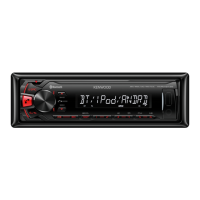
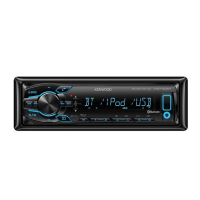
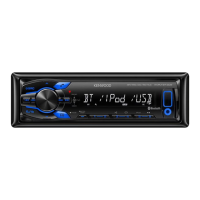
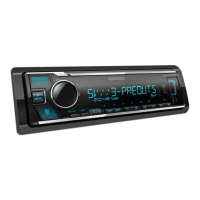
Lists the supported Kenwood KMM digital media receiver models: KMM-BT358, KMM-BT309, KMM-BT209.
Identifies JVCKENWOOD Corporation as the manufacturer of the product.
Guidelines for recycling old electrical products and batteries according to local regulations.
Specific instructions for waste disposal of electronic equipment and batteries in Israel.
Statements confirming compliance with EU Radio Equipment (RE) and RoHS directives.
Contact information for JVCKENWOOD Corporation and its EU representative.
Formal declaration of conformity with the EU Radio Equipment Directive in multiple languages.
Statement of compliance with UK statutory requirements for radio equipment.
Details the terms and conditions for using the embedded licensed software.
Specifies conditions for transferring the product and its embedded software license.
Obligation to destroy the licensed software and related documents upon agreement termination.
Copyright and licensing information for third-party software embedded in the product.
Terms and conditions of the MIT License for included software.
License agreement for the nanopb software library.
Details regarding the use of T-Kernel 2.0 source code under T-License 2.0.
Terms and conditions for software distributed under the BSD-3-Clause license.
Key warnings and cautions for safe operation and maintenance of the product.
Critical safety warning regarding coin cell battery ingestion and handling.
Identifies the main components and controls on the unit's faceplate.
How to turn on the unit, adjust volume, and select audio sources.
Overview of the remote control functions and initial setup steps.
Guide for setting the display language and disabling the demo mode.
Detailed instructions for configuring the unit's clock and date settings.
How to access and adjust system settings like source selection and key beep.
Steps to select and configure the crossover type for speakers.
Procedure for choosing the preferred language for the unit's interface.
Methods for finding and tuning into radio stations using the unit or remote.
Using the remote control to directly input station frequencies.
Adjusting Traffic Info (TI), Program Type (PTY), Clock Sync, and other radio features.
Instructions for connecting USB storage devices for playback.
How to play, pause, skip tracks, and select files/folders from USB or iPod.
Choosing the specific storage drive when multiple are connected via USB.
Navigating and selecting audio files from connected USB or iPod devices.
Methods for quickly finding files using search and skip functionalities.
Instructions for connecting and listening to audio from an external player via AUX.
Customizing the label for the connected external audio device.
Steps for installing and connecting the KENWOOD Remote app via Bluetooth or USB.
Details on Bluetooth profiles (HFP, A2DP) and codecs (SBC, AAC) supported by the unit.
Guide for pairing a new Bluetooth-enabled device with the unit.
How to receive and manage incoming phone calls.
Detailed steps for answering, rejecting, ending calls, and managing multiple calls.
Adjusting microphone gain, noise reduction, and echo cancellation for calls.
Instructions for making calls using call history, phonebook, or number dialing.
Accessing the phonebook, searching contacts, and viewing call history.
Using voice commands for calls and storing contacts in memory.
Managing paired devices, PIN codes, and auto-pairing settings.
Steps to select Bluetooth audio source and start playback.
Controls for playback, track selection, and folder browsing for Bluetooth audio.
Specific instructions for listening to iPod/iPhone audio over Bluetooth.
Accessing the main audio settings menu for sound adjustments.
Detailed control over equalizer bands (62.5Hz to 16kHz) for custom sound profiles.
Adjusting bass boost, loudness, and subwoofer output levels.
Selecting speaker sizes and basic crossover settings (2-way and 3-way).
Fine-tuning crossover frequencies, slopes, and gain levels for speakers.
Configuring speaker delay times for optimal sound staging.
Method to automatically calculate speaker delay times based on distance.
Customizing illumination colors for different zones and adjusting brightness.
Controlling the display dimmer, including on/off times.
Adjusting day/night brightness, text scrolling behavior, and clock display.
List of included parts and step-by-step guide for installing the unit.
Instructions on how to detach the main unit using extraction keys.
Wiring guidance for connecting external amplifiers to the unit's output terminals.
Specific wiring instructions for vehicles with ISO connectors.
Advice on using custom harnesses for vehicles without ISO terminals.
How to clean the unit's faceplate and connectors properly.
Information on USB device compatibility and iPod/iPhone usage.
How to cycle through different information displayed on the screen.
Solutions for common issues like no sound, incorrect display, or poor radio reception.
Resolving problems with USB device detection, playback, and iPod/iPhone errors.
Diagnosing and fixing errors related to Bluetooth pairing, phone control, and USB playback.
Detailed technical data for FM reception sensitivity and USB standards.
Technical details on Bluetooth version, frequency range, output power, and profiles.
Specifications for auxiliary input, audio output power, impedance, and unit dimensions.
 General
| Brand | Kenwood |
|---|---|
| Model | KMM-BT358 |
| Category | Car Receiver |
| Language | English |