16
Pressing the right scroll button from any Current
Measurement Screen will open the Min/Avg/Max Screen.
The capture process is linked for all measurement screens,
capturing Min/Avg/Max values on one measurement
screen will capture Min/Avg/Max values over the same
time period for all measurements. Each new Min/Avg/Max
capture overwrites the previously captured value from all
measurements.
CAPTURING MIN/AVG/MAX VALUES:
» Scroll to the Min/Avg/Max Screen of the desired
measurement. This can be done by scrolling right from
the desired Current Measurement Screen or scrolling
vertically from another measurement’s Min/Avg/Max
Screen.
» Press Select to Start a new Min/Avg/Max capture.
» Press Select to Stop the capture time period and view
Min, Avg, and Max values.
» Press Select to Clear the Min/Avg/Max values.
USING MIN/ AVG/ MAX
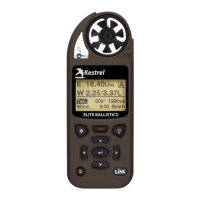
If your Kestrel is marked LiNK on the bottom front label,
it can be connected wirelessly to other LiNK-compatible
devices. LiNK is powered by Bluetooth Smart®, also known
as Bluetooth® LE, which is available in most iOS devices
released after 2014 and Android devices released after
2015, as well as in a USB Dongle available from Kestrel
that supports connectivity to Windows and Mac OS
devices. LiNK-enabled Kestrel units can connect to mobile
devices running Kestrel LiNK to install rmware updates.
LiNK-enabled units can can be run wirelessly to computers
using the Kestrel Dongle.
CONNECTING TO A COMPUTER, MOBILE PHONE OR
TABLET:
» On your phone or tablet, follow the links at
to locate Kestrel LiNK
for iOS or Android in the App or Play store and install
on your mobile device.
OR
» On your computer, follow the links at
and install on your
computer. Insert your Kestrel USB Dongle (available
separately) into an open USB port.
» On the Kestrel, open the Options Menu and select
Bluetooth. Set Bluetooth to On.
» On your Kestrel select Conct from the Bluetooth
Options menu and set to PC/Mobile. In PC/Mobile
mode, the Kestrel’s Status will change to Available,
indicating that it is available for pairing with a
computer or mobile device.
CONNECTING TO DEVICES USING LiNK
www.CanarySense.com
Shop for Gas products online at:
1.888.610.7664


 To Next Page