Quick Setup Guide
Begin with KD-CAMUSB, the Host Computer, and any/all USB extension, switching devices turned off with
power cables removed. Ensure that all desired functionality is achieved before installing. Refer to “Mounting”
section for wall and ceiling mount instructions.
CONNECT
1. Connect KD-CAMUSB to host Computer using USB A to B cable.
a. If using Key Digital Presentation Solution system with USB, refer to setup instructions of that system
b. Connect KD-CAMUSB to a USB Device port and connect Computer to a USB Host port of the Key
Digital Presentation System
c. Ensure that Key Digital Presentation Switcher has correct USB Mode selected using the slide switch
on the Presentation Switcher unit.
2. BEFORE connecting power supply to power outlet, secure power into KD-CAMUSB’s screw connector
3. Power on KD-CAMUSB and host Computer
4. Allow time after Computer has completed boot up for USB to be recognized
CONFIRM
1. Open Camera application on Computer to confirm Camera is working well with Computer. Use camera
swap button to ensure KD-CAMUSB is being viewed instead of built-in web cam.
2. You may now use KD-CAMUSB for your Conferencing and/or Capture software.
CONTROL
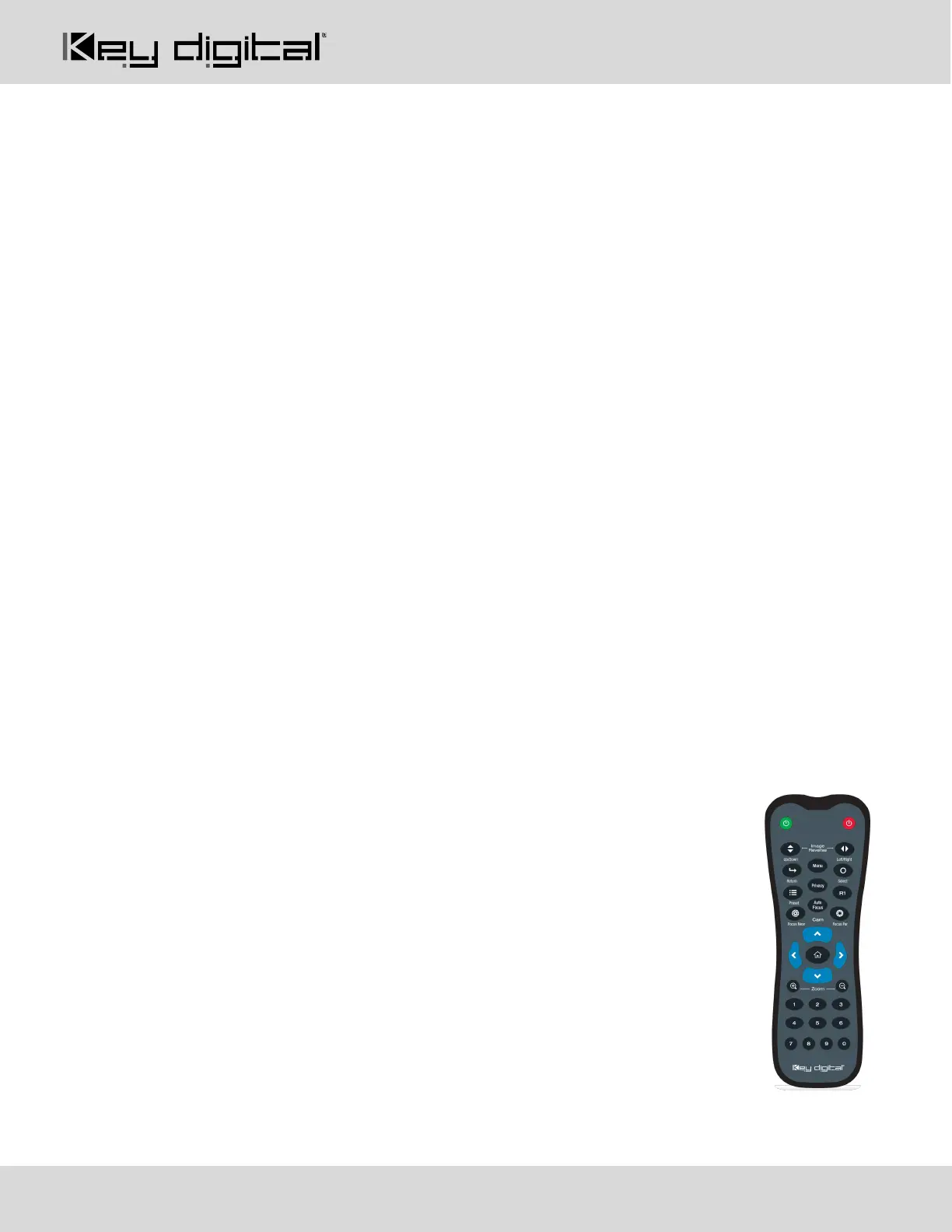
1. Use the included IR Remote to control the camera, create and call preset camera
positions.
2. If installing with a Key Digital Presentation Solution for App-Ready integration, see
“App Ready Installation with KD Presentation Switcher” section
3. Refer to full Operation Manual for RS-232 and VISCA control commands
CREATE AND CALL CAMERA PRESETS
• Save camera’s position to preset (0 - 9, Home, Privacy):
o Preset --> 0 - 9 / Home / Privacy
• Restore all Presets to default (including Home and Privacy):
o Preset --> R1 --> 1


 To Next Page