10
8. The Keychron Launcher App
The Keychron Launcher App offers advanced customization and firmware management for your
keyboard. Here’s how to utilize it:
• Access the Launcher:
Visit launcher.keychron.com using the latest version of a compatible web browser, such as
Chrome, Edge, or Opera. This web-based app provides a user-friendly interface to enhance
your keyboard’s functionality.
• Customization Options:
o Remap Keys: Reassign keys to suit your workflow or preferences.
o Create Macros: Set up complex actions with a single keypress, improving
productivity.
o Flash Firmware: Keep your keyboard updated with the latest features and fixes by
installing firmware updates directly through the Launcher.
• Connection Requirements:
To use the Launcher, your keyboard must be connected to your computer via the Type-C
cable in wired mode. Ensure your keyboard is powered on and recognized by the Launcher
for seamless operation.
• Troubleshooting:
If the Launcher cannot detect your keyboard, reach out to Keychron support for guidance.
They can provide step-by-step instructions to resolve the issue.
9. The Layers
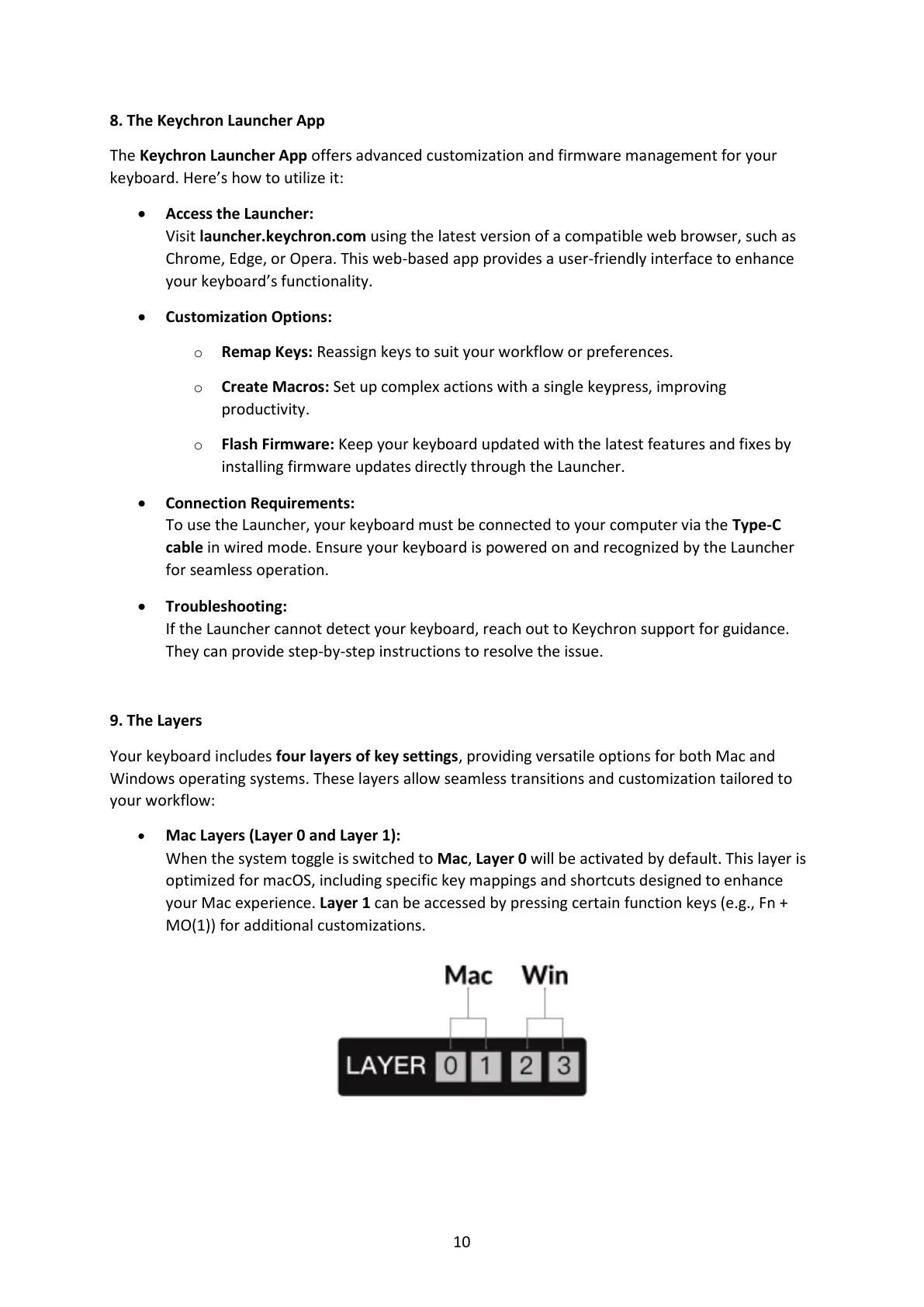
Your keyboard includes four layers of key settings, providing versatile options for both Mac and
Windows operating systems. These layers allow seamless transitions and customization tailored to
your workflow:
• Mac Layers (Layer 0 and Layer 1):
When the system toggle is switched to Mac, Layer 0 will be activated by default. This layer is
optimized for macOS, including specific key mappings and shortcuts designed to enhance
your Mac experience. Layer 1 can be accessed by pressing certain function keys (e.g., Fn +
MO(1)) for additional customizations.


 To Next Page
 Loading...